

Remote Work
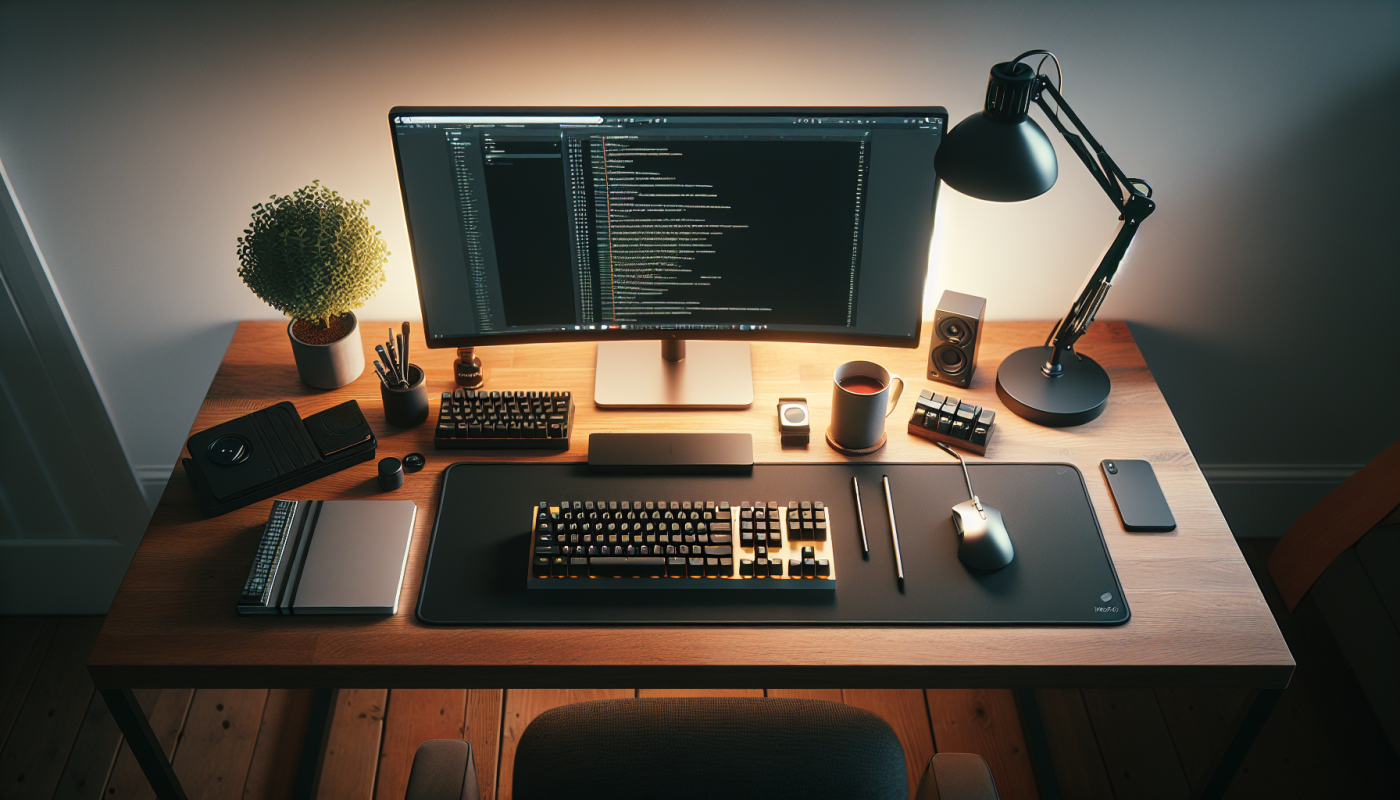
The Ultimate Remote Work Desk Setup Guide 2026
Apr
Remote work isn’t temporary anymore—it’s a lifestyle. By 2026, over 58% of knowledge workers operate hybrid or fully remote, meaning your home office has become your second headquarters. But here’s the truth: your body isn’t built for sitting at a desk 8+ hours a day, and 80% of remote workers now experience musculoskeletal discomfort. The difference between a painful, unproductive workday and one where you crush your goals comes down to one thing: your desk setup.
This guide walks you through building the ultimate remote work desk in 2026—from ergonomic fundamentals to the gadgets that actually matter, plus budget-friendly hacks that deliver 80% of the benefits for just 5% of the cost.

Part 1: Ergonomic Fundamentals (The 20% That Drives 80% of Results)
Before you buy anything, get the basics right. Research from Applied Ergonomics and the American Journal of Public Health shows that positioning beats purchasing—a rolled towel, monitor riser, and keyboard placement can eliminate back and neck pain without expensive equipment.
The 90-90-90 Rule: Your Foundation
The medical standard for ergonomic desk setup is simple: elbows, hips, and knees should each be at 90-degree angles. This is the starting point for every setup, regardless of budget.
How to achieve it:
- Elbows: Your keyboard should sit at elbow height when arms are relaxed (typically 28-30 inches from floor)
- Hips & Knees: Your feet should be flat on the floor (use a footrest if your desk is too high)
- Screen Height: Position your monitor so the top of the screen is at or slightly below eye level (about arm’s length away)
If you don’t have a standing desk yet, start here: A rolled towel for lumbar support + a monitor riser (or stack of books) + an adjustable keyboard tray costs under $50 and delivers transformational results within days.
The 20-8-2 Rule: Combat “Sitting Disease”
Even the best ergonomic setup fails if you sit still all day. Sitting disease (prolonged static posture) causes circulation problems, fatigue, and back pain. The solution is simple:
For every 30 minutes:
- Sit: 20 minutes
- Stand: 8 minutes
- Move: 2 minutes (walk, stretch, light movement)
This ratio prevents the fatigue and pain that comes from extended sitting or standing. It’s not about being productive in every minute—it’s about moving regularly.
Posture Micro-Exercises: Zero-Cost Health Wins
Three exercises require zero equipment and take 30 seconds:
- Chin Tucks (10 reps): Gently tuck your chin back to engage your deep neck muscles. Fixes forward head posture affecting 83% of desk workers.
- Shoulder Rolls (10 reps each direction): Release tension in your shoulders and upper back.
- Seated Spinal Twist (30 seconds each side): Mobilize your spine and improve circulation.
Do these every hour. They cost nothing and prevent the majority of desk-related pain.
Part 2: The Must-Have Desk Setup (Non-Negotiable Gear)
Now that you’ve optimized positioning, here’s what actually moves the needle for comfort and productivity.
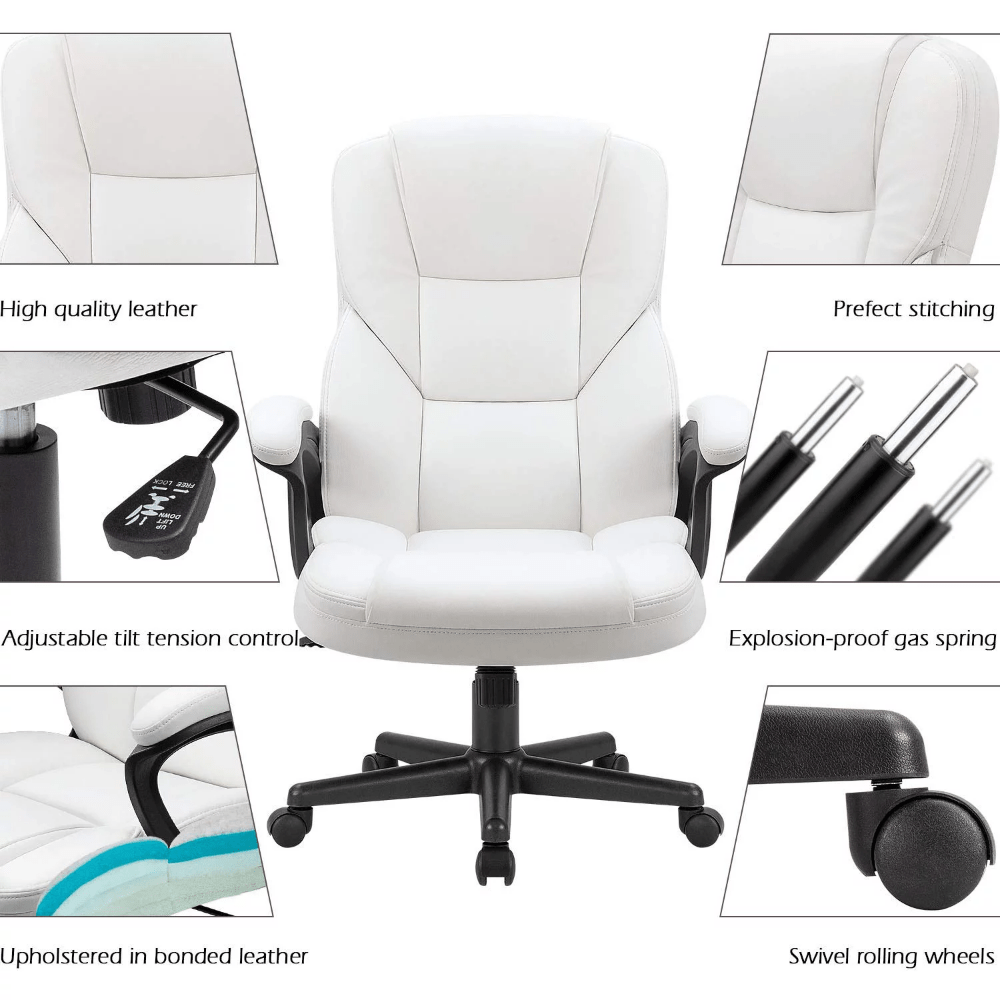
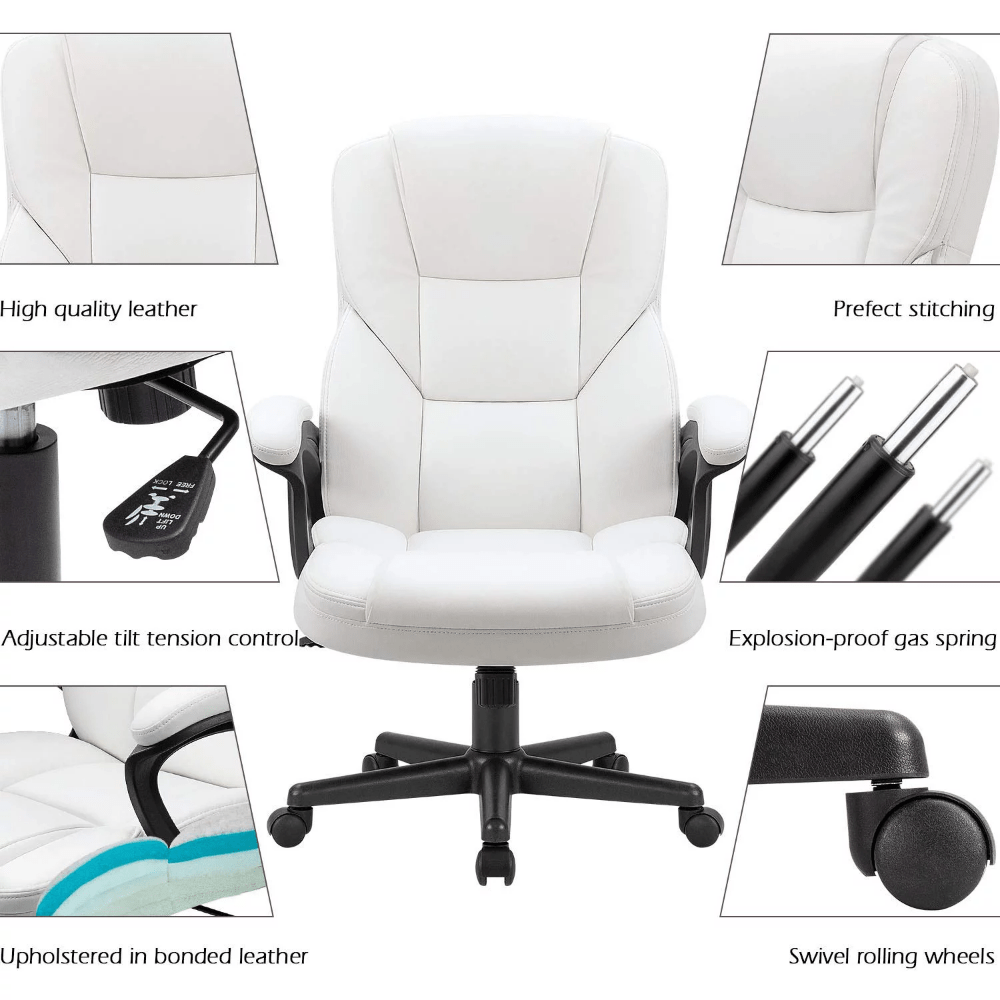
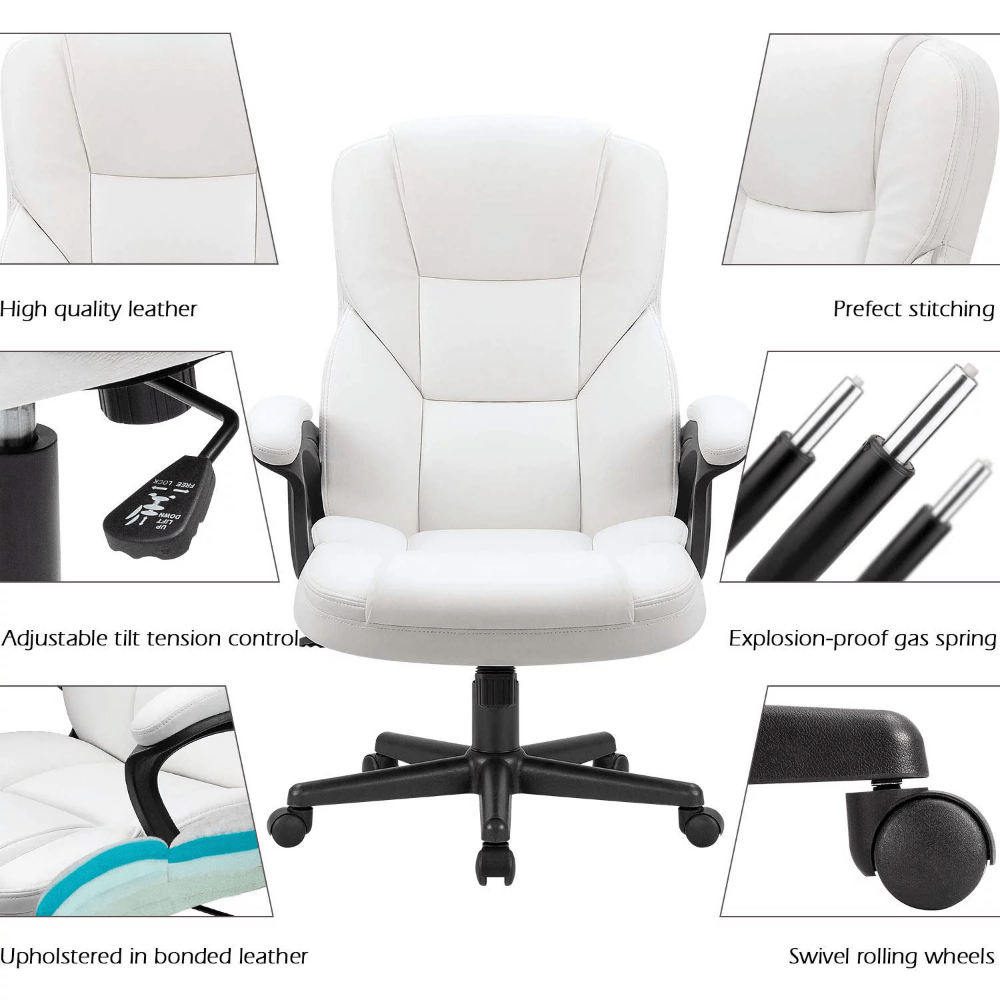
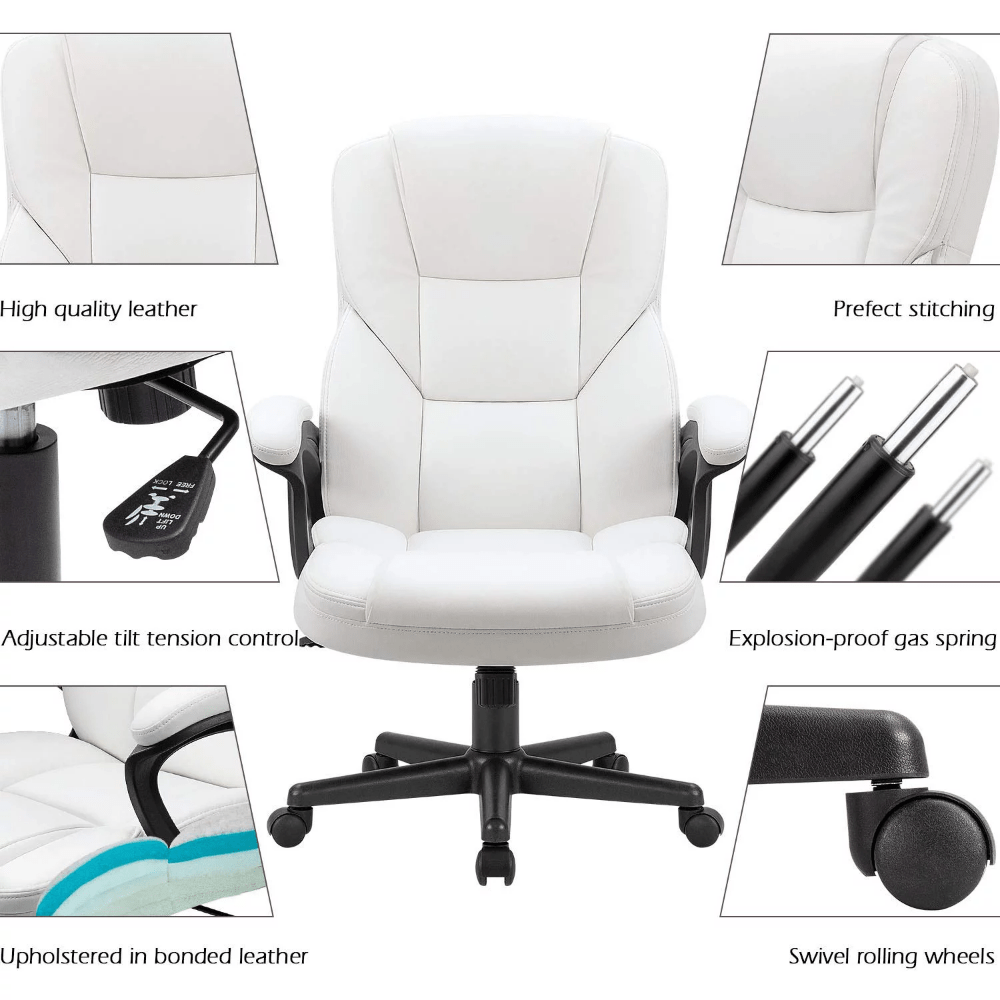
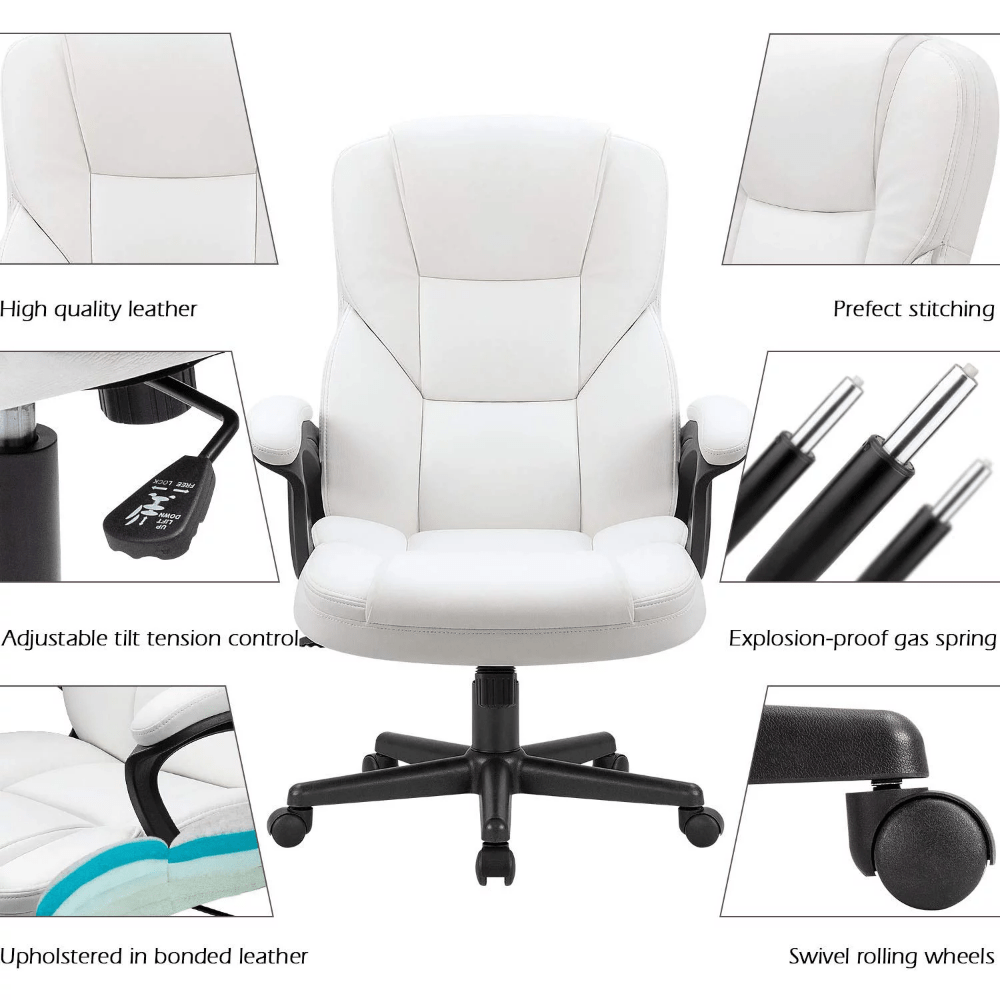
1. Ergonomic Chair with Dynamic Support
Your chair is the foundation. In 2026, the trend has moved from static, high-backed office chairs to dynamic support—furniture that encourages micro-movements throughout the day.
What to look for:
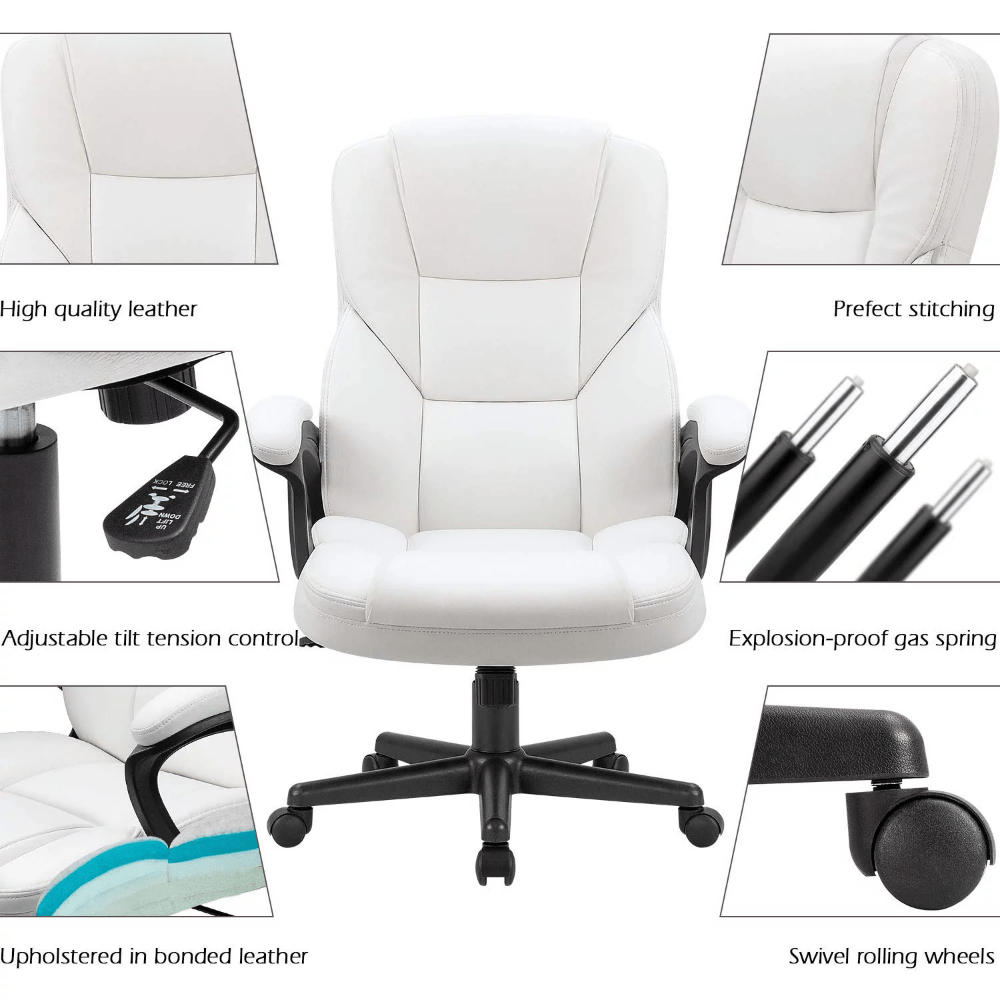
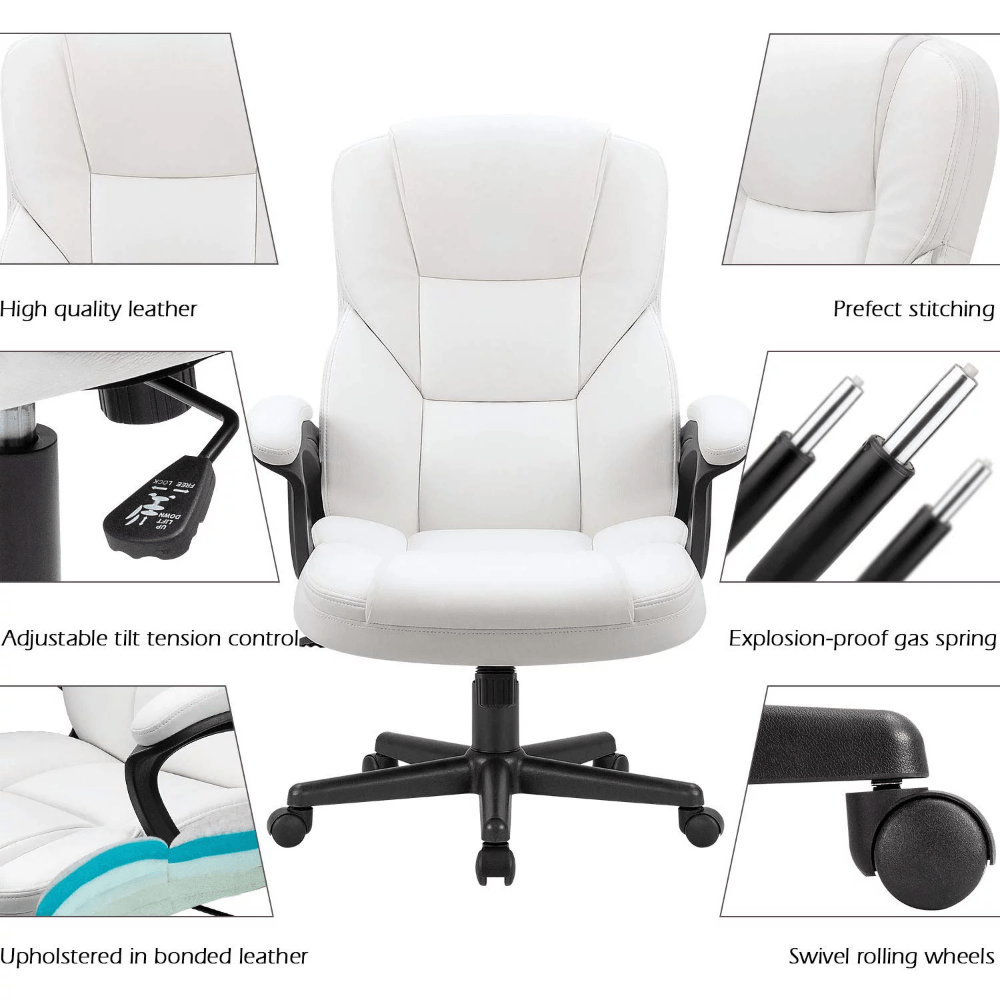
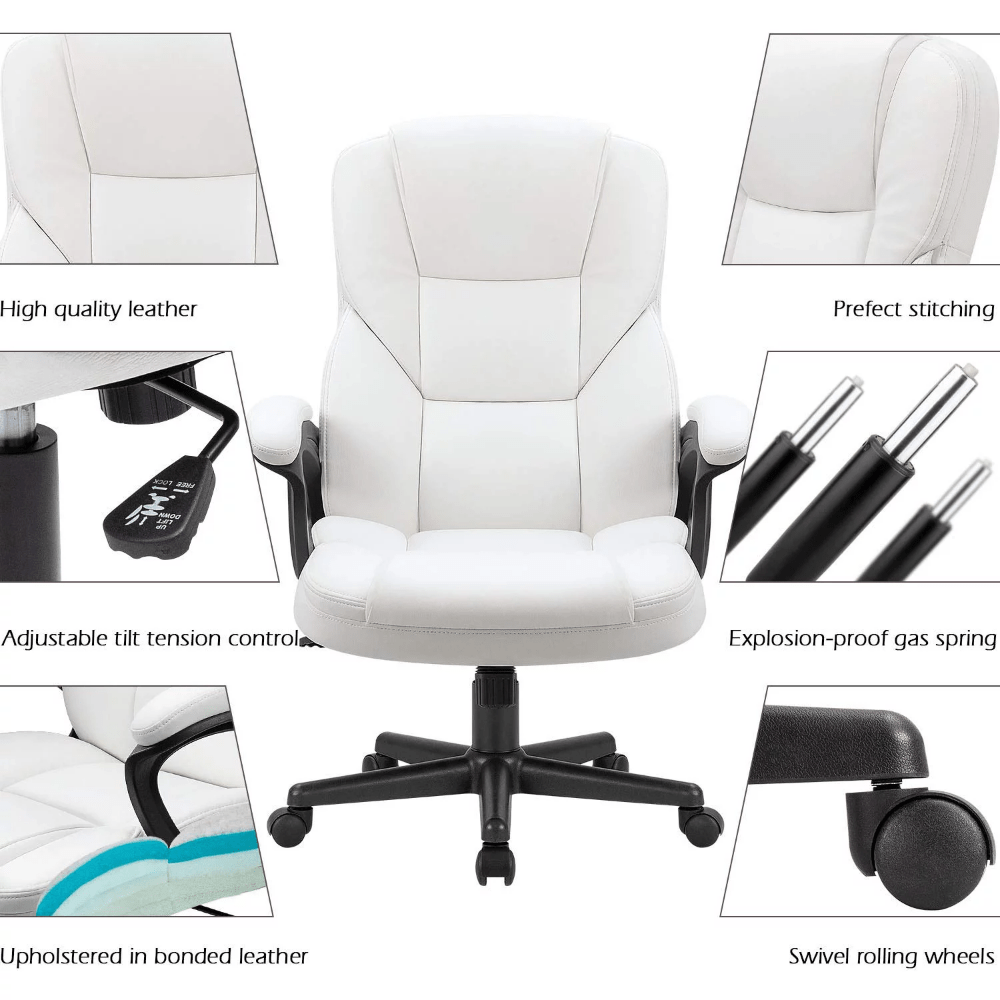
- Adjustable lumbar support (critical for lower back health)
- Seat height adjustment (so your feet rest flat on the floor)
- Adjustable armrests (to support arms at elbow height)
- Tilt mechanism (allows reclining for varied positioning)
- Breathable mesh or fabric (prevents heat buildup during long hours)
Why gaming chairs work: Many WFH professionals are switching to gaming chairs from established brands. While it sounds odd, these typically provide superior lumbar support and a reclining feature that traditional office chairs lack—plus they’re often $100-200 cheaper for similar quality.
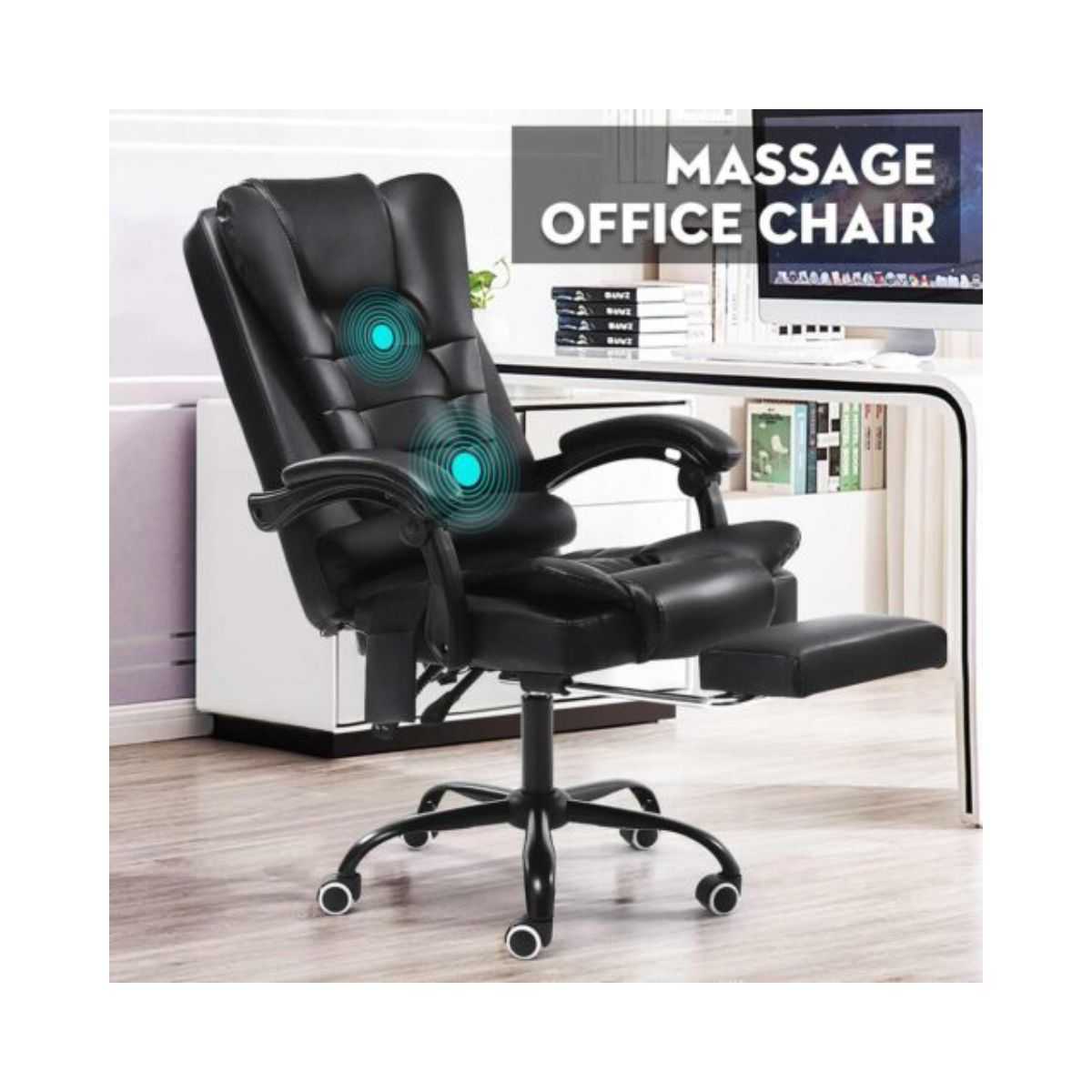
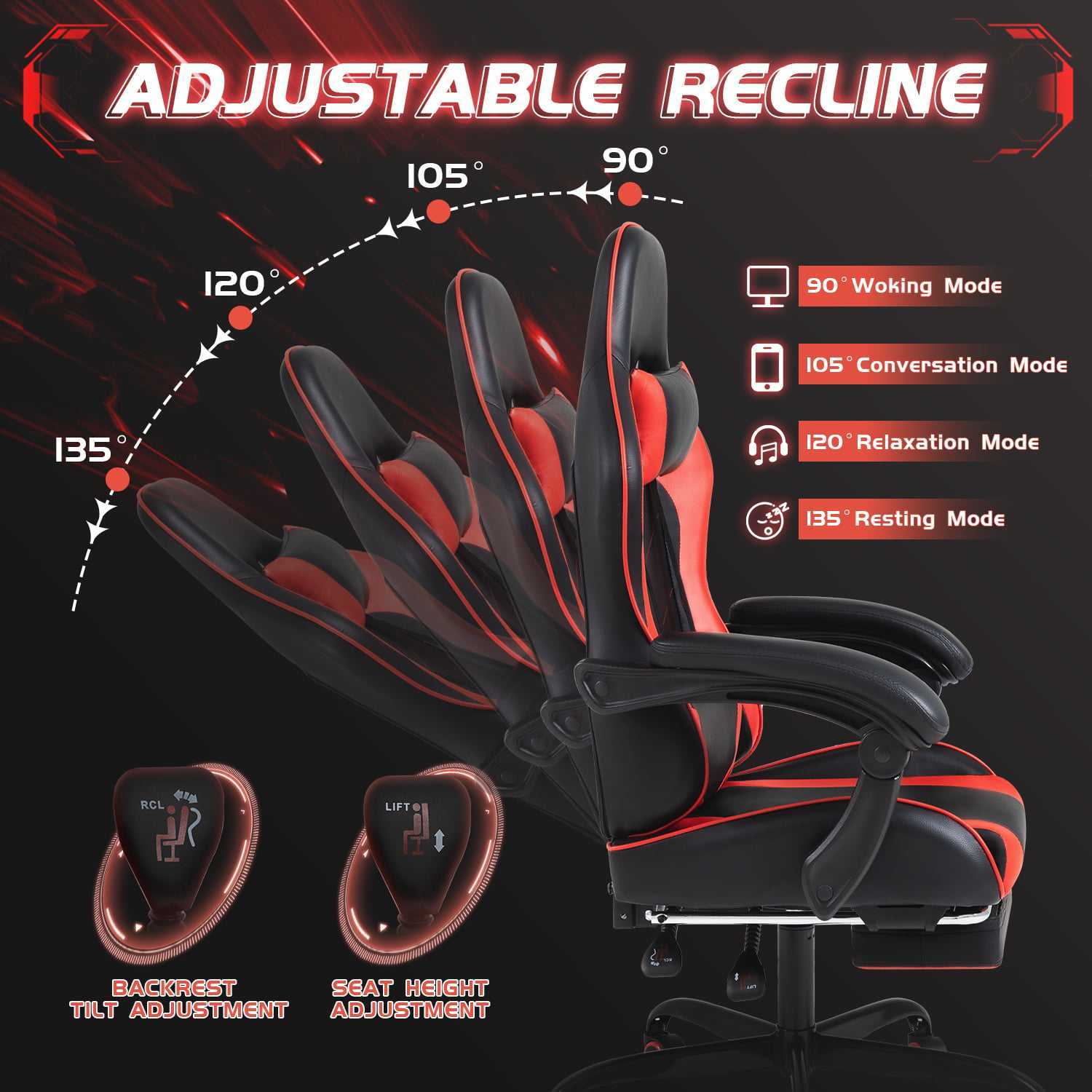
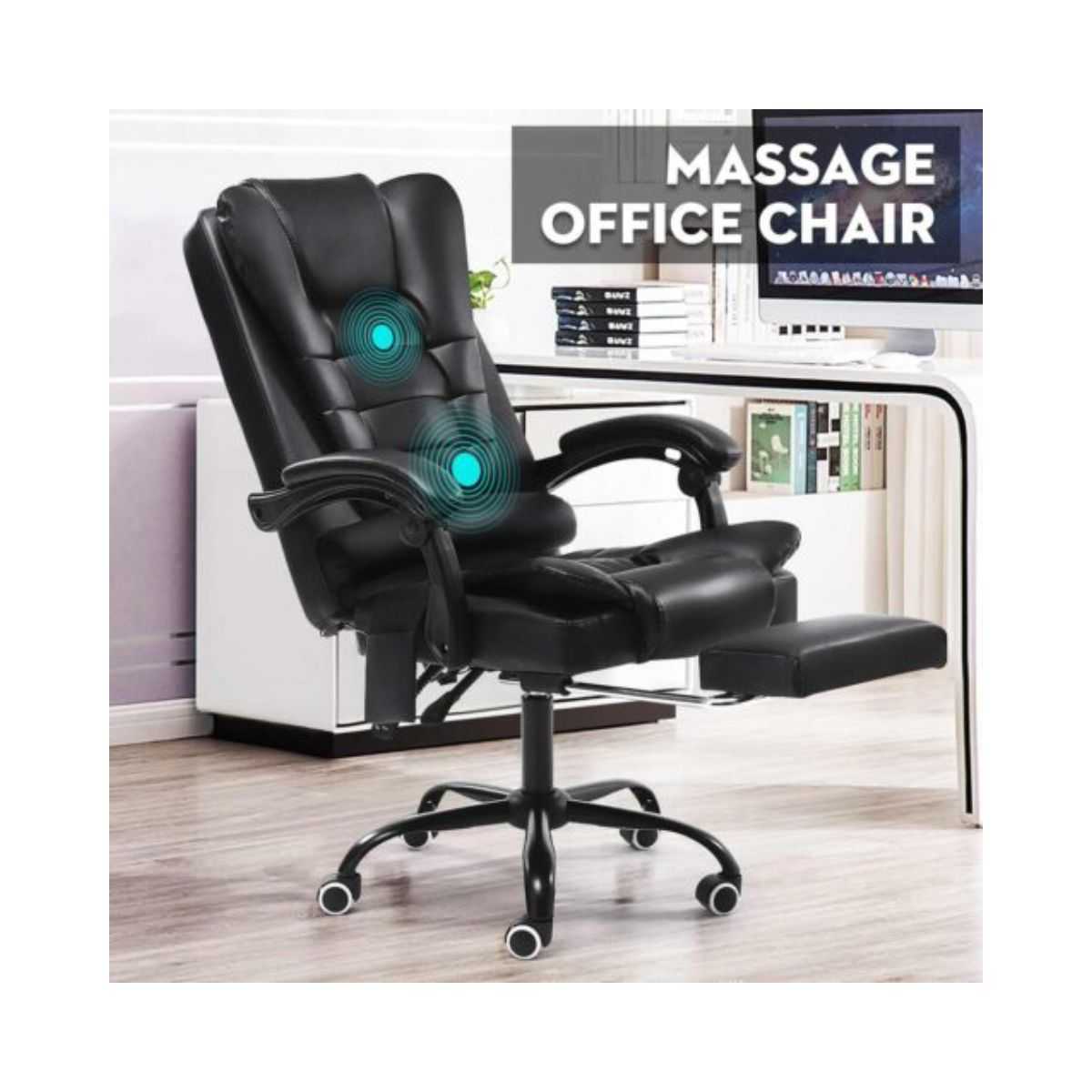
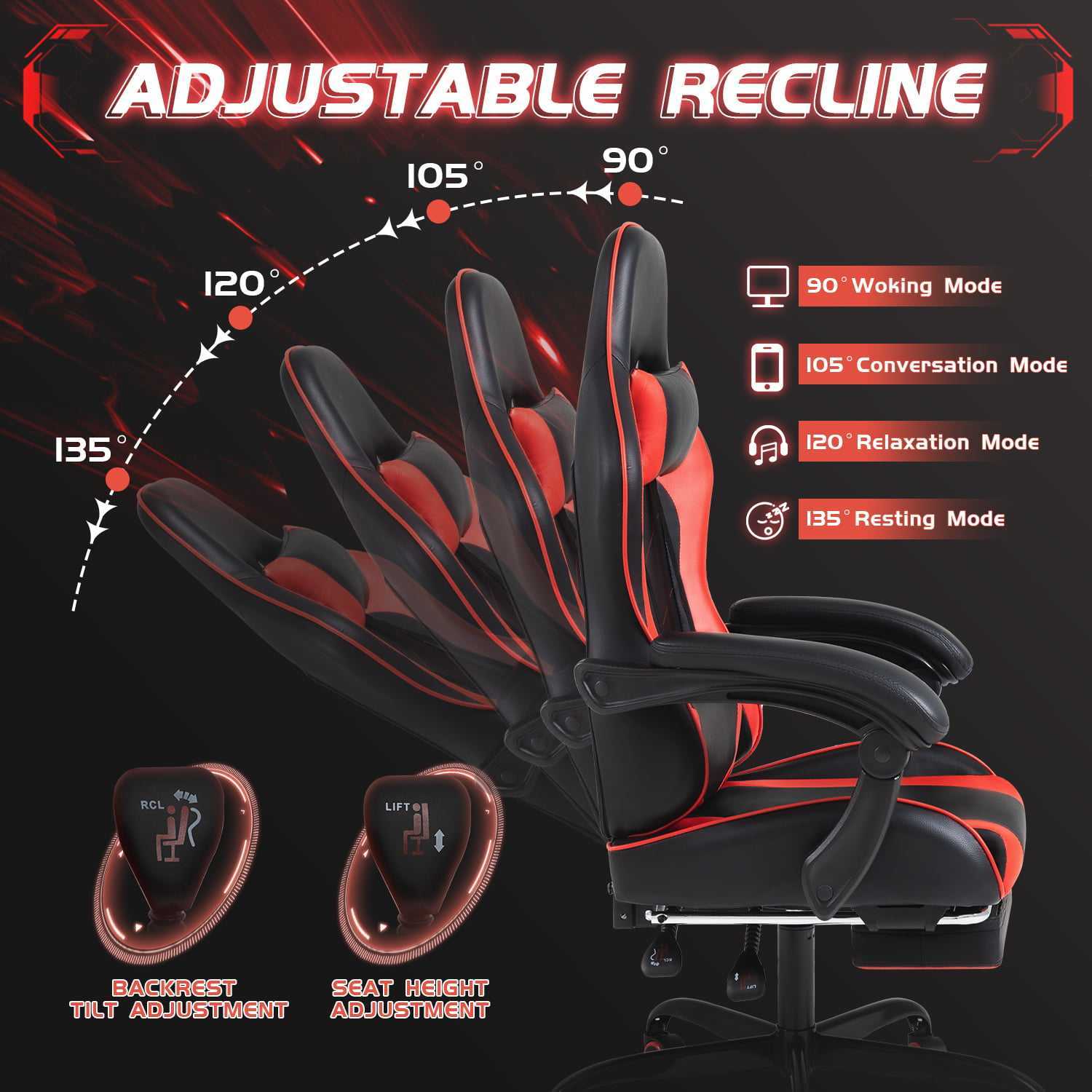
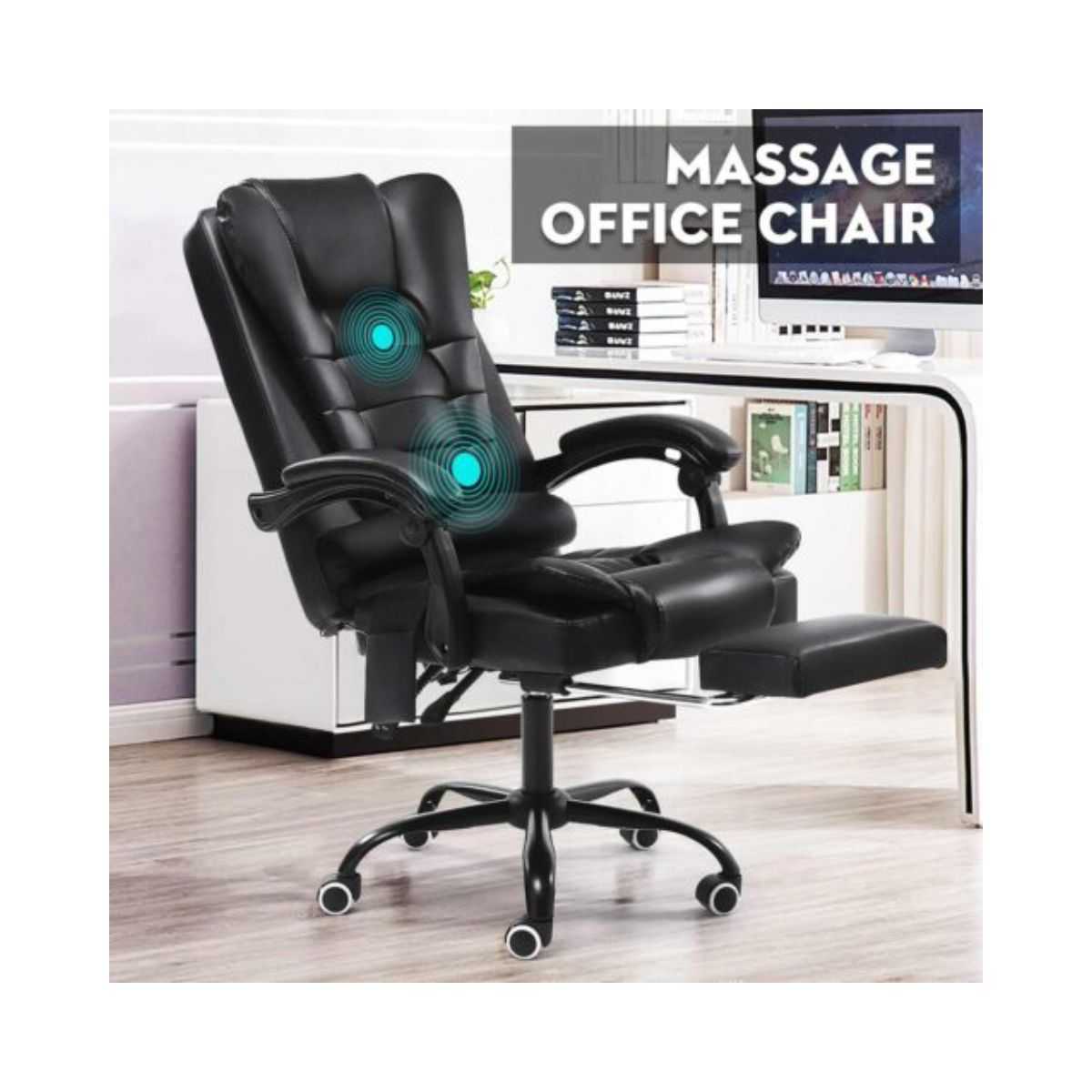
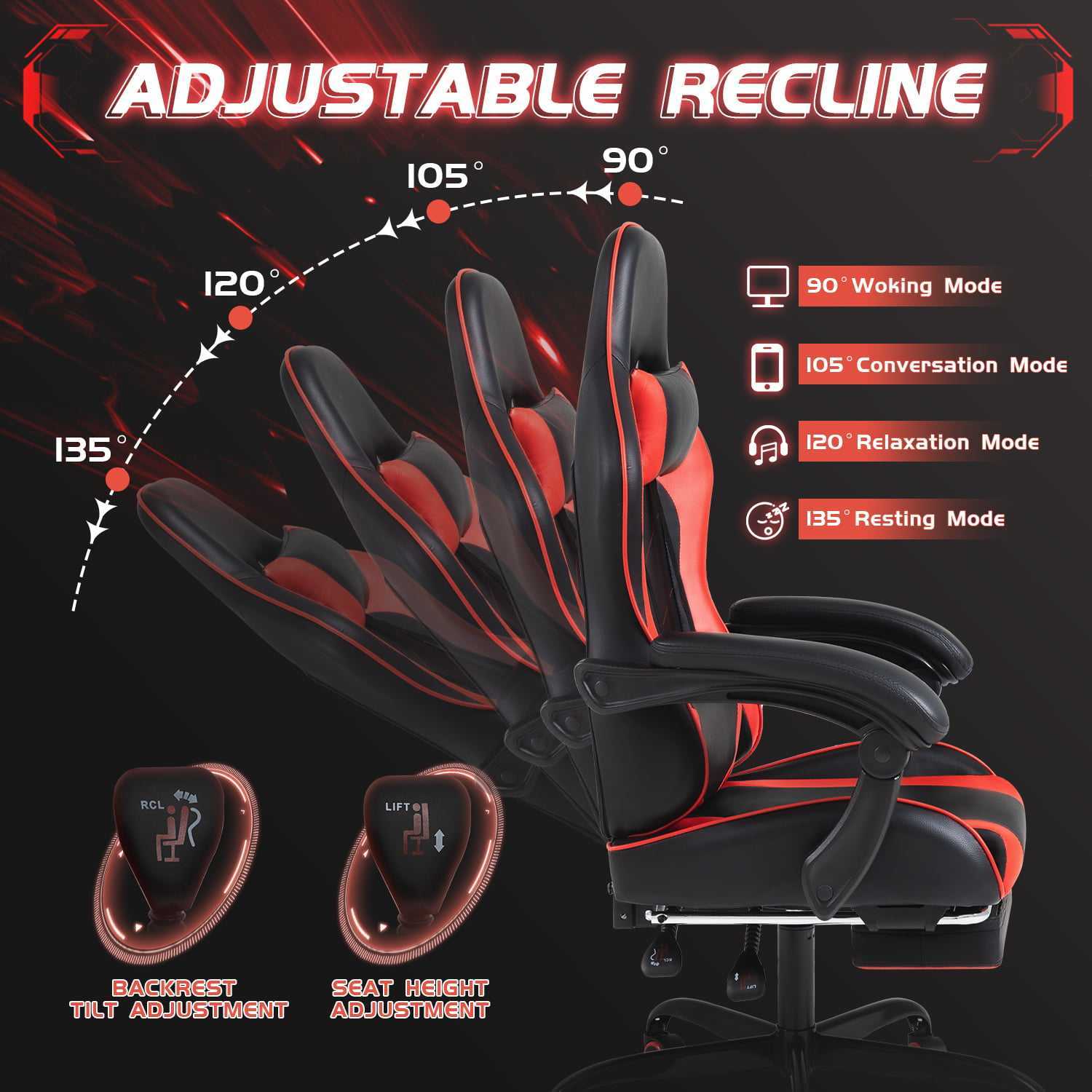
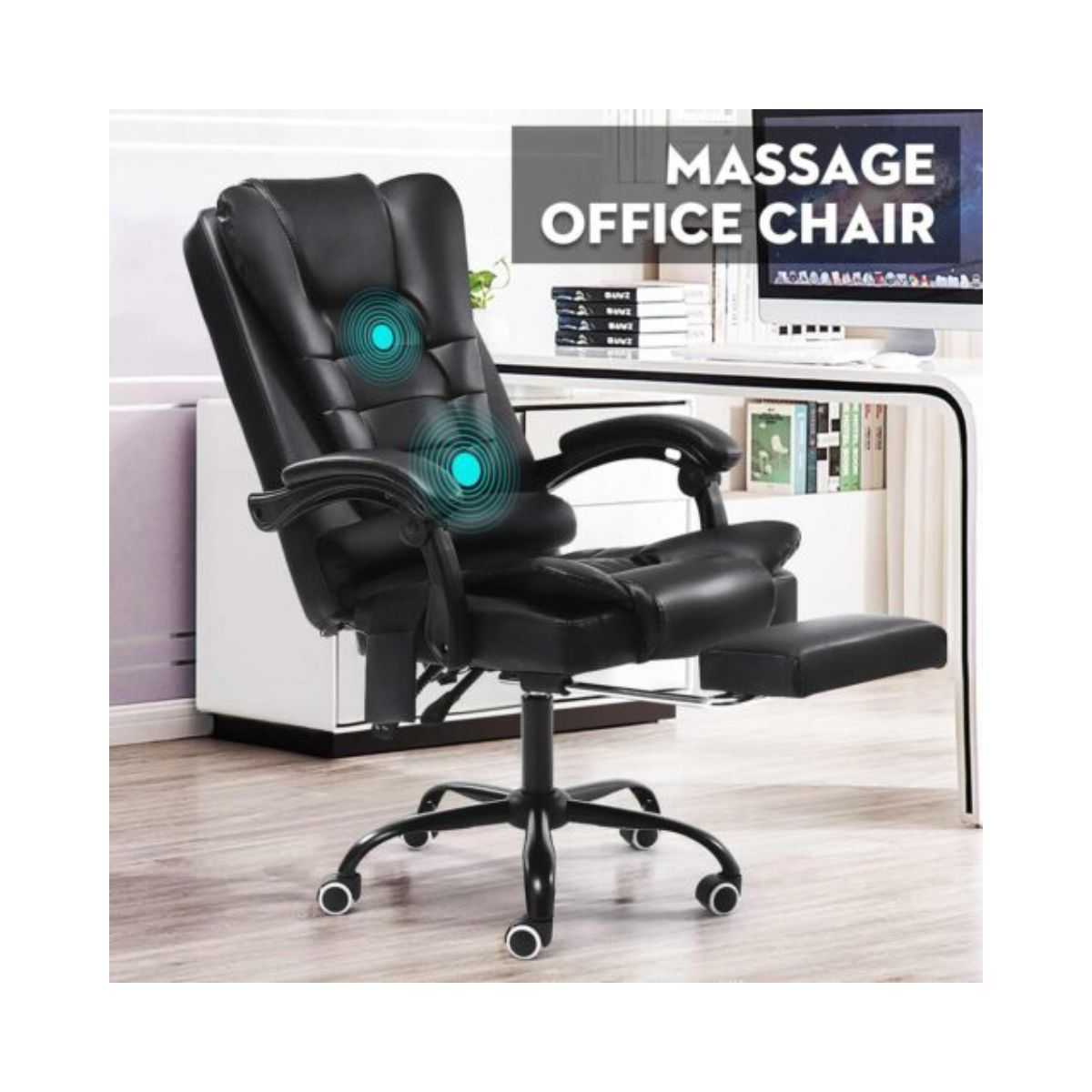
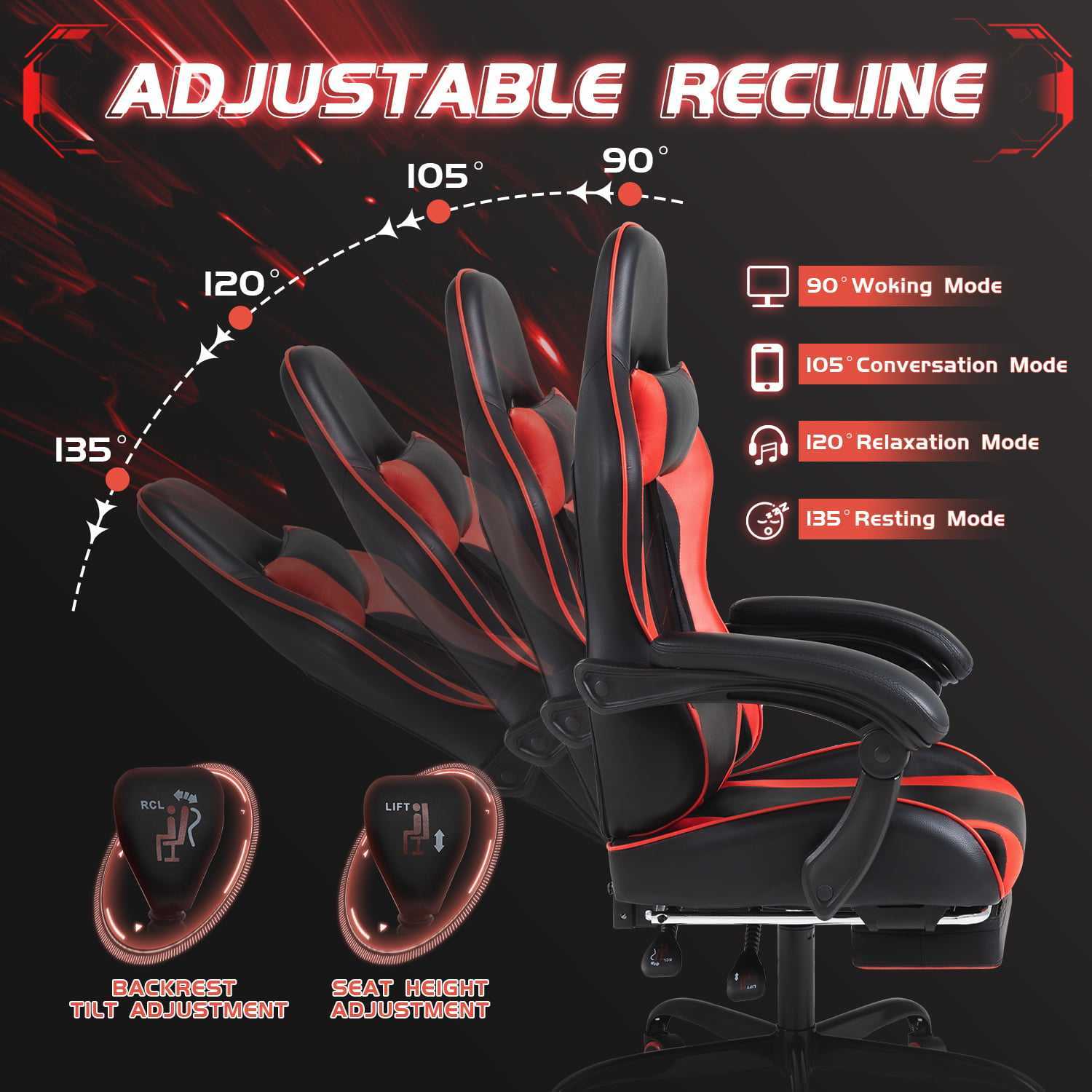
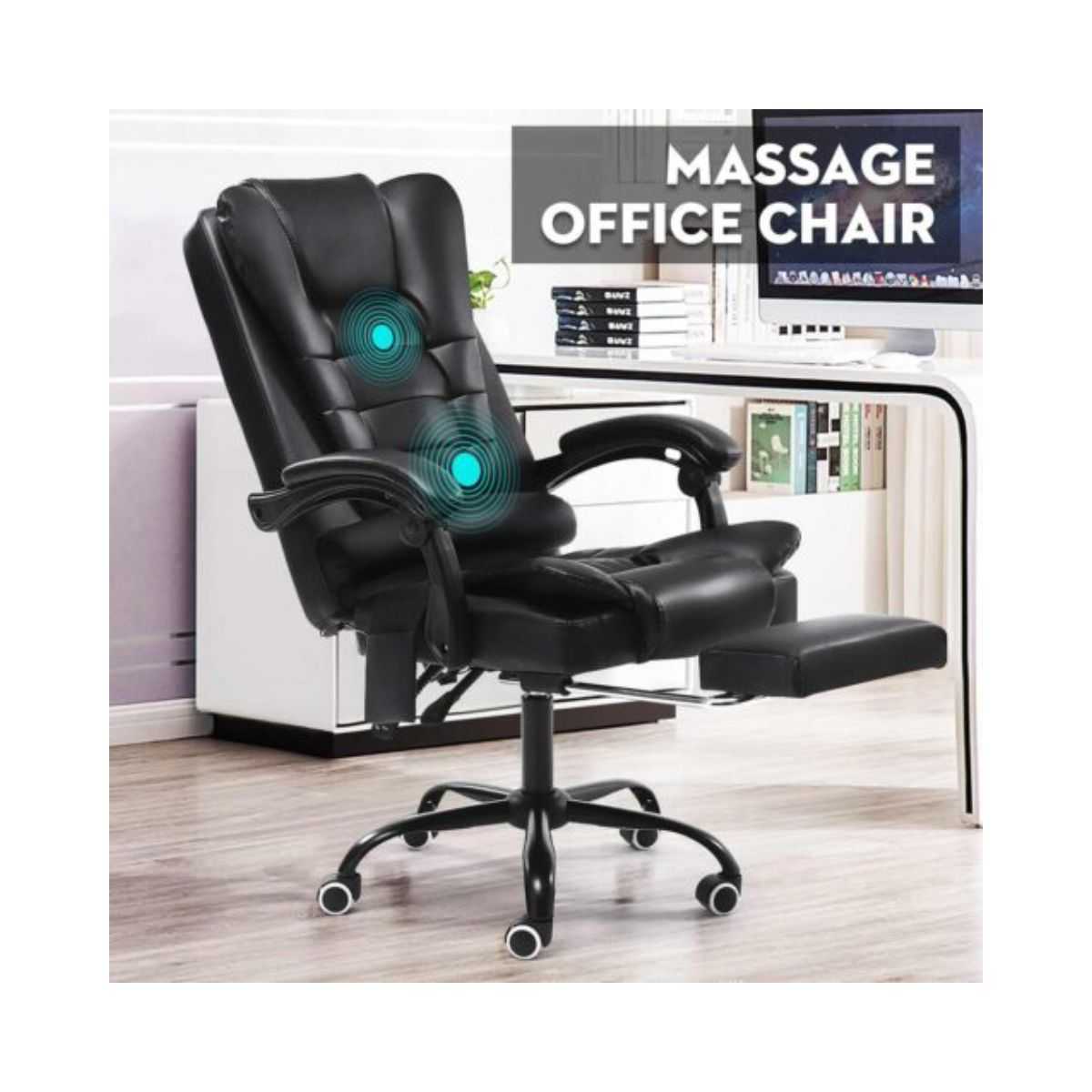
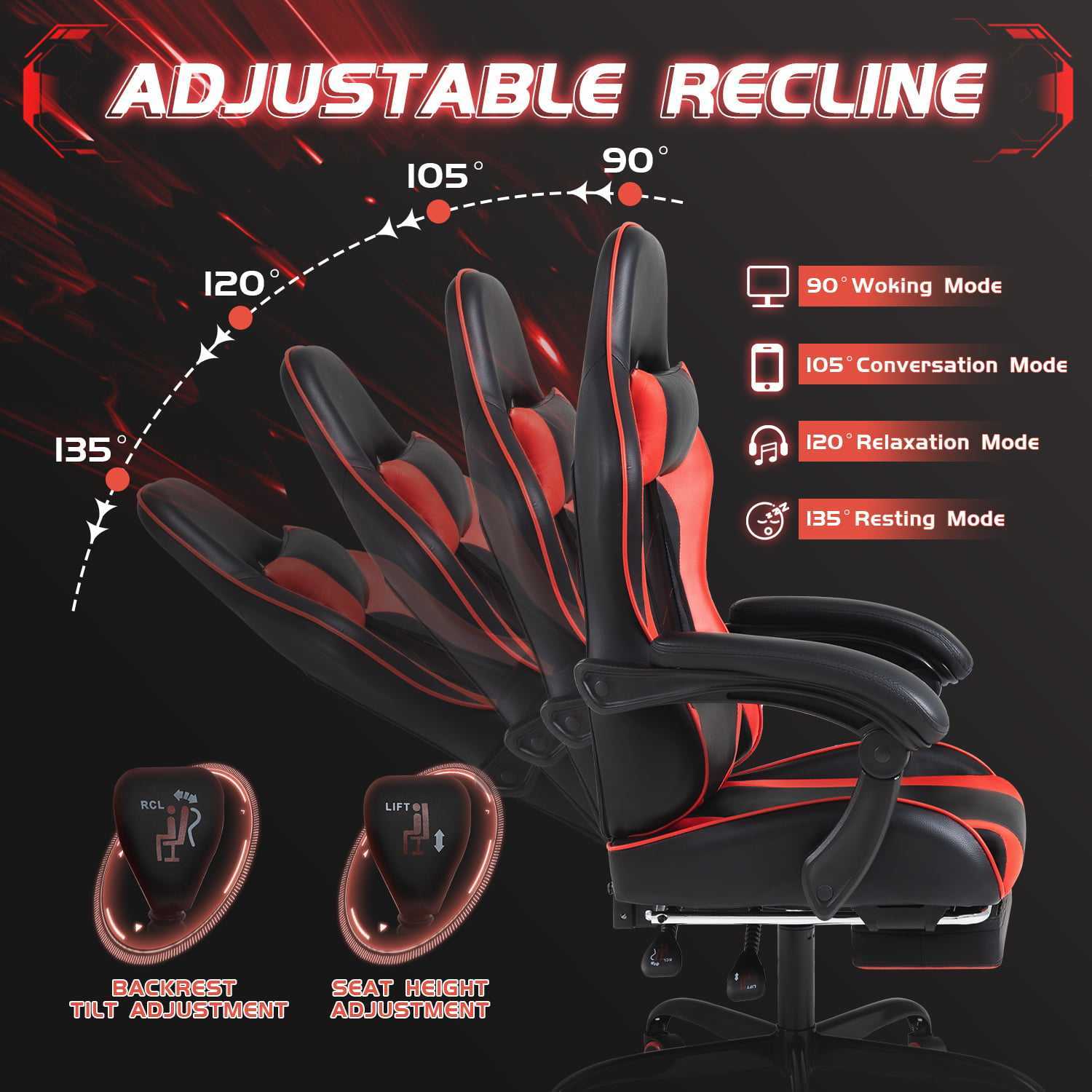
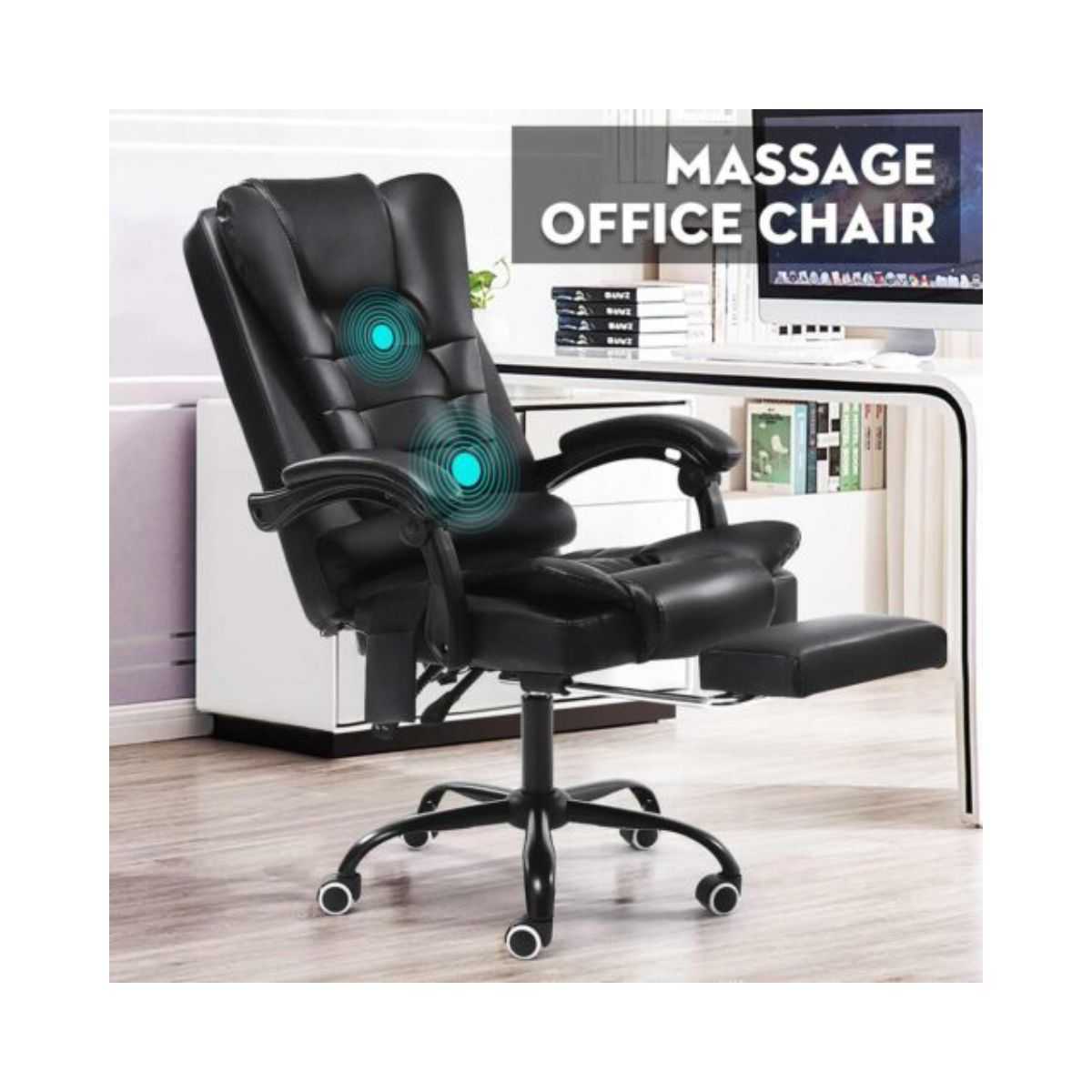
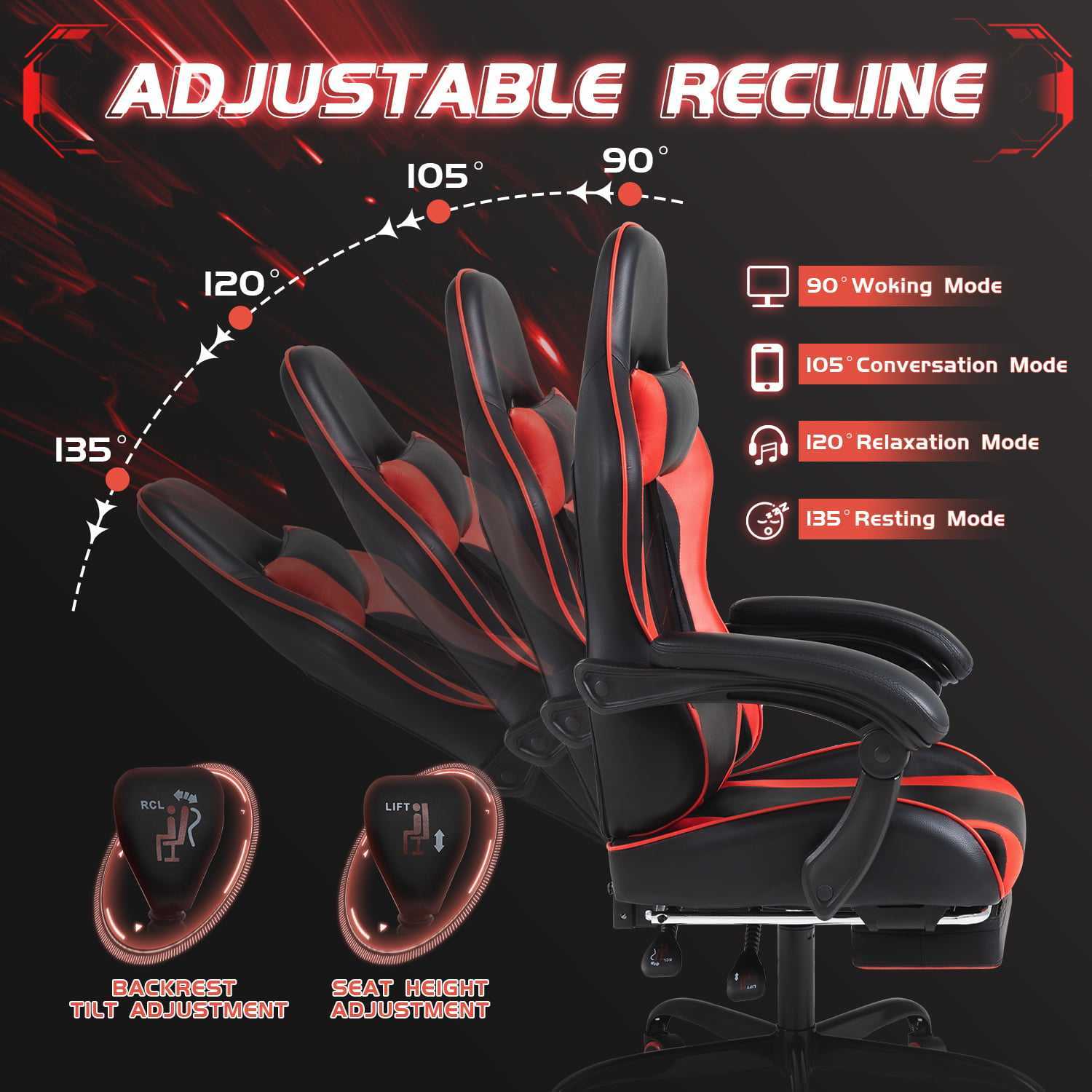
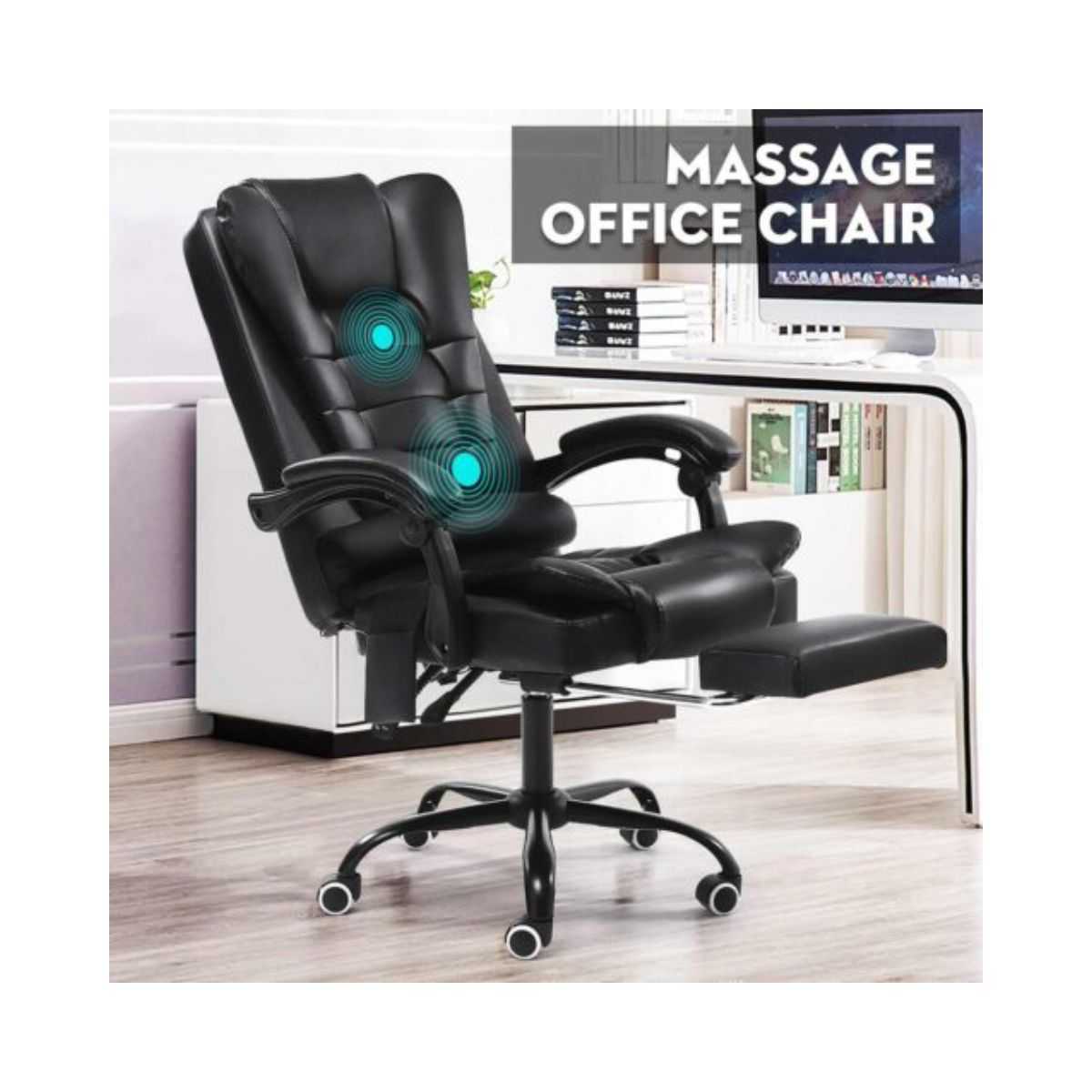
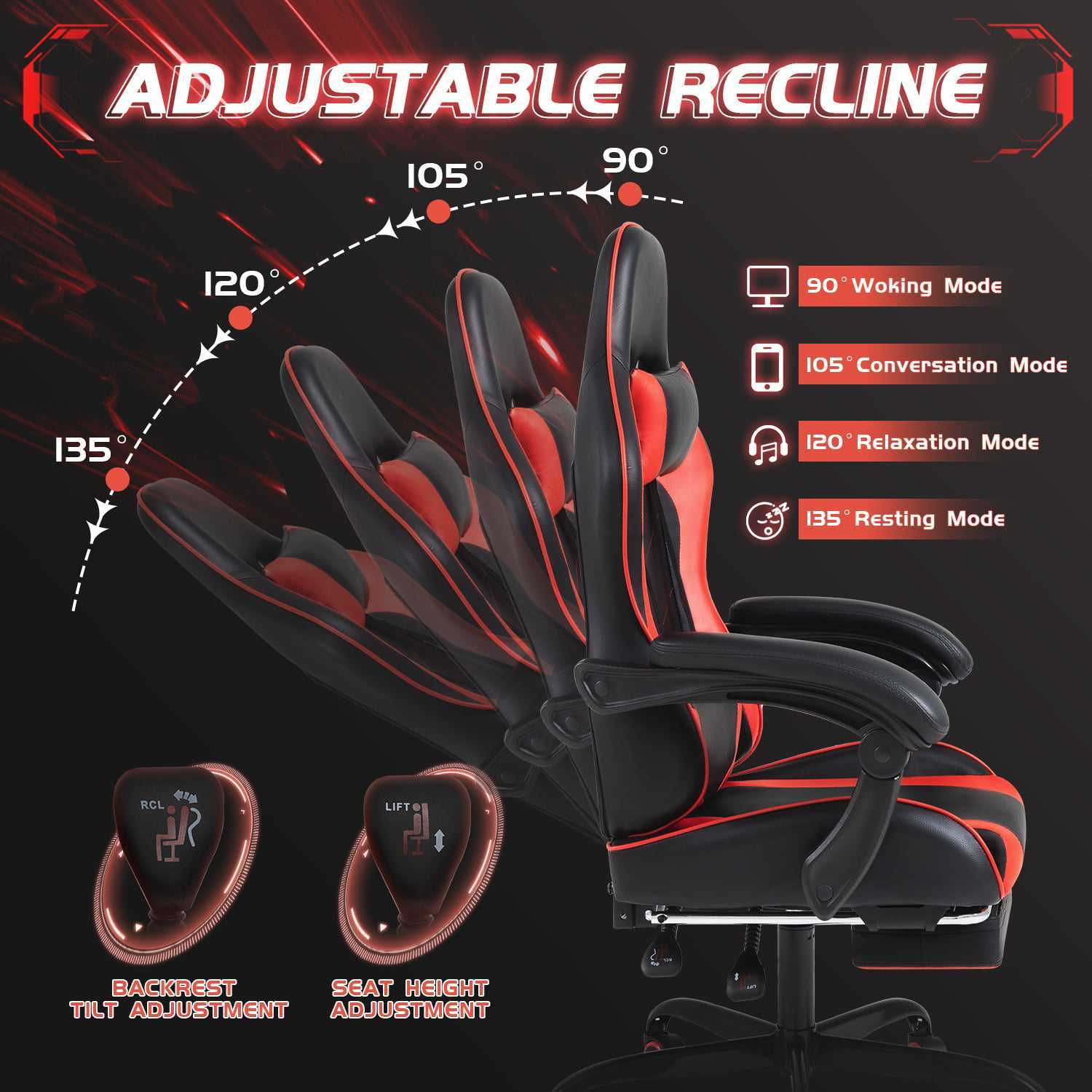
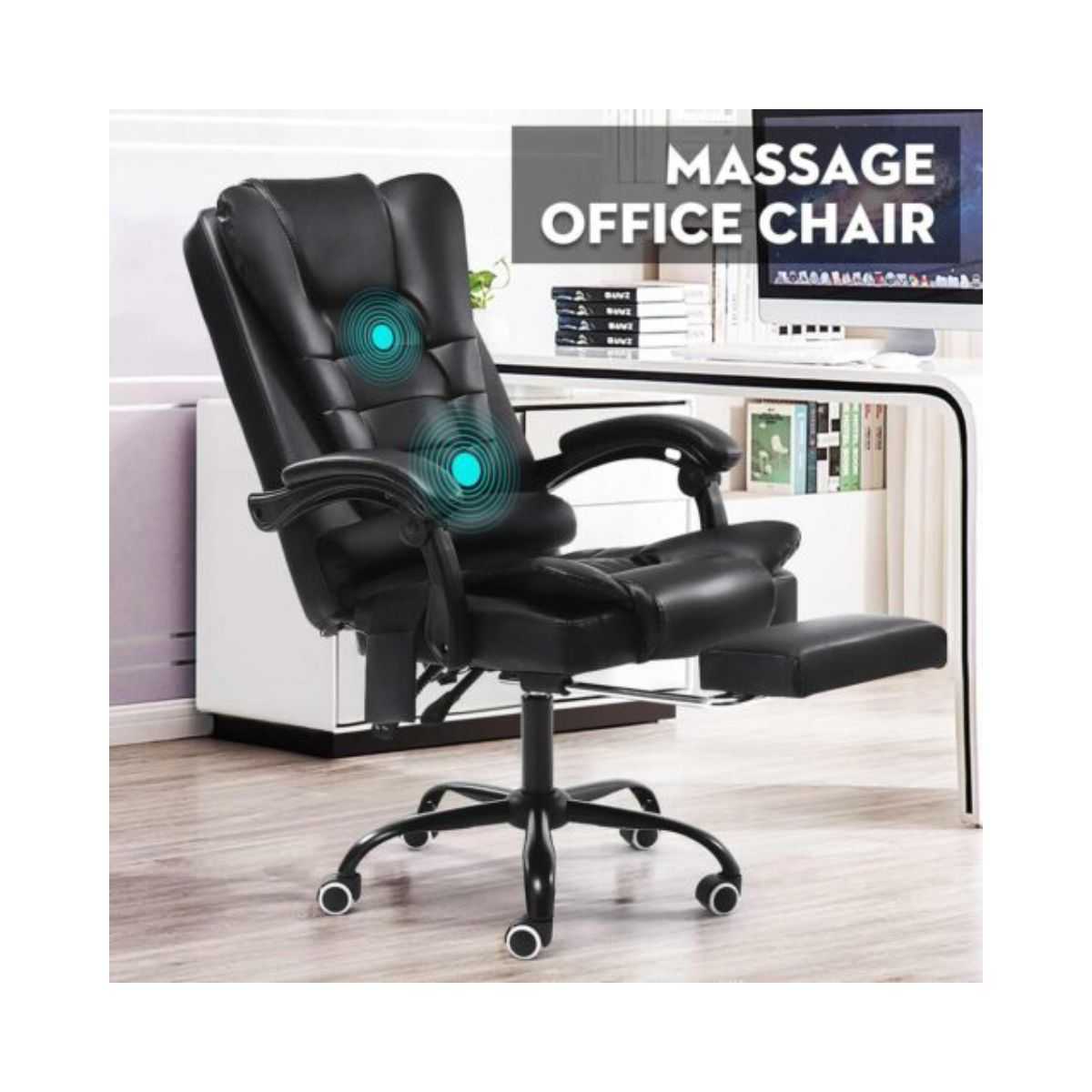
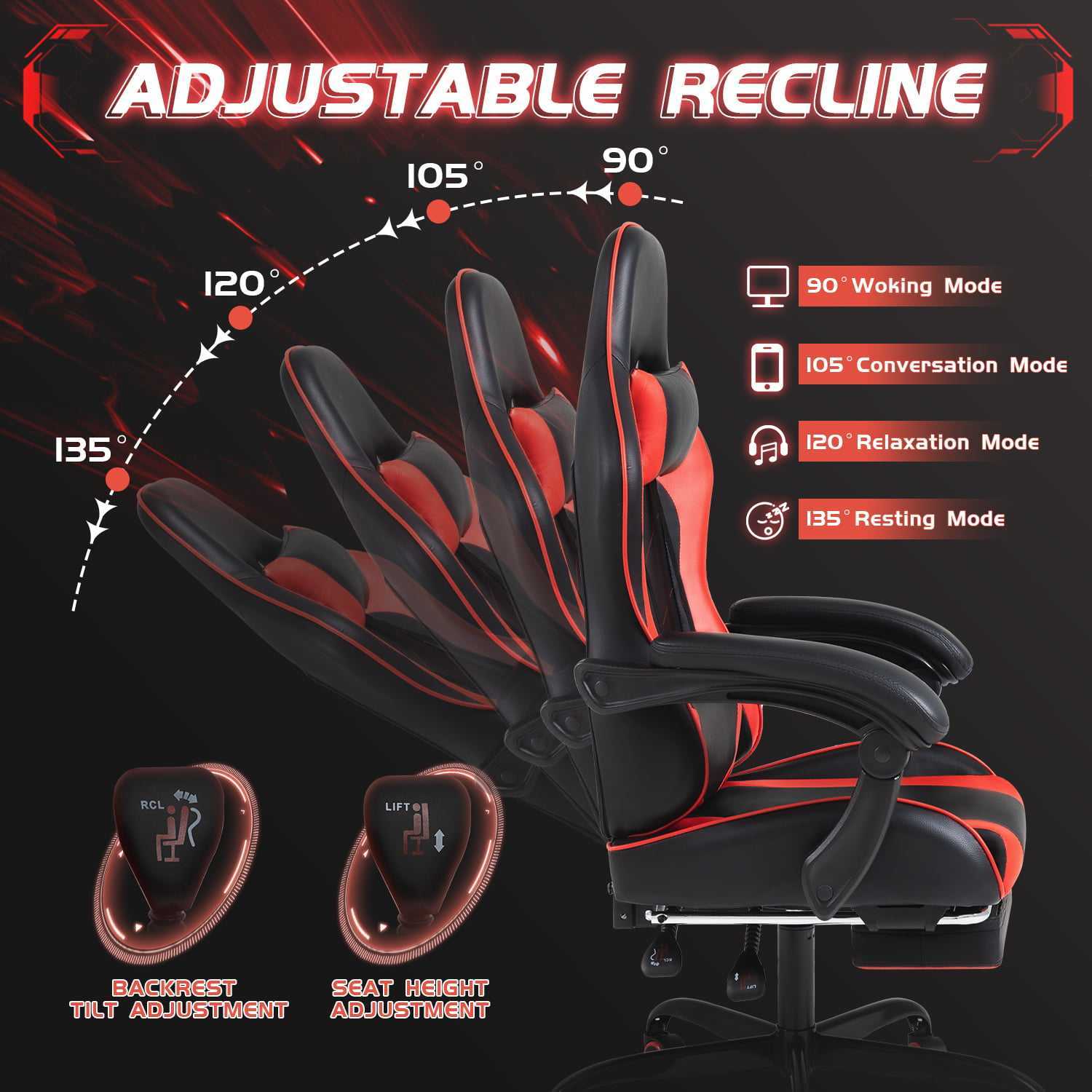
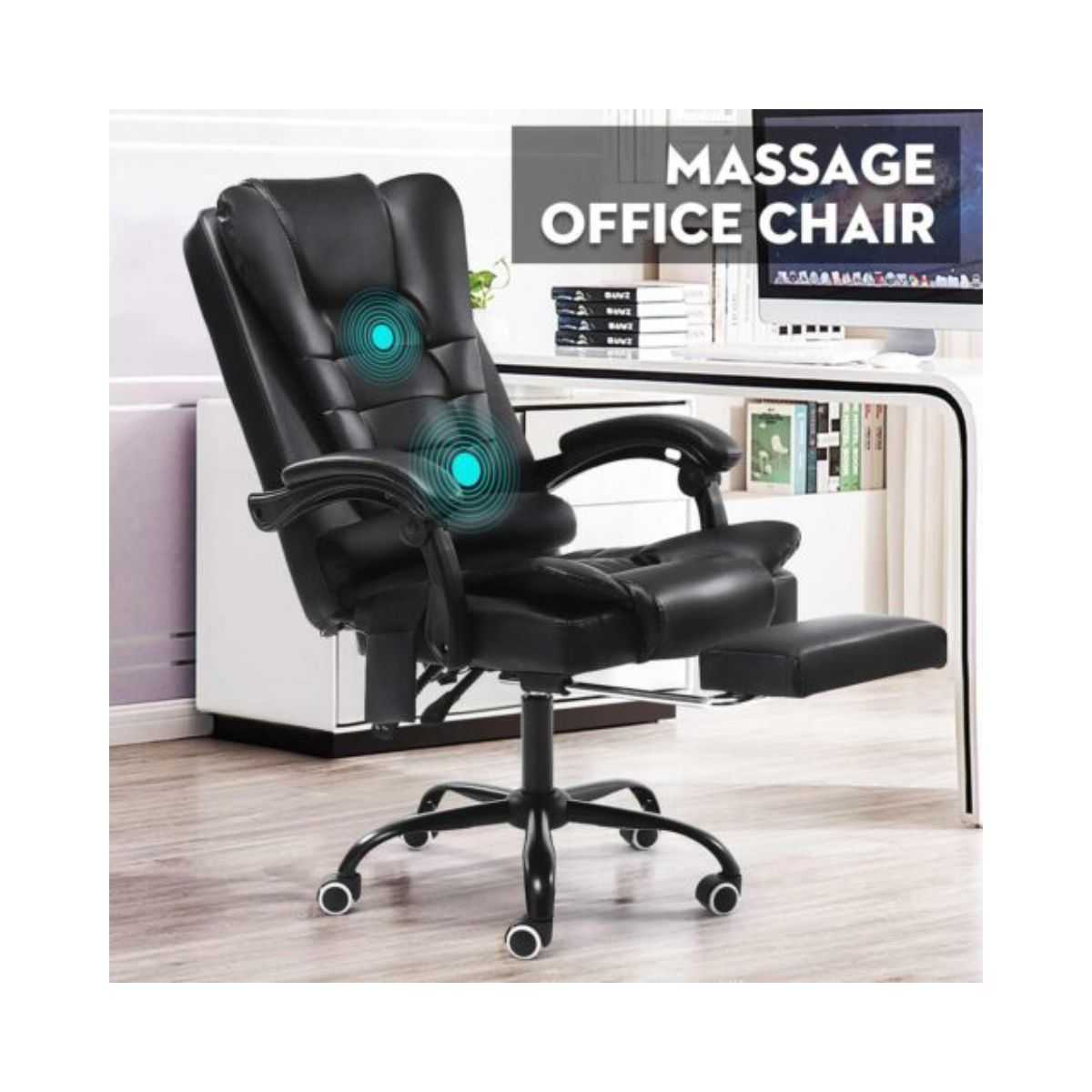
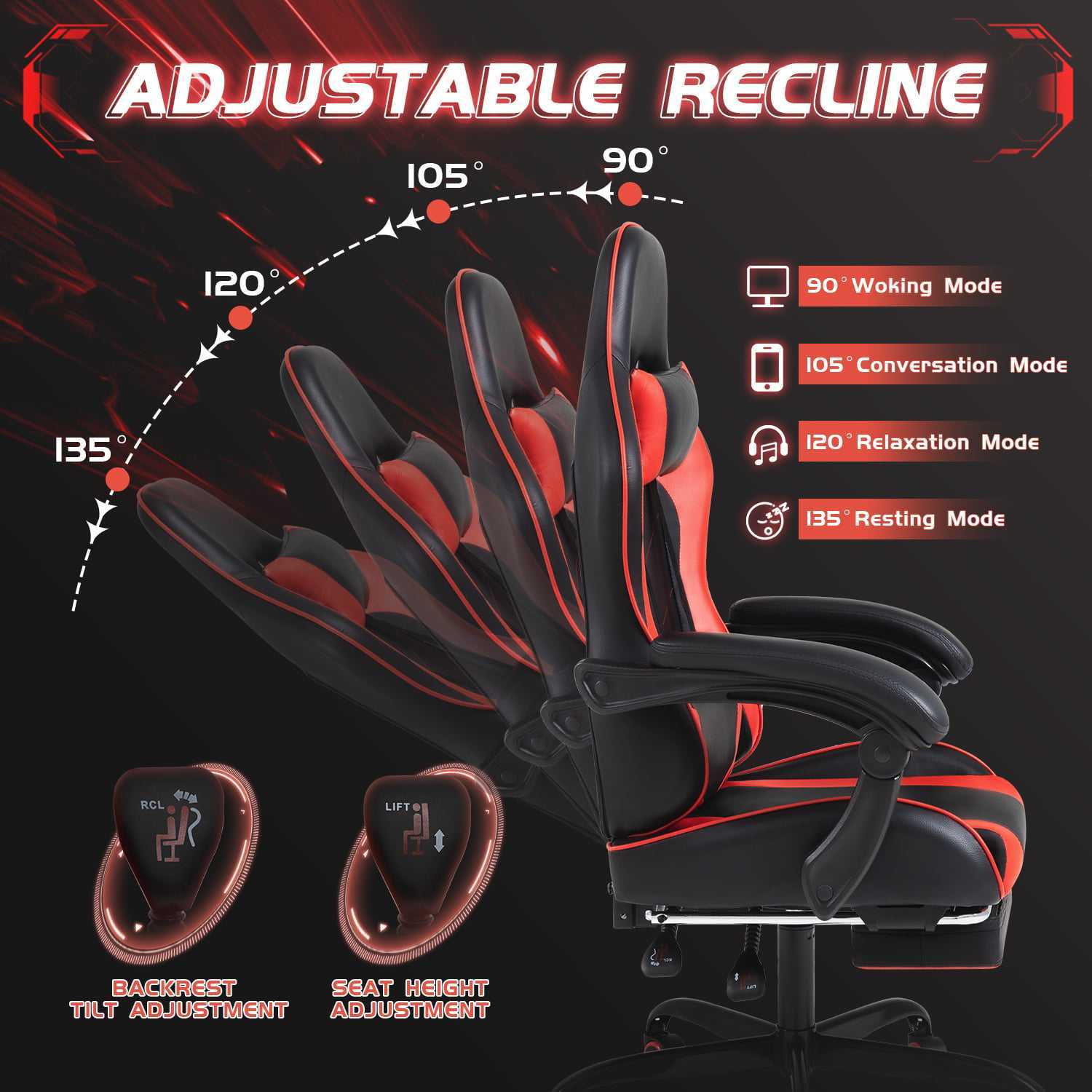
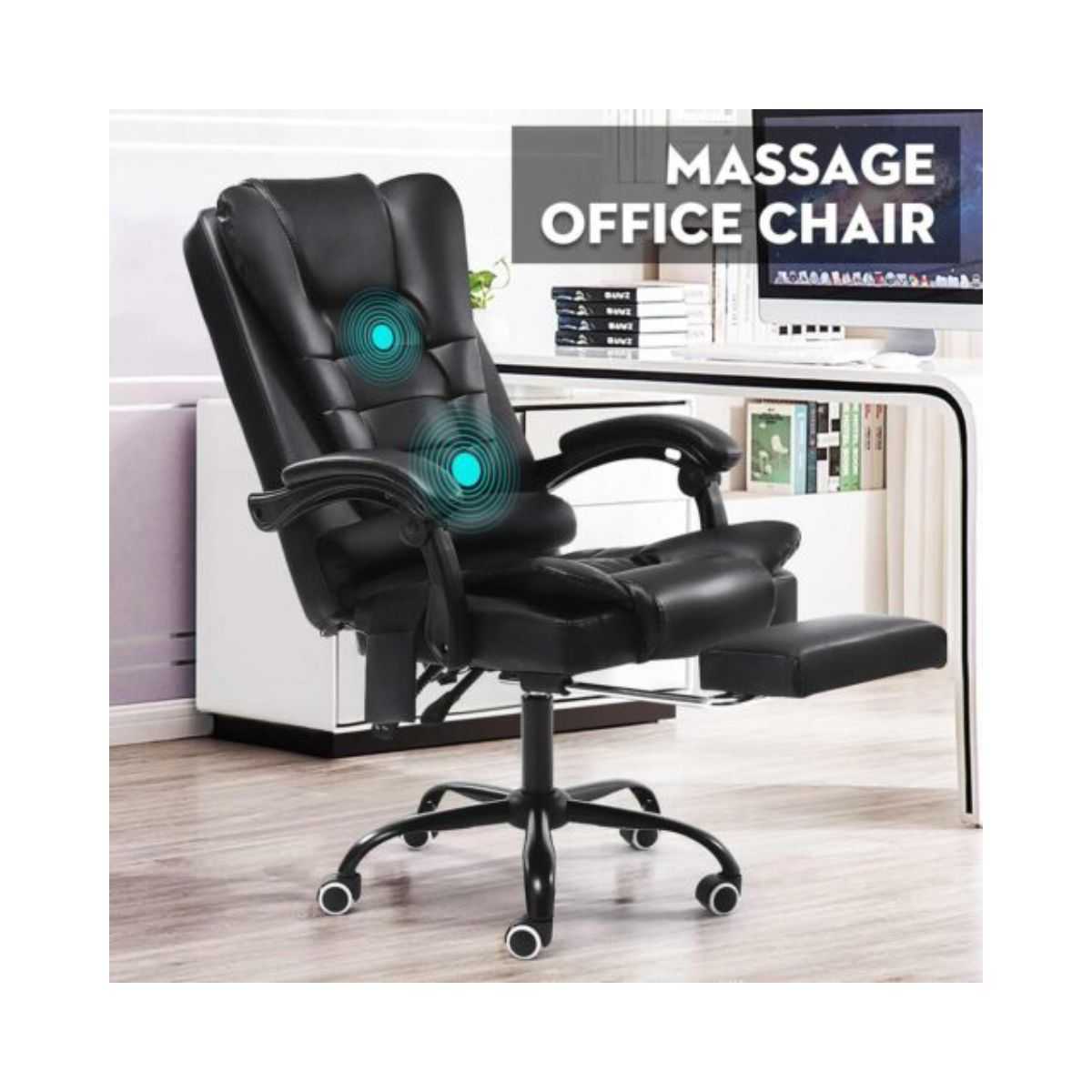
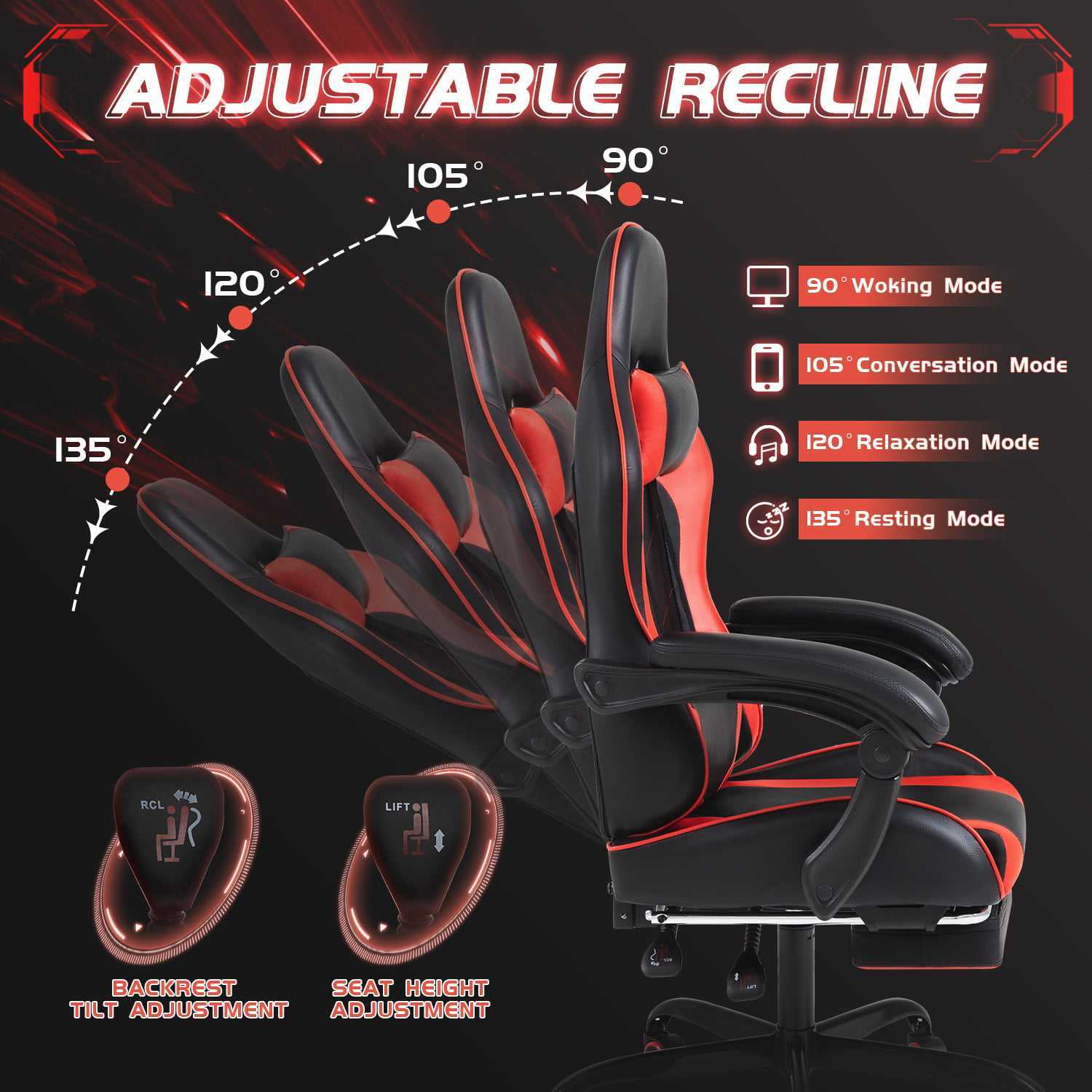
Budget option: If you can’t invest in a premium chair right now, add lumbar support with a small pillow ($15-30) and follow the 20-8-2 rule religiously. Many remote workers solve their back pain through positioning and movement rather than a pricey chair.
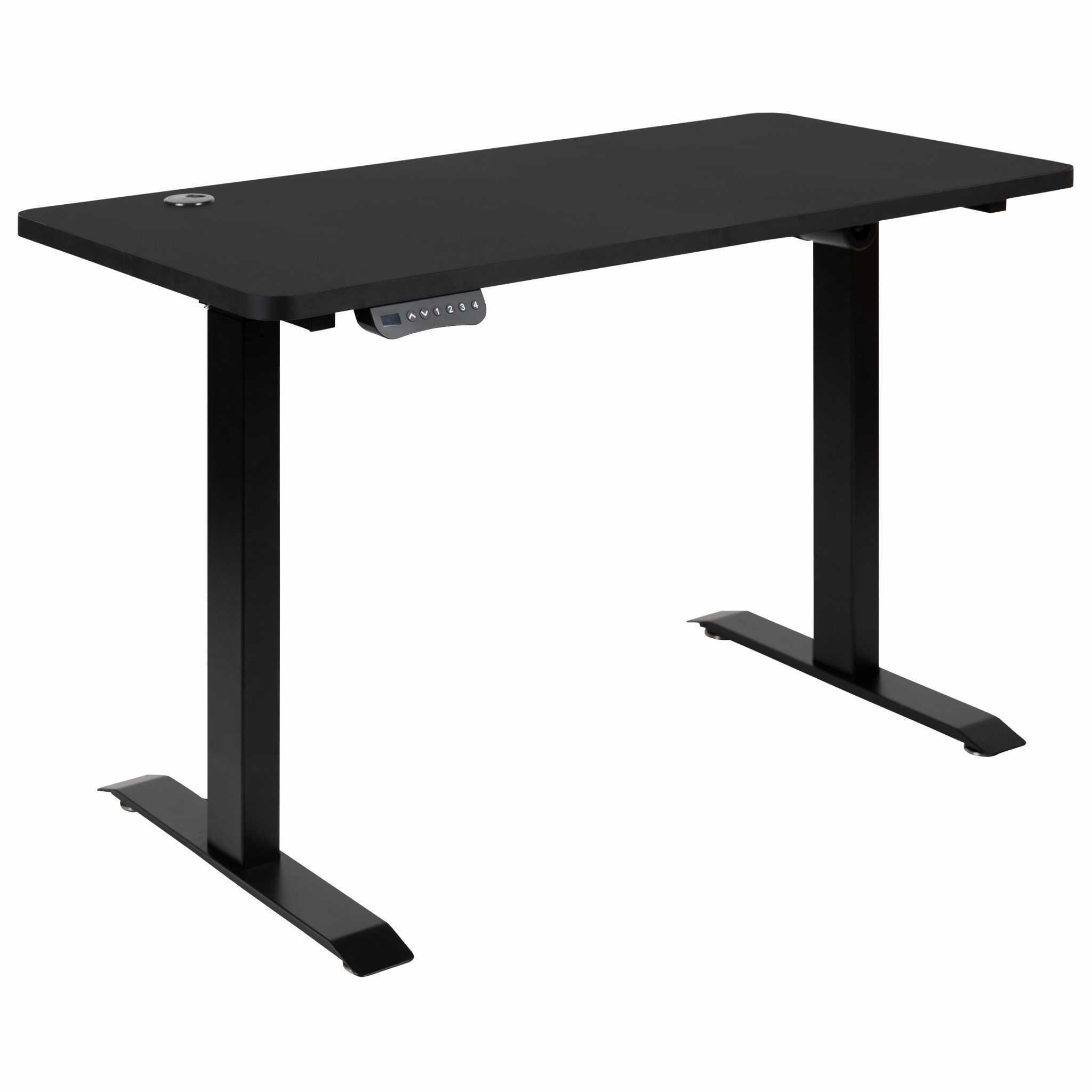
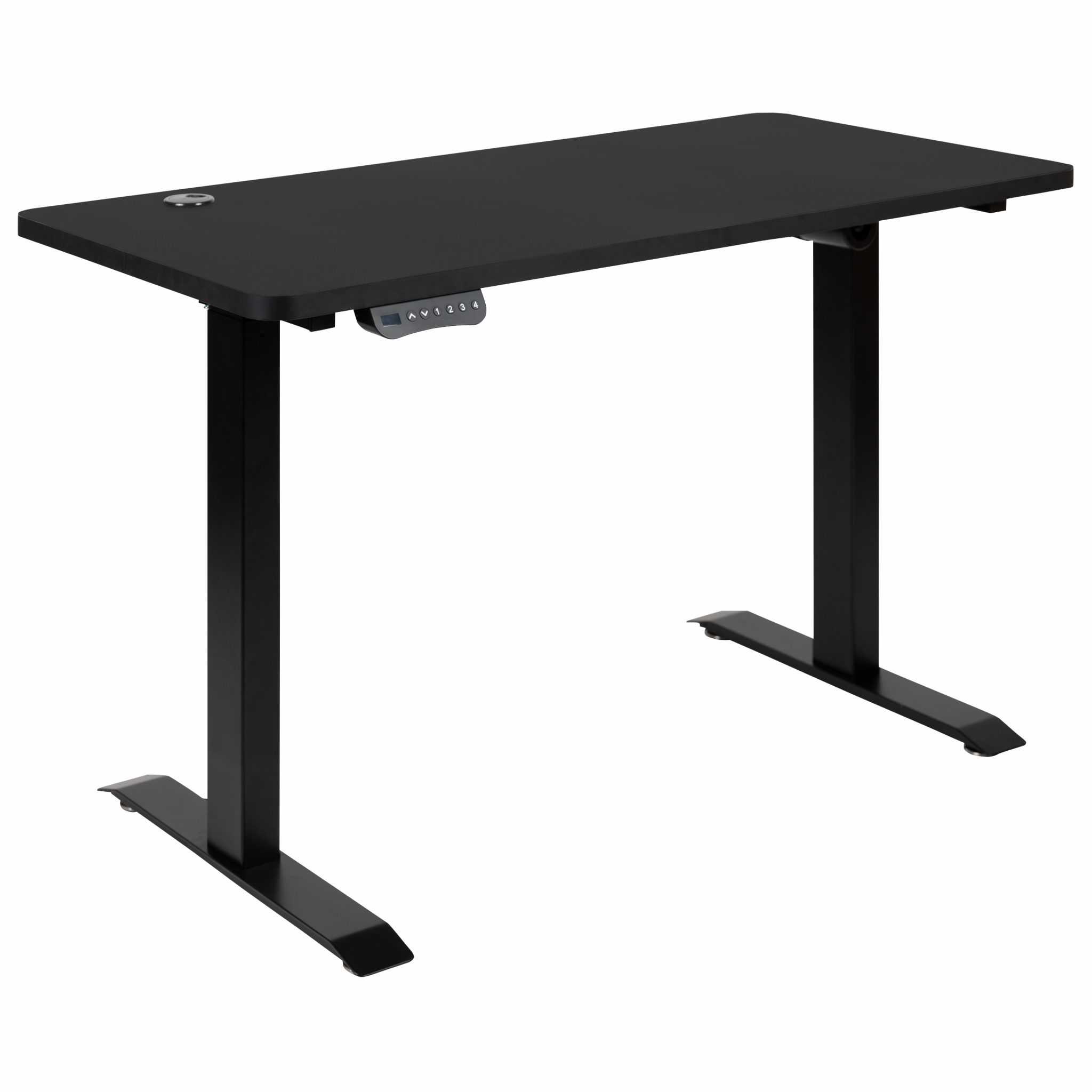
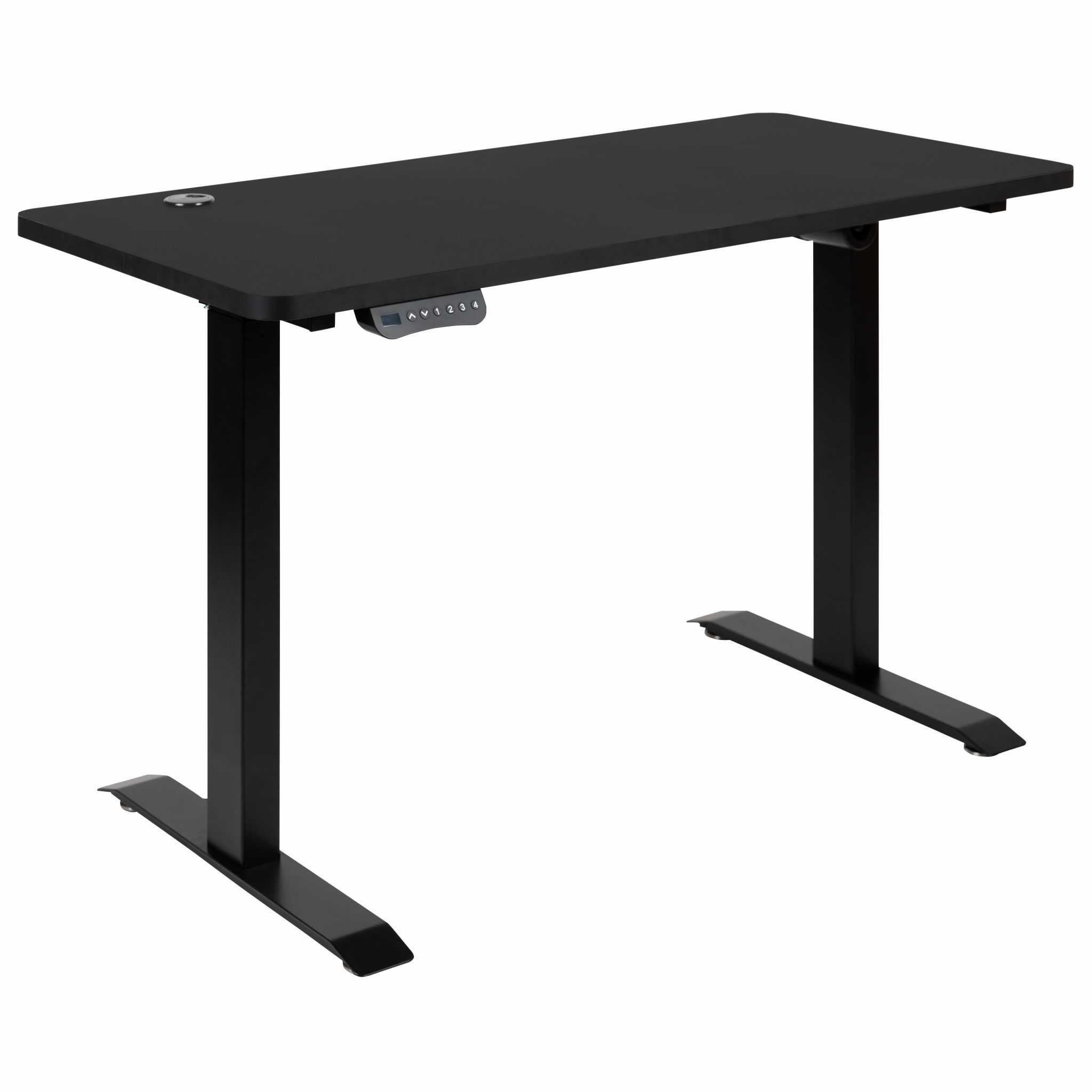
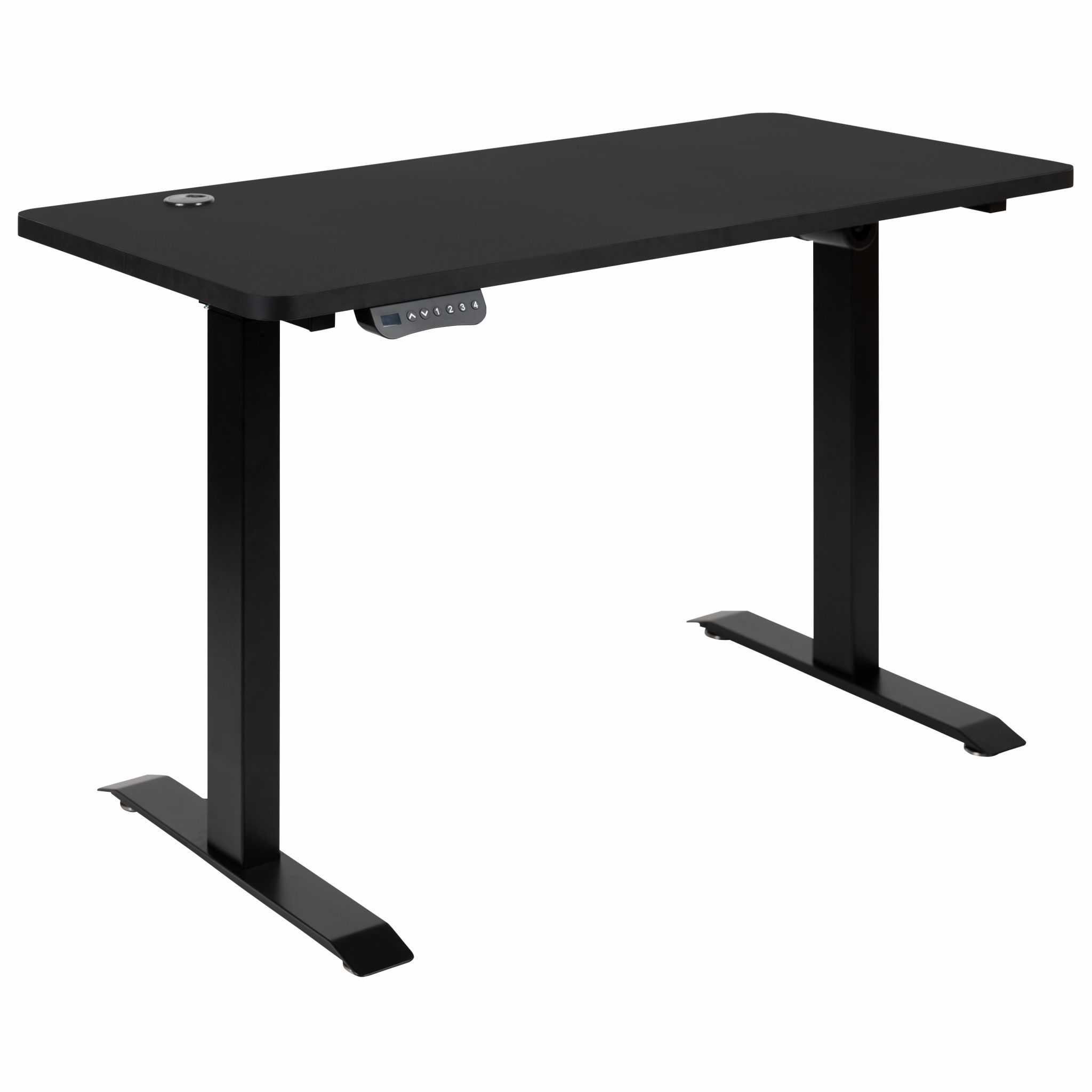
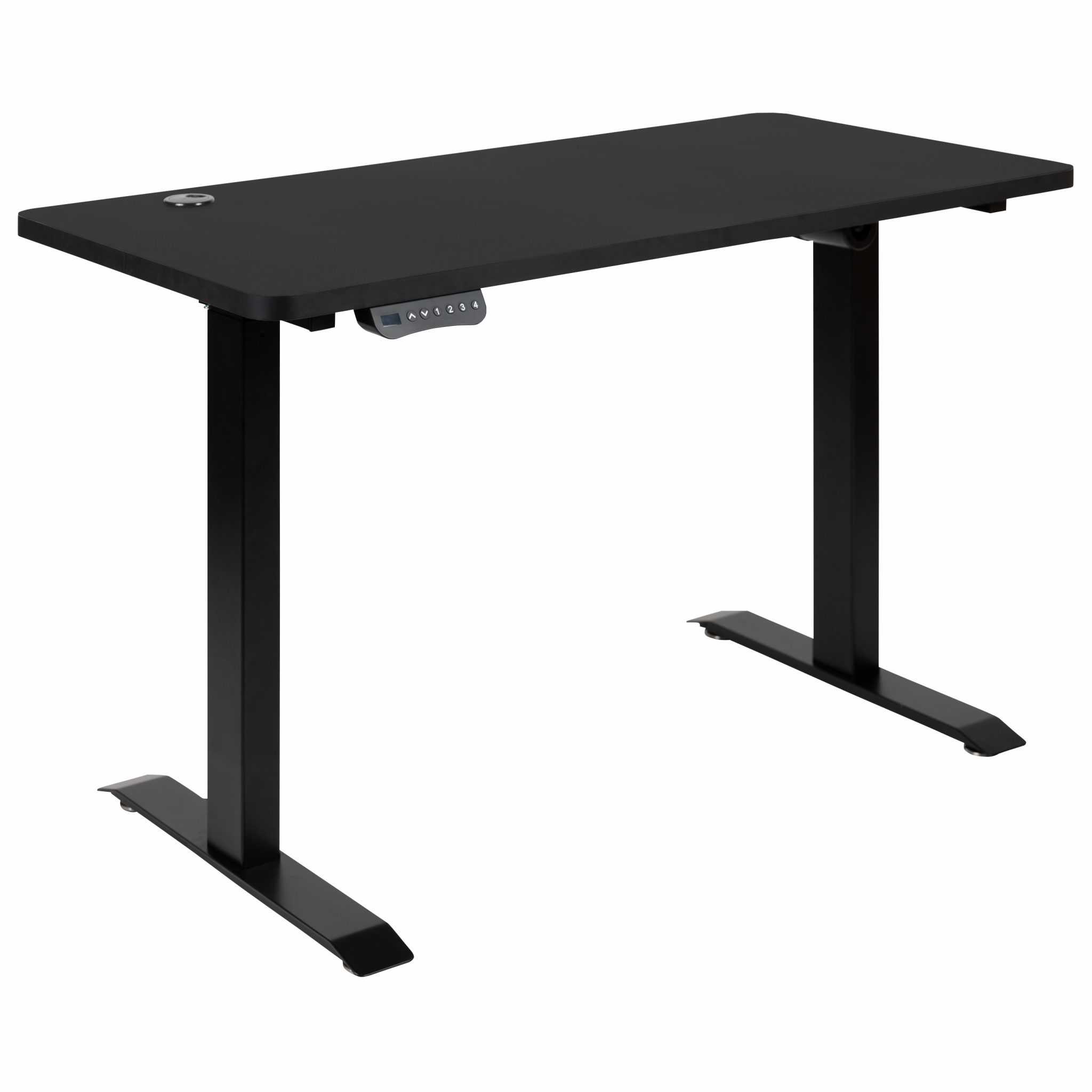
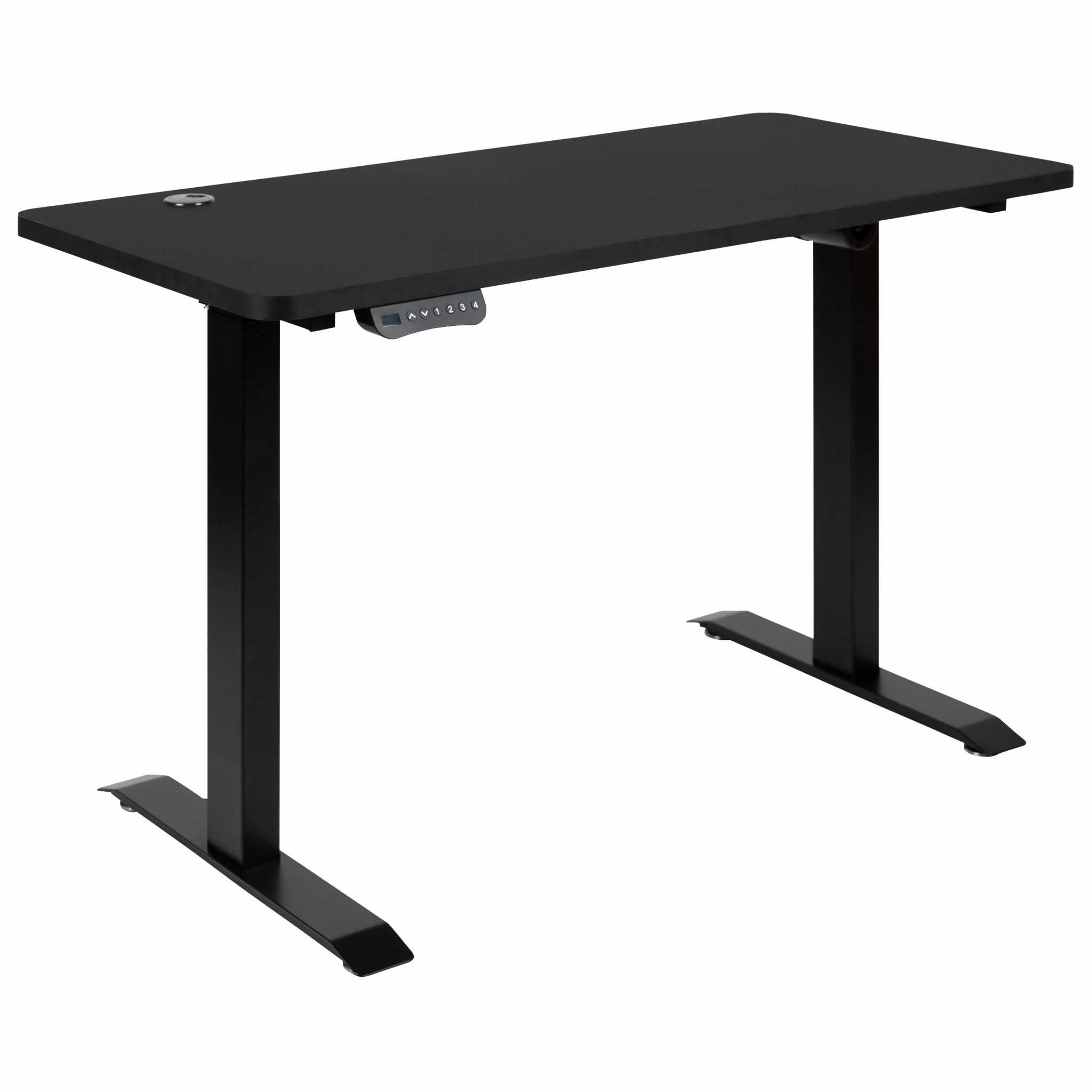
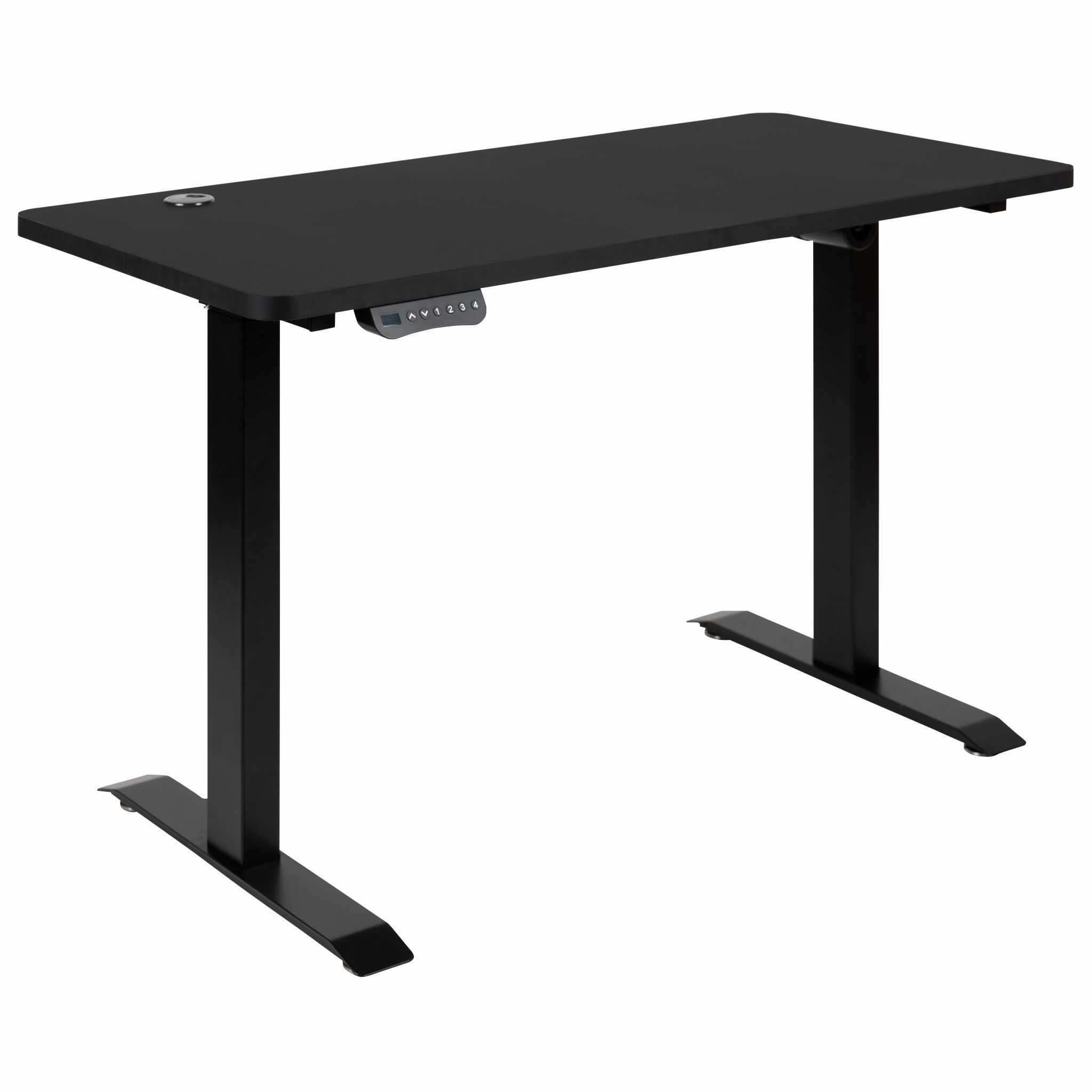
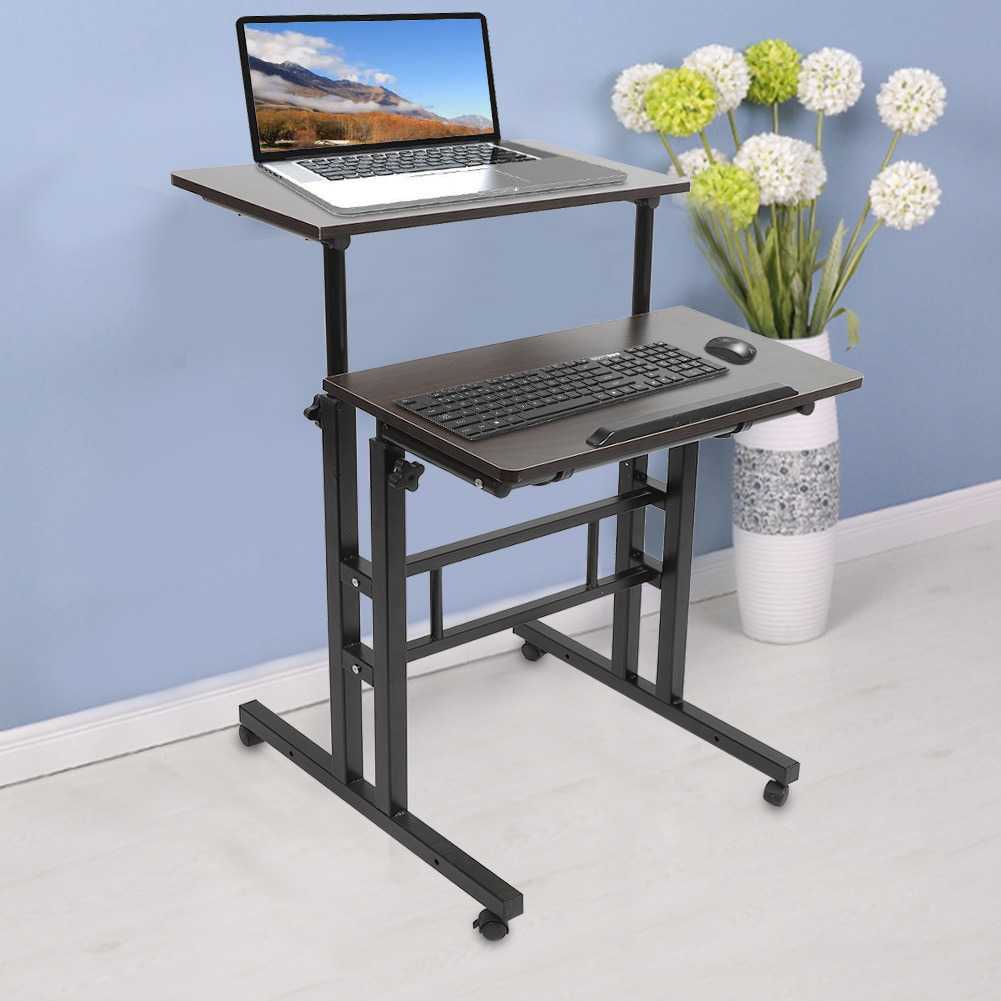
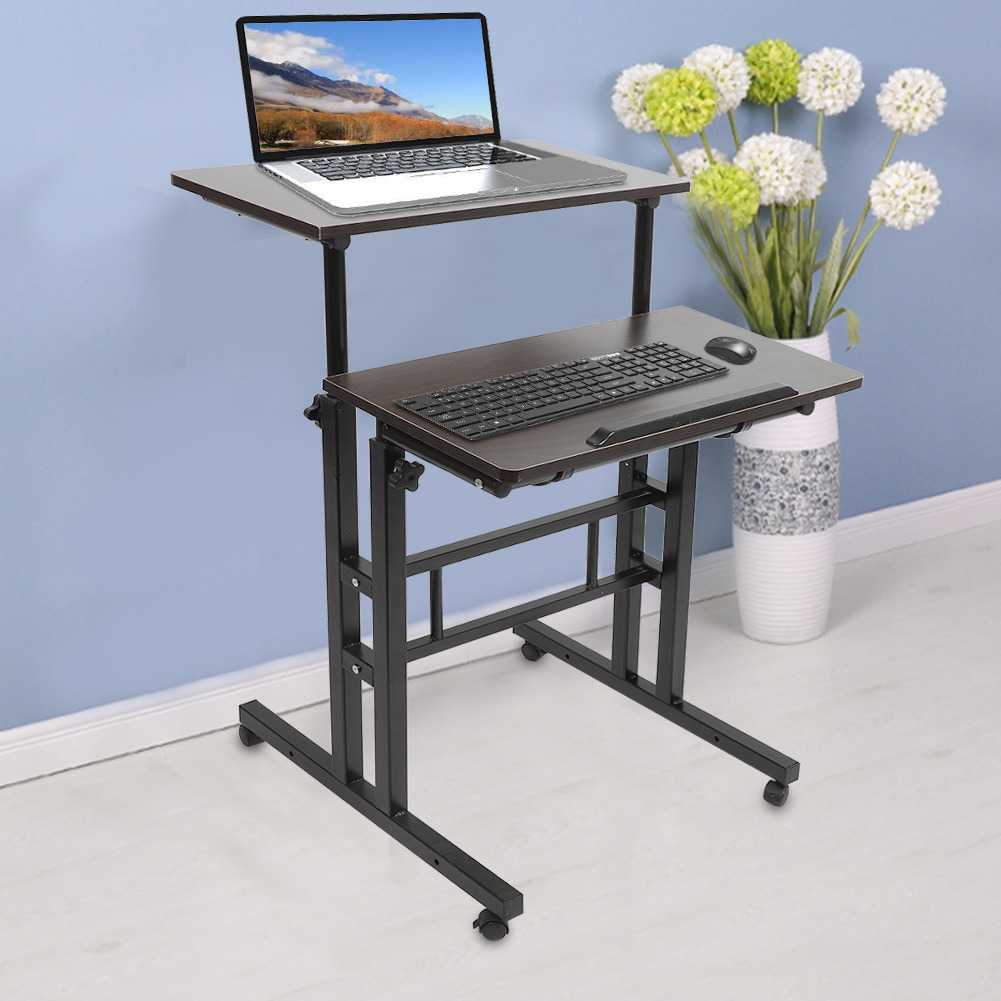
2. Height-Adjustable Standing Desk (Sit-Stand Desk)
Standing desks have transitioned from wellness trend to workspace essential in 2026. The research backs it: using a standing desk can burn an additional 50 calories per hour compared to sitting and reduce back pain by up to 32% after several weeks of use.
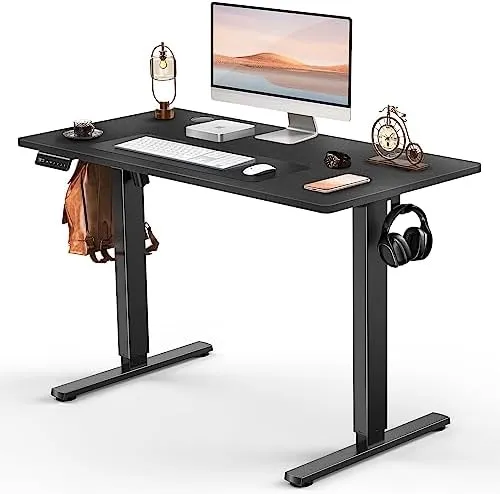
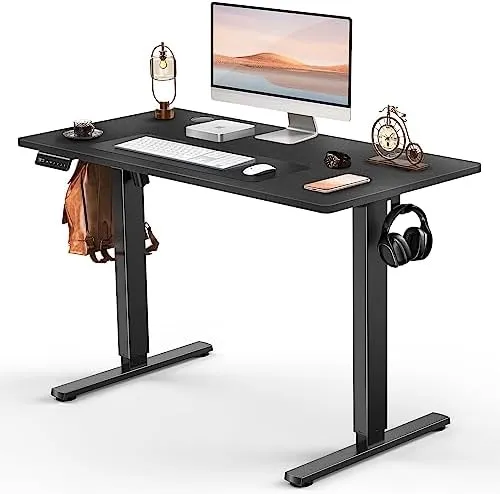
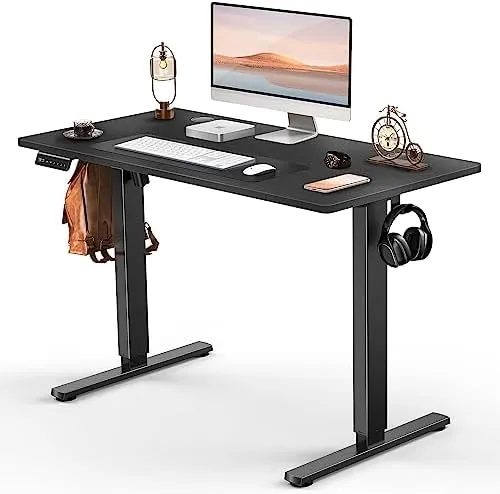
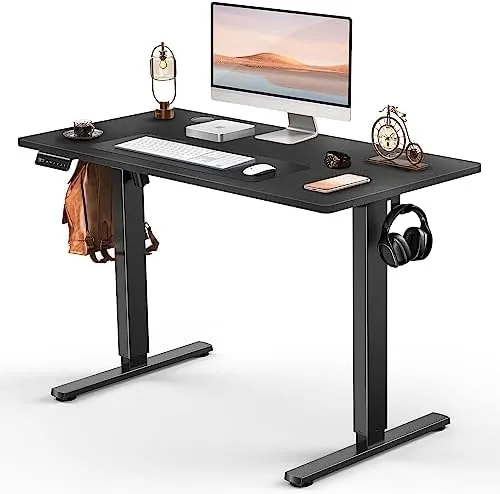
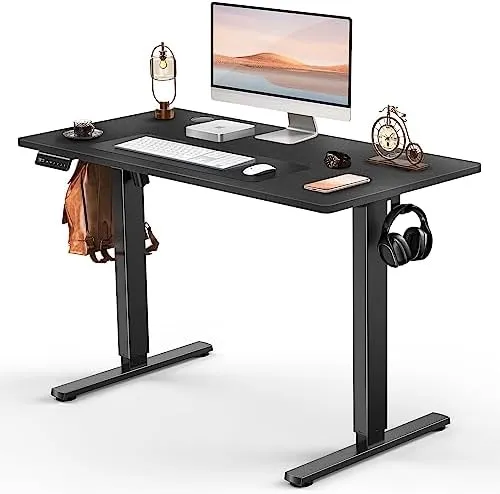
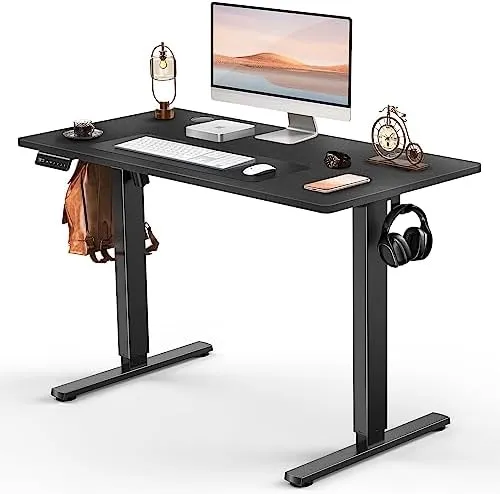
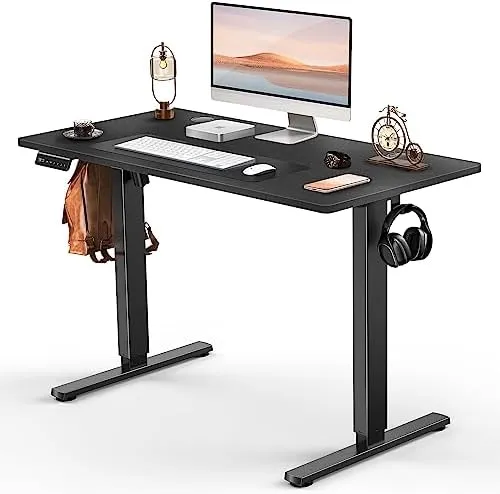
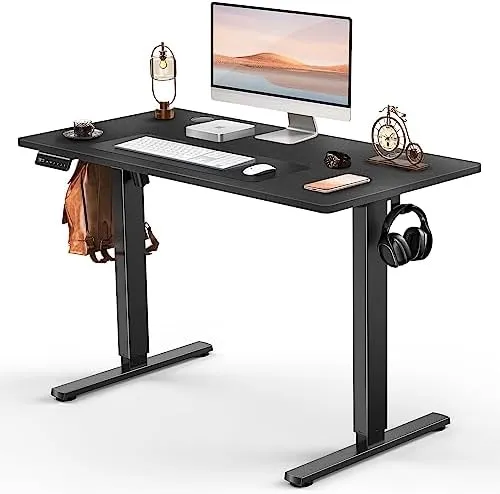
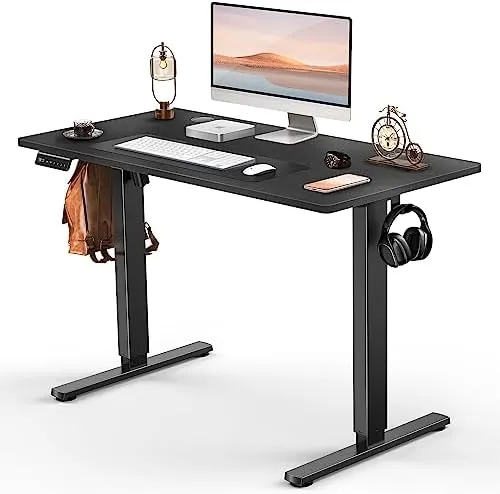
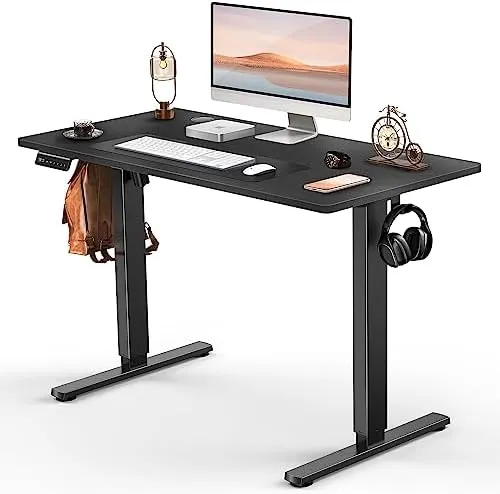
The key is not to stand all day—it’s to alternate positions using the 20-8-2 rule.
Electric vs. Manual:
- Electric: Effortless position switching with a button (recommended for long-term use). Price: $400-$800.
- Manual: Requires hand-cranking (discourages frequent position changes). Price: $200-$400.
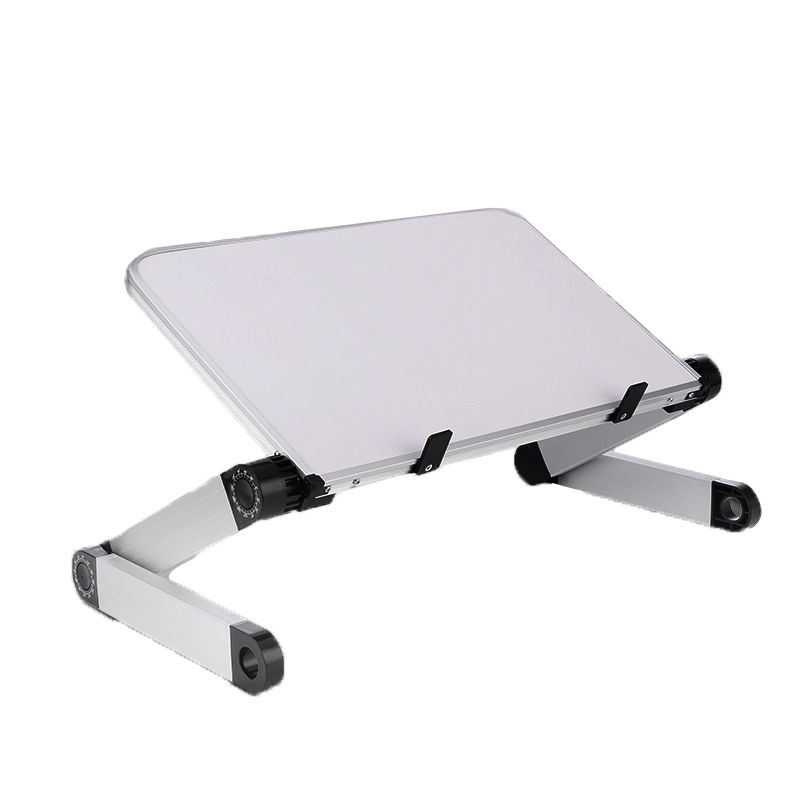
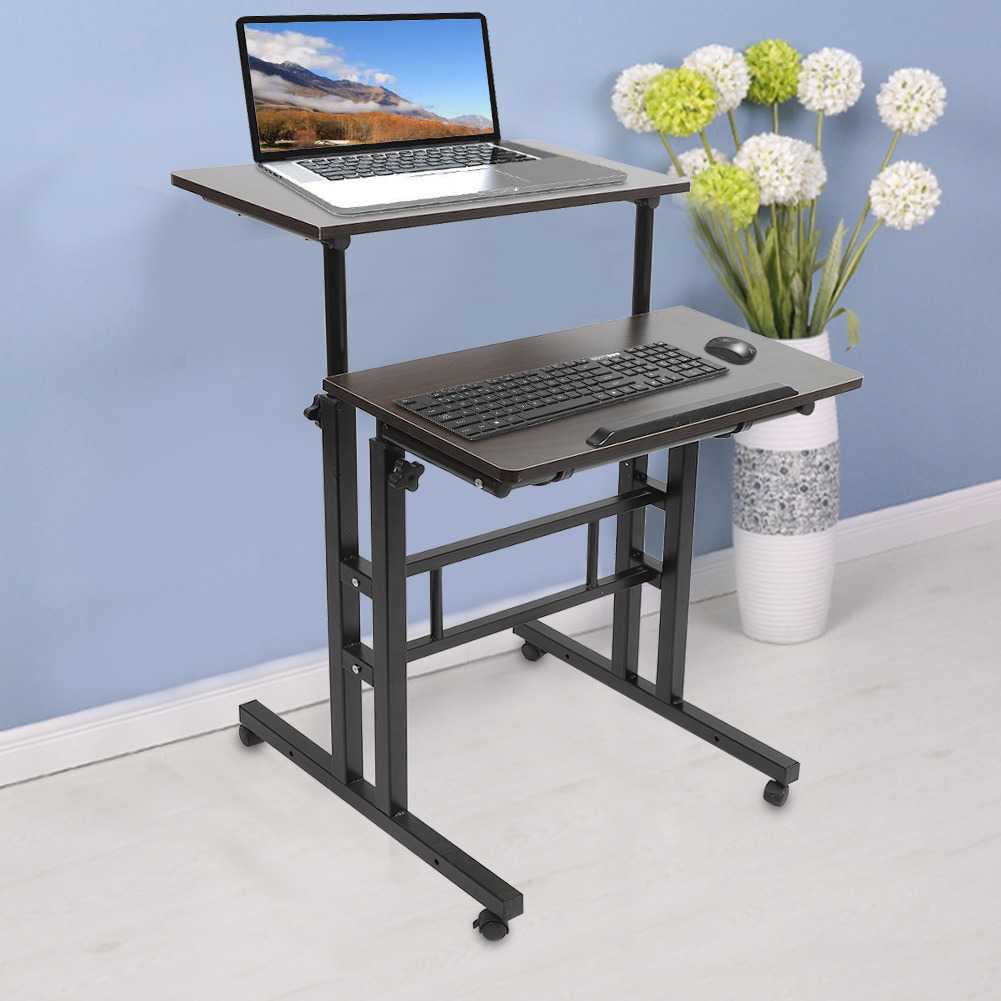
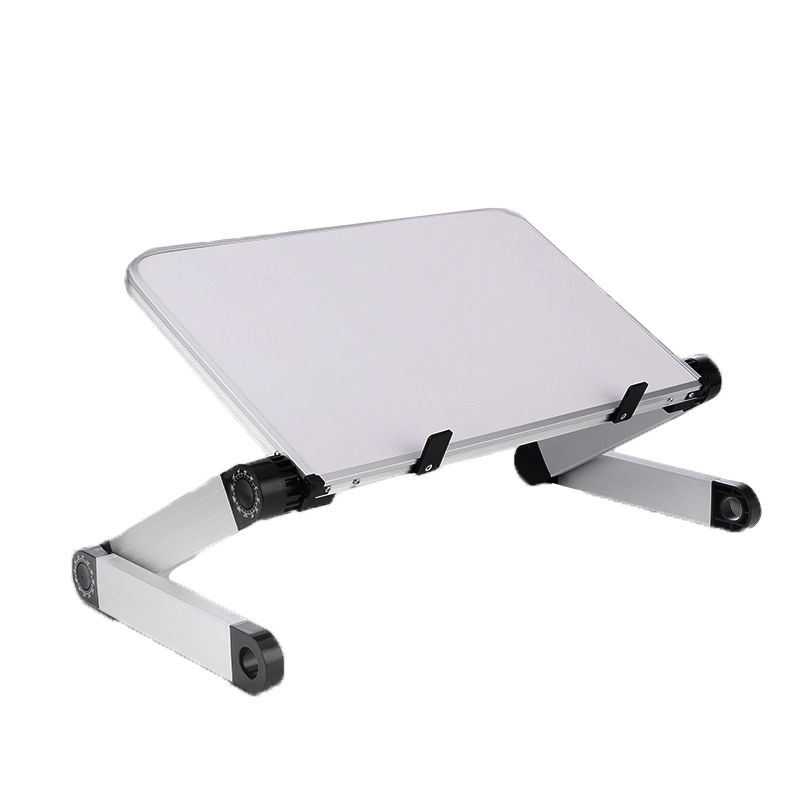
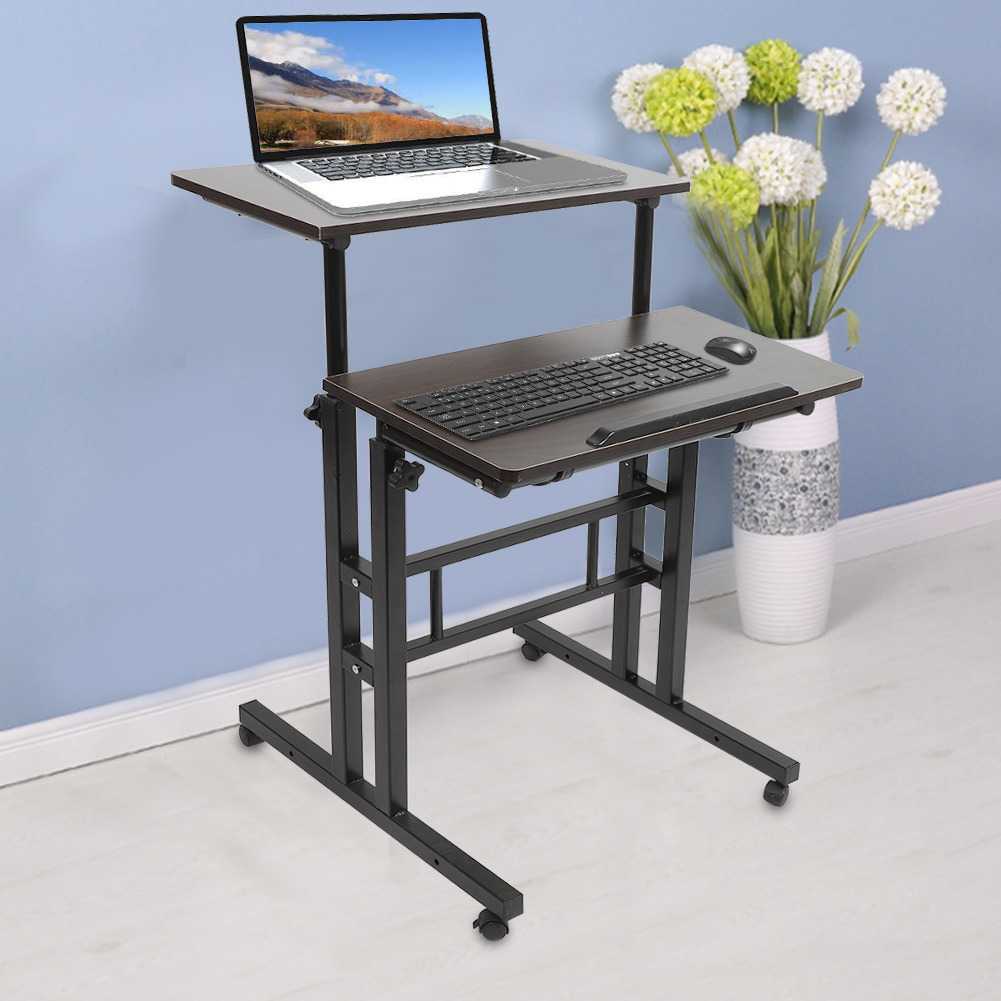
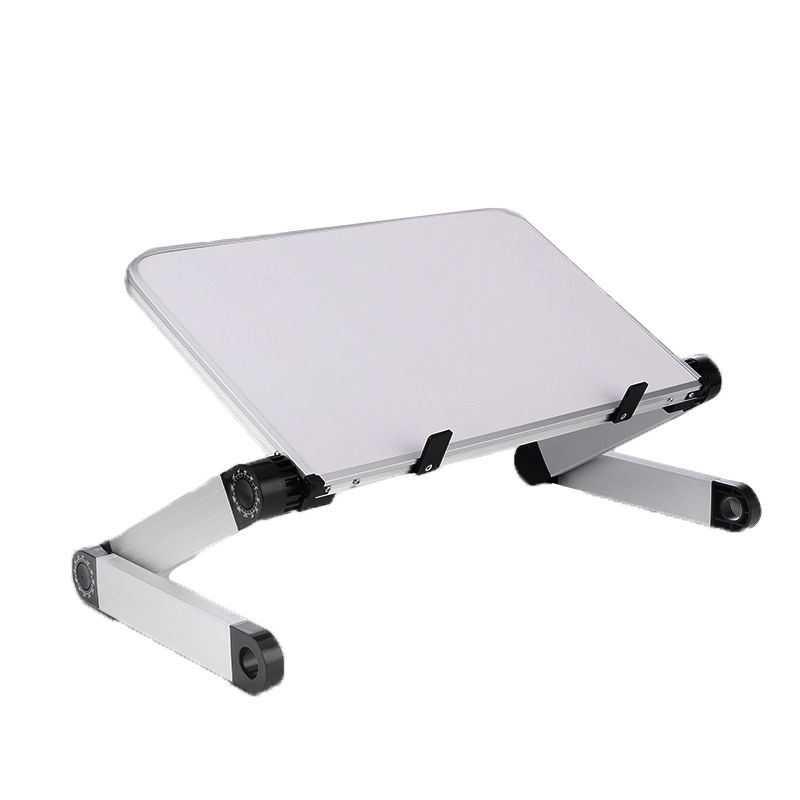
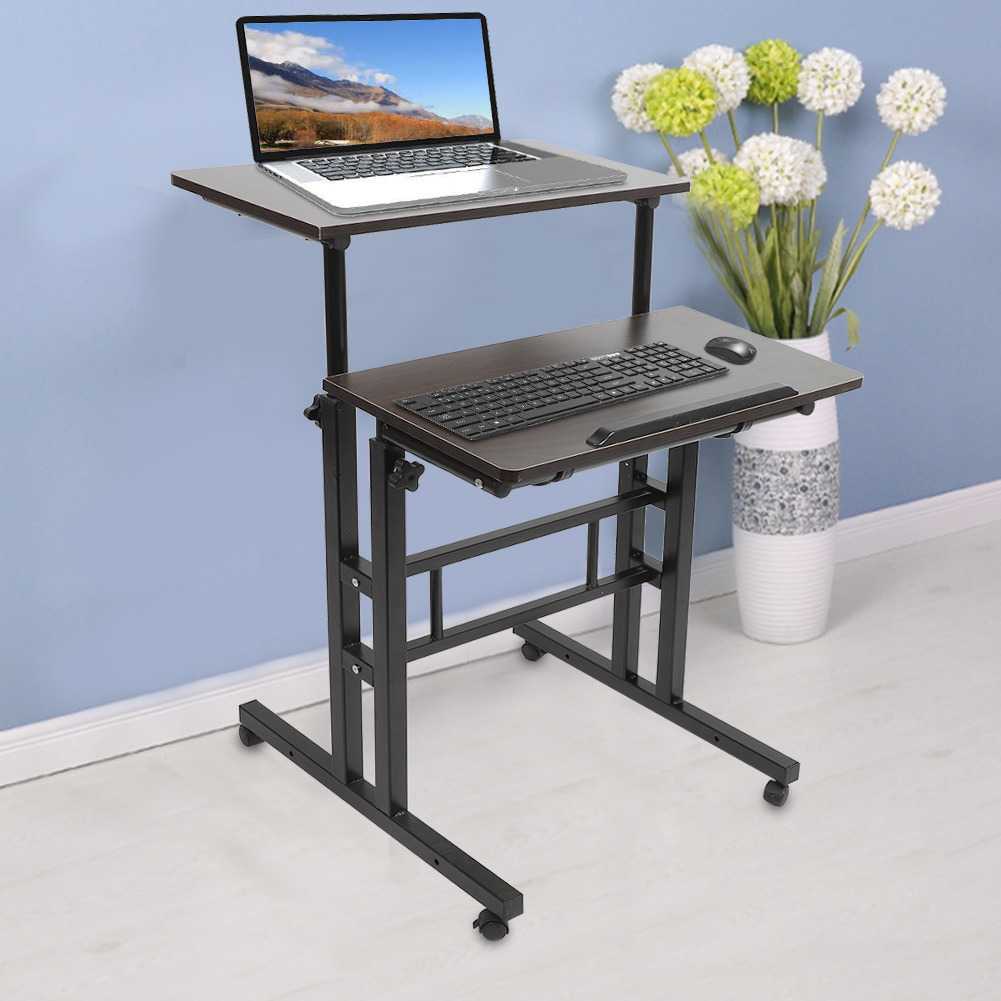
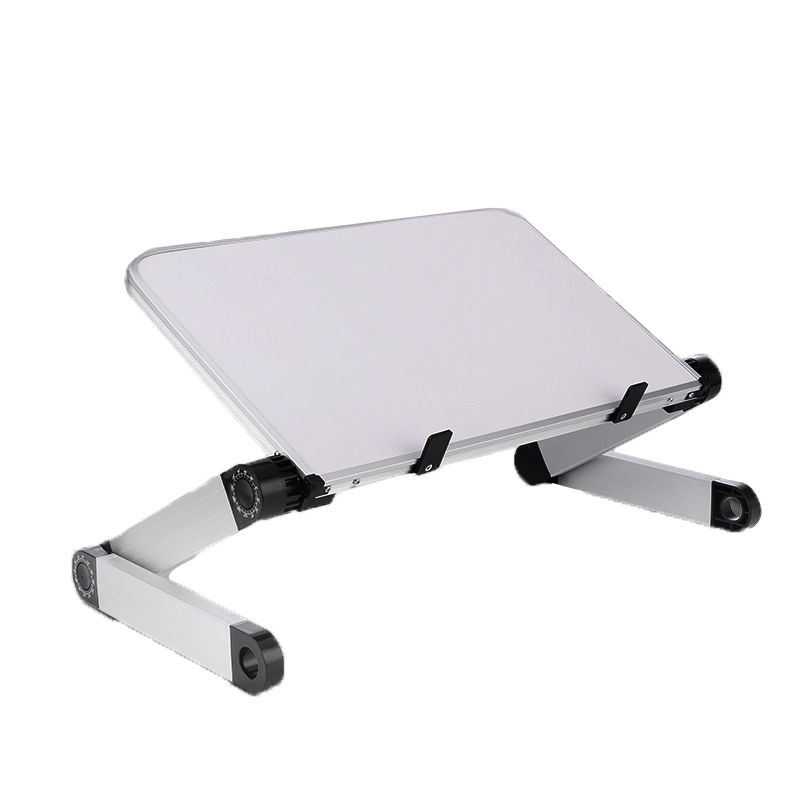
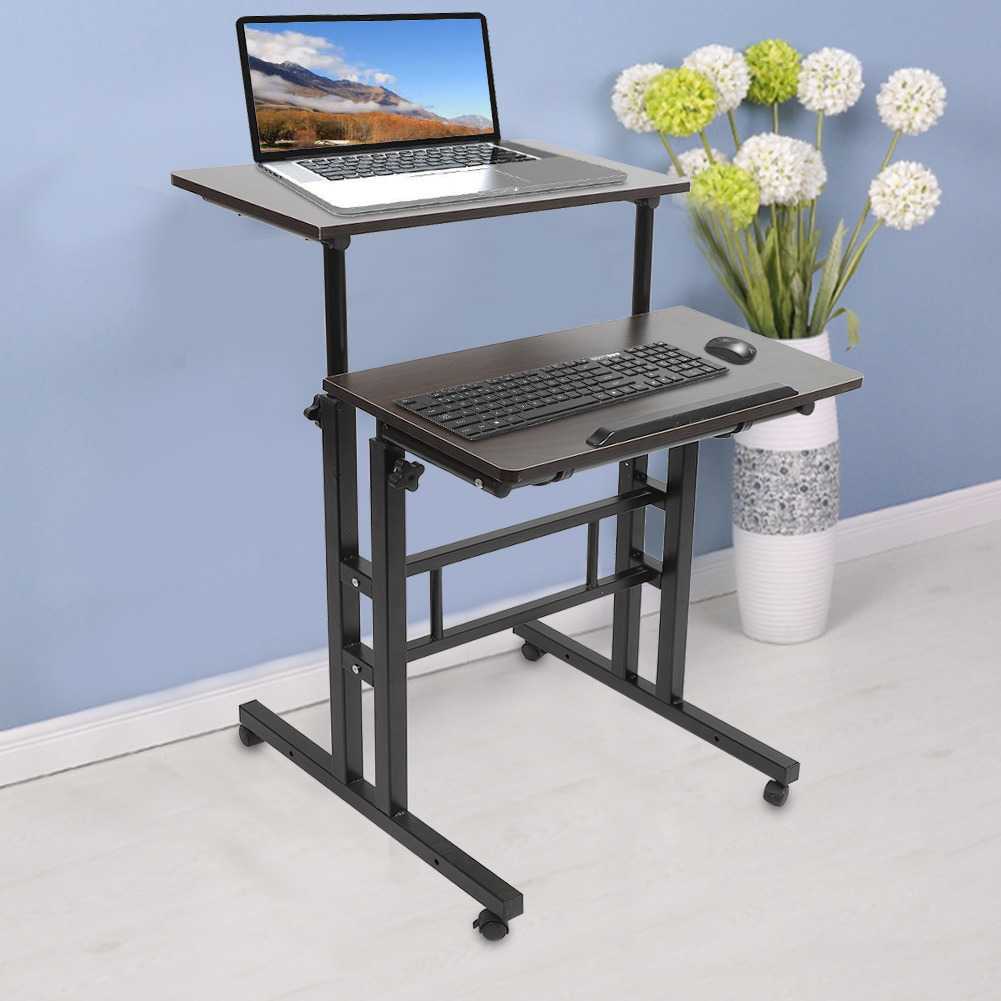
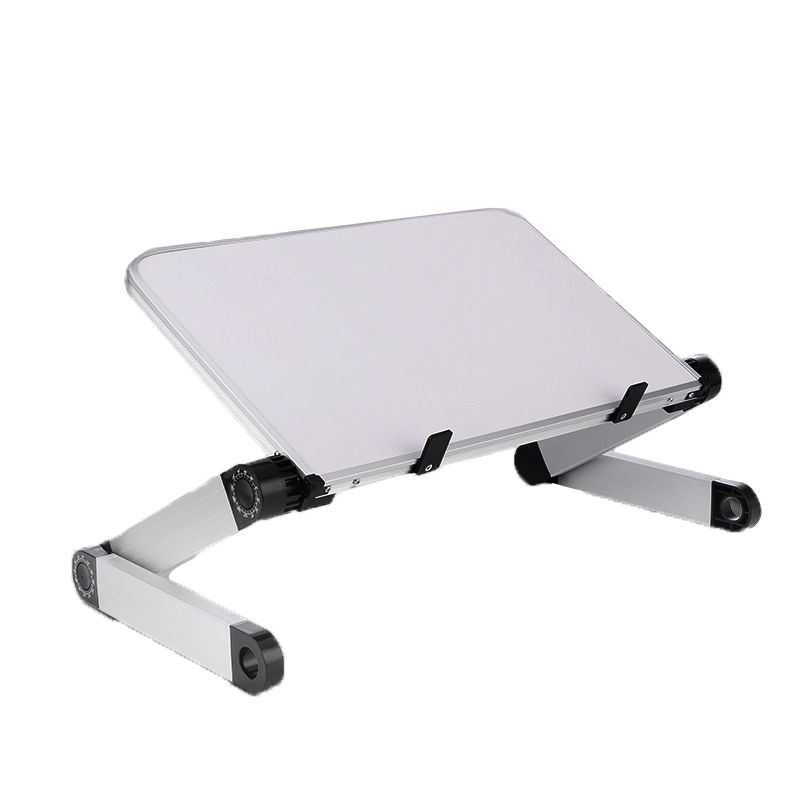
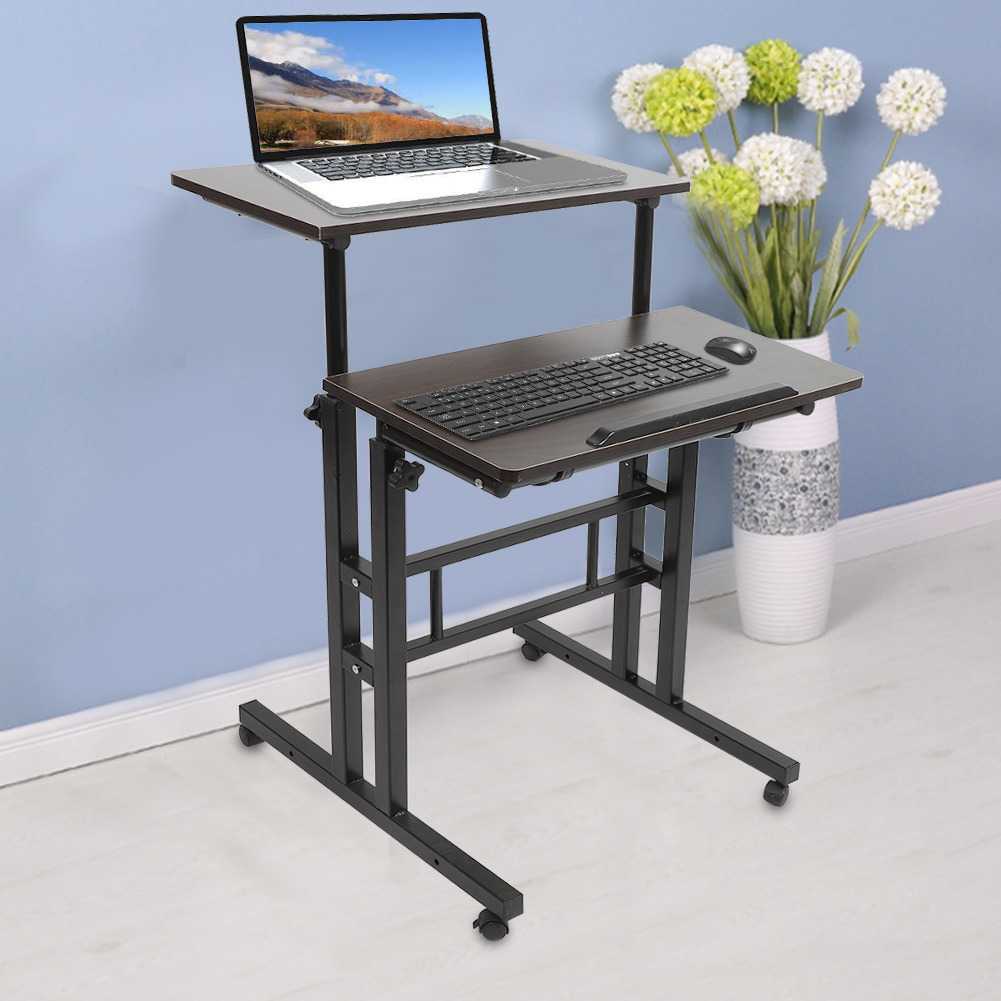
- Budget hack: A sit-stand converter ($100-150) lets you test standing without replacing your entire desk.
Spec checklist:
- Smooth, quiet lift mechanism
- Memory presets (so one button gets you to your sitting or standing height)
- Sturdy support (at least 220 lbs capacity)
- Cable management (desks with cable doors keep your setup clean)
3. Dual External Monitors (or One Premium Monitor)
Your laptop screen is too small for 8-hour workdays. External monitors improve workflow and reduce eye strain significantly.
Why dual screens work:
- One monitor for your primary task (email, coding, design)
- One monitor for reference (Slack, chat, video calls, reference materials)
- Reduces window switching and mental load
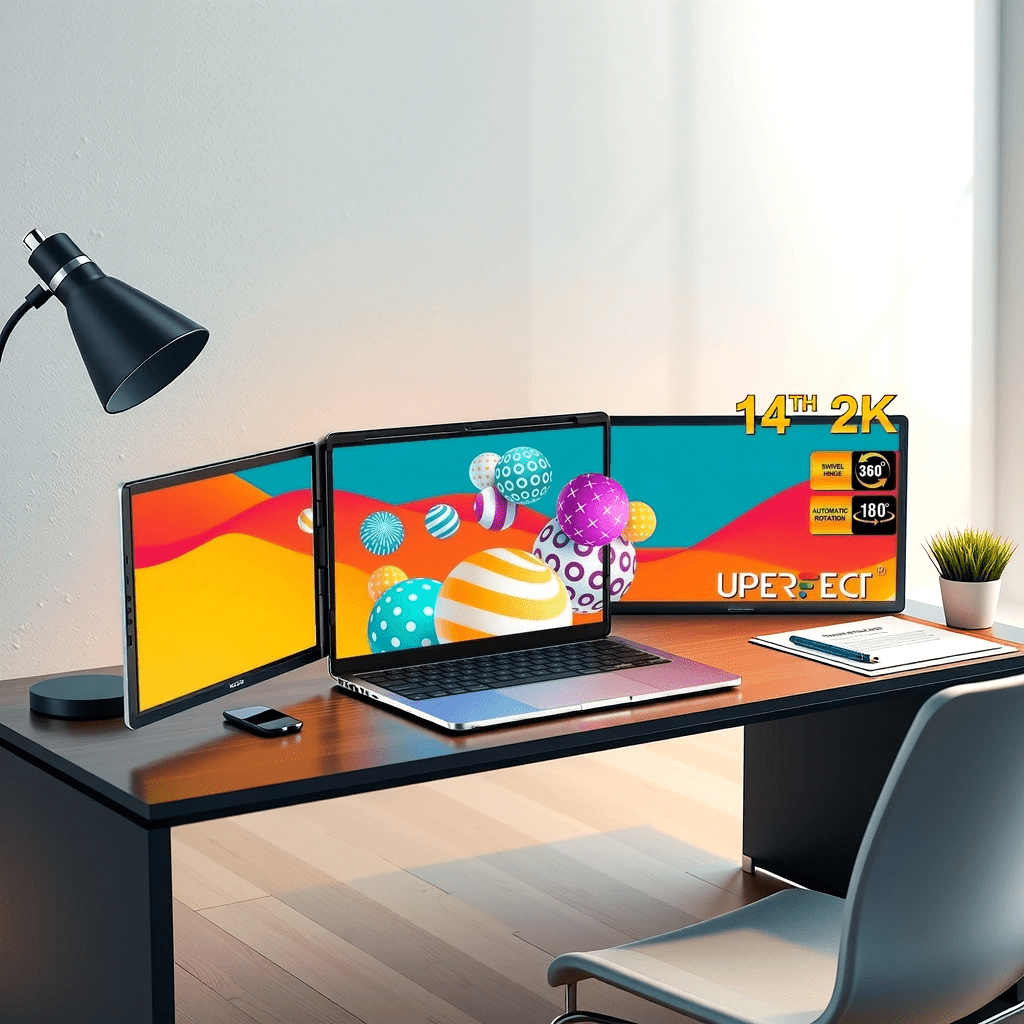
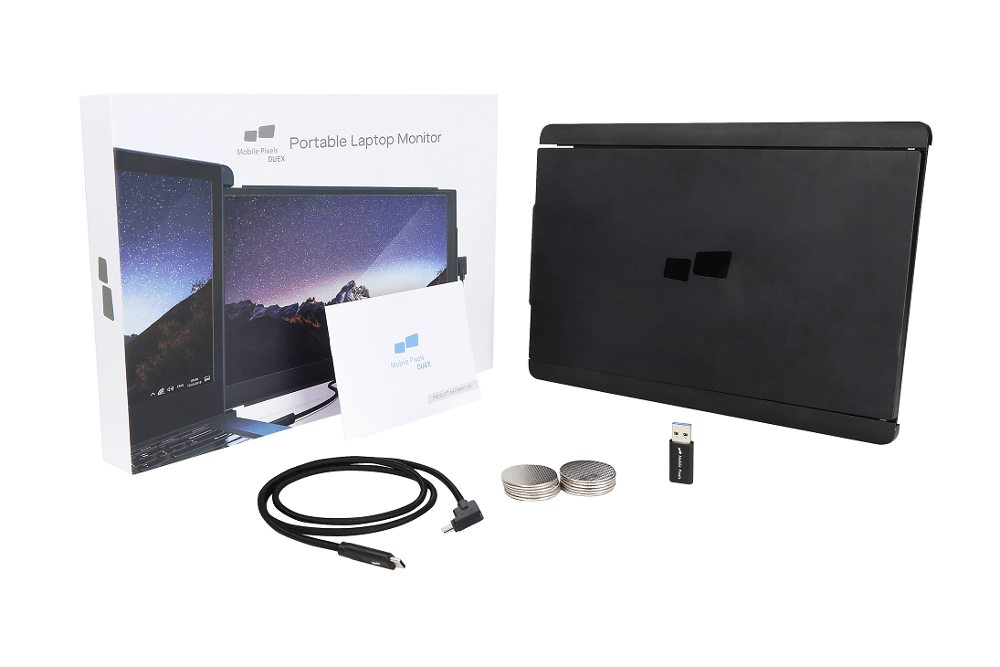
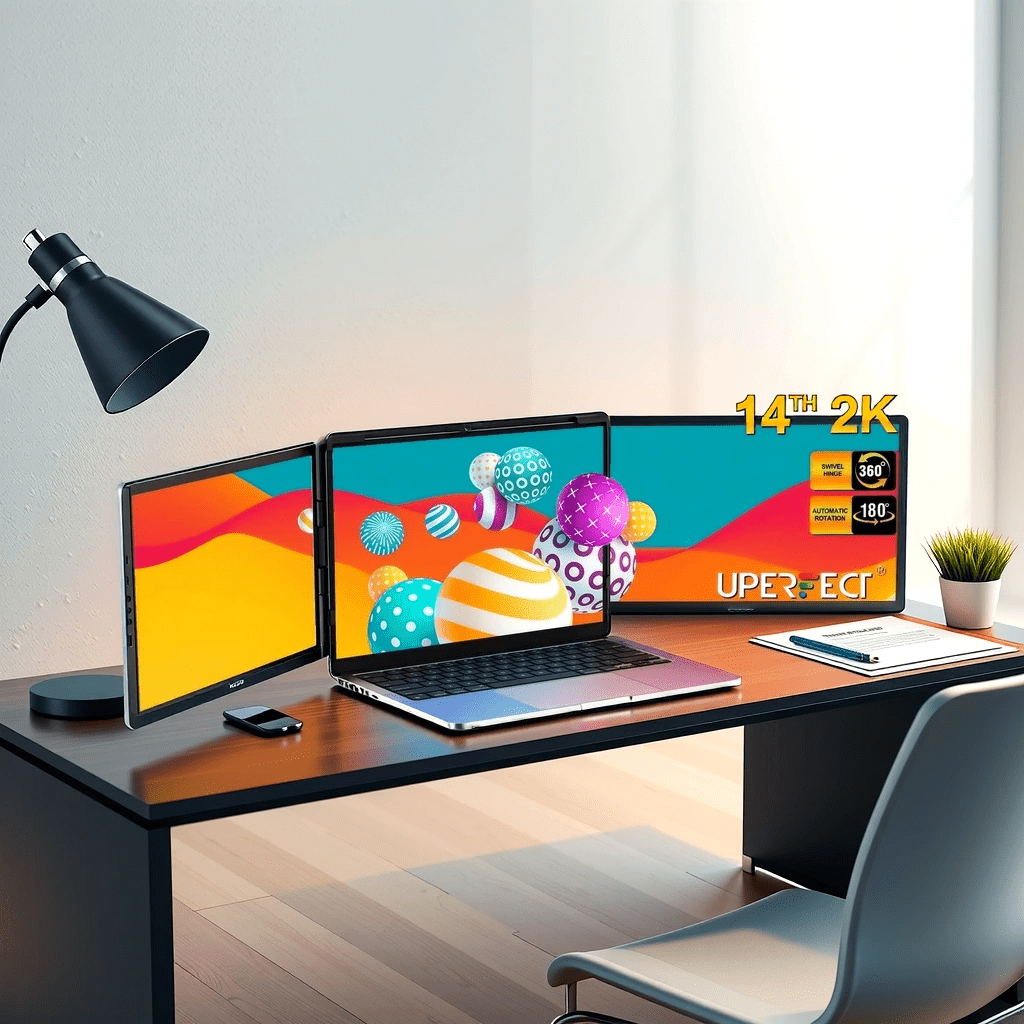
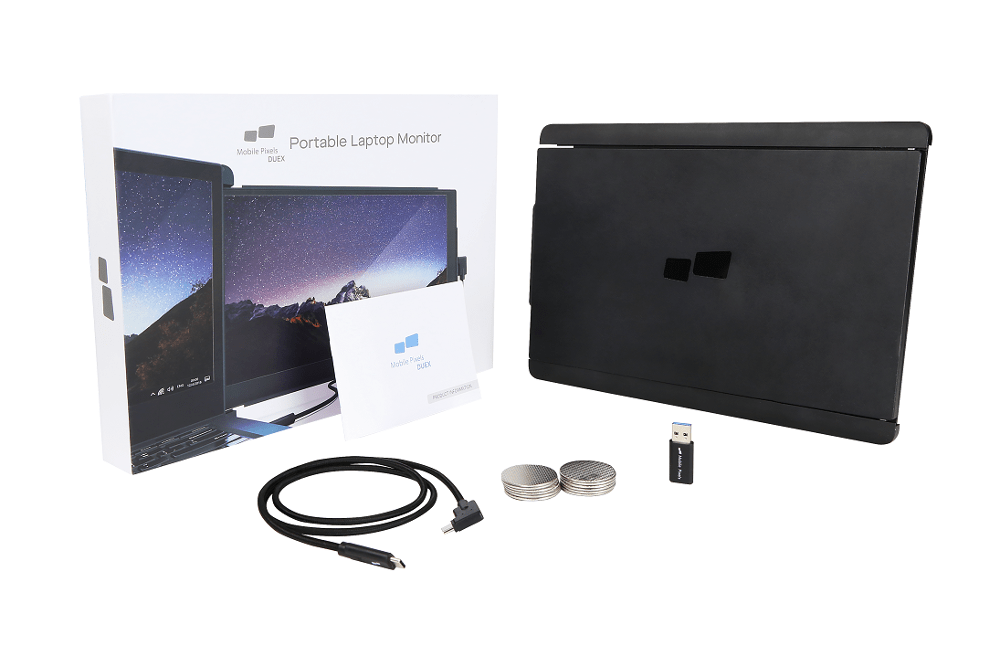
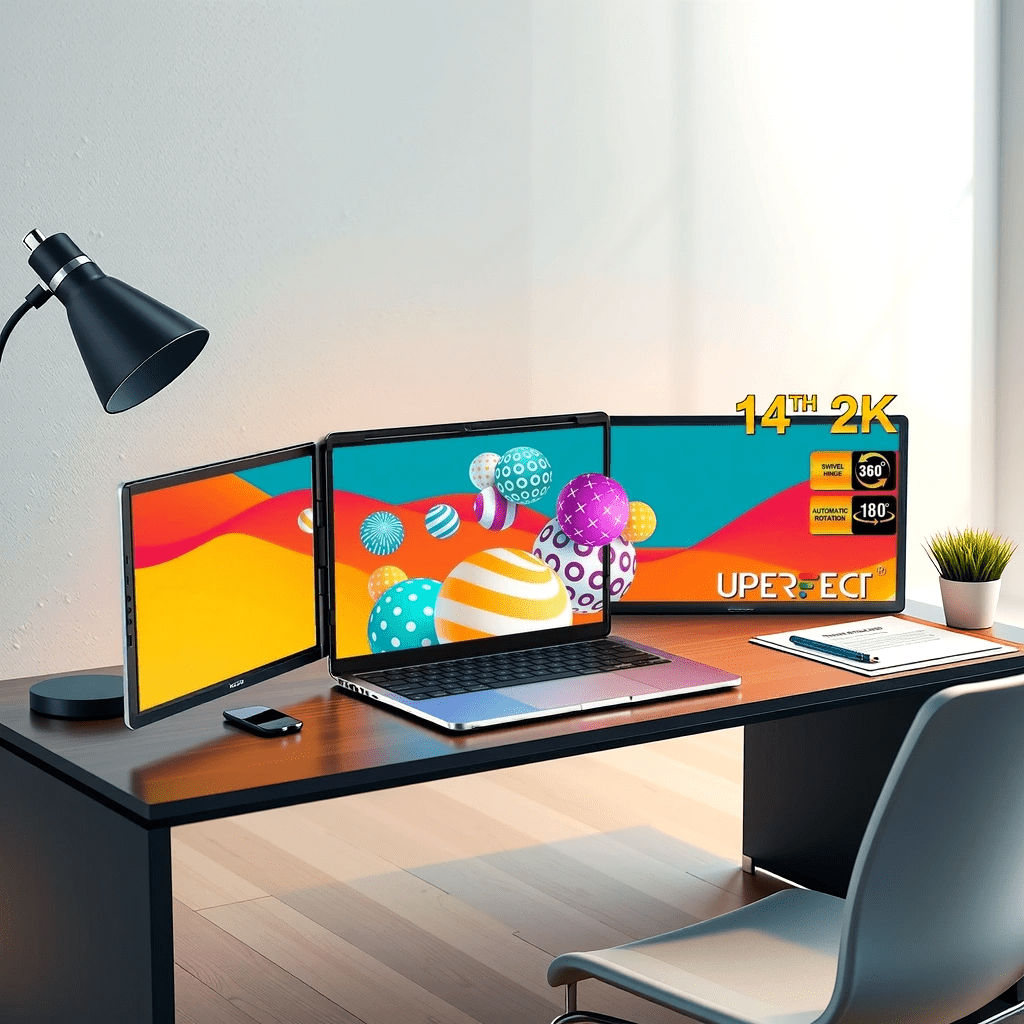
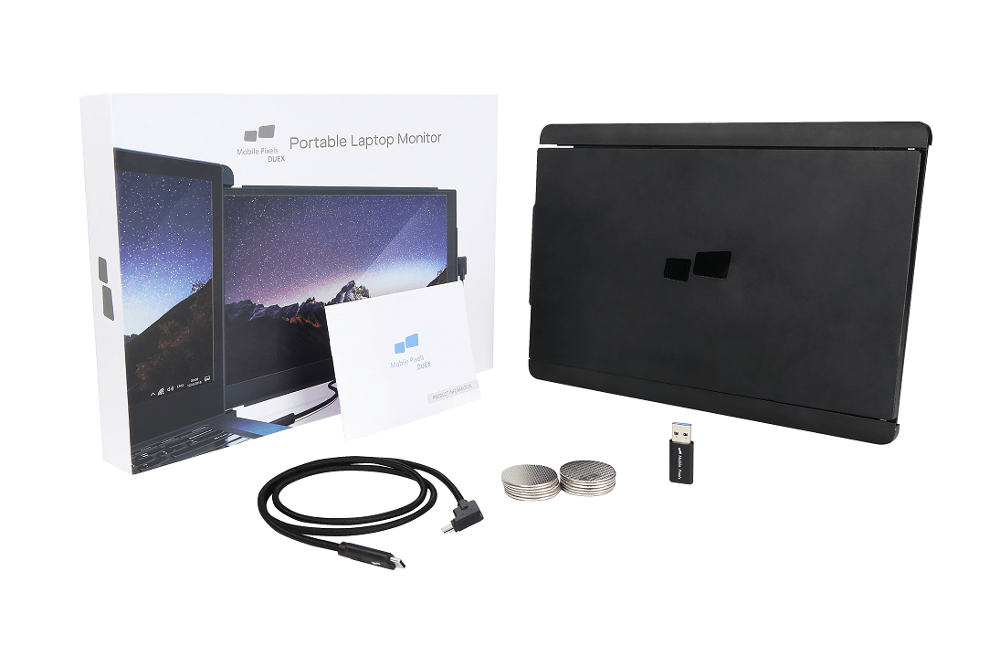
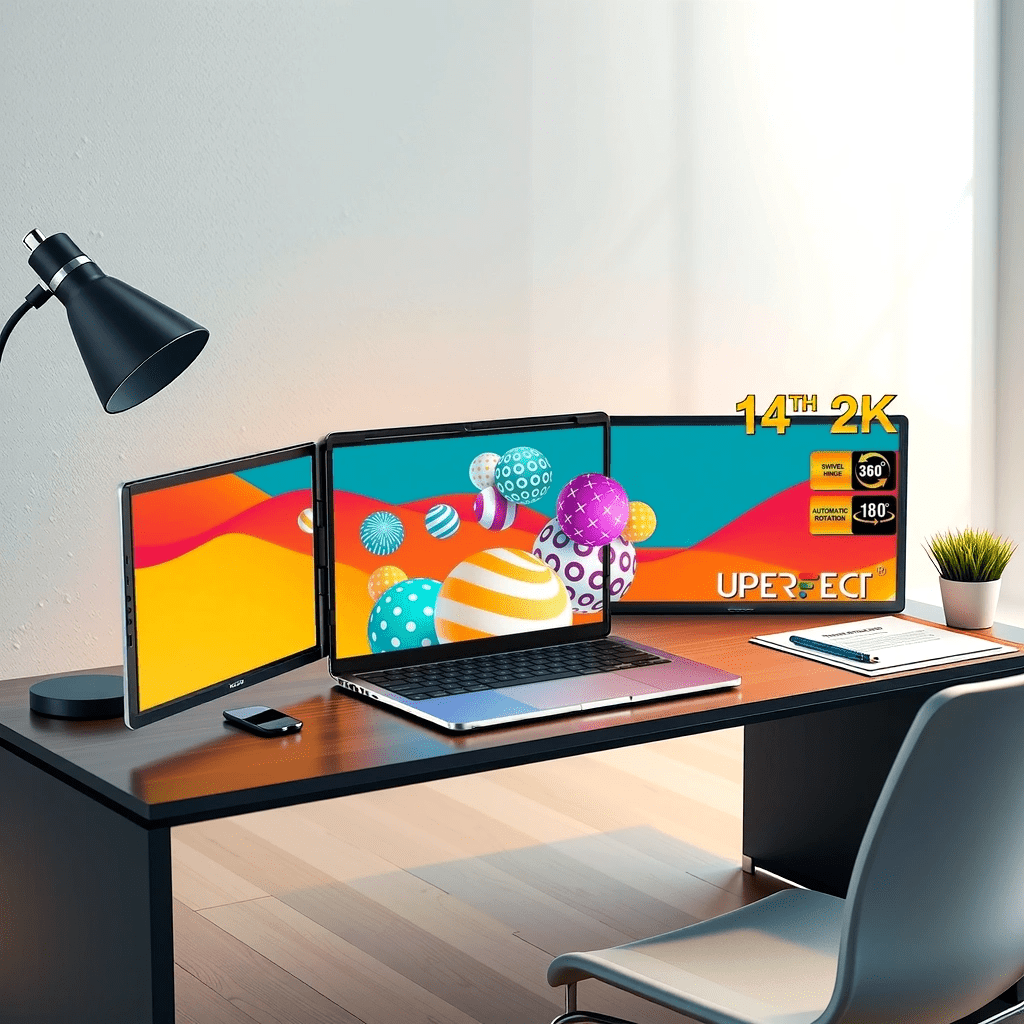
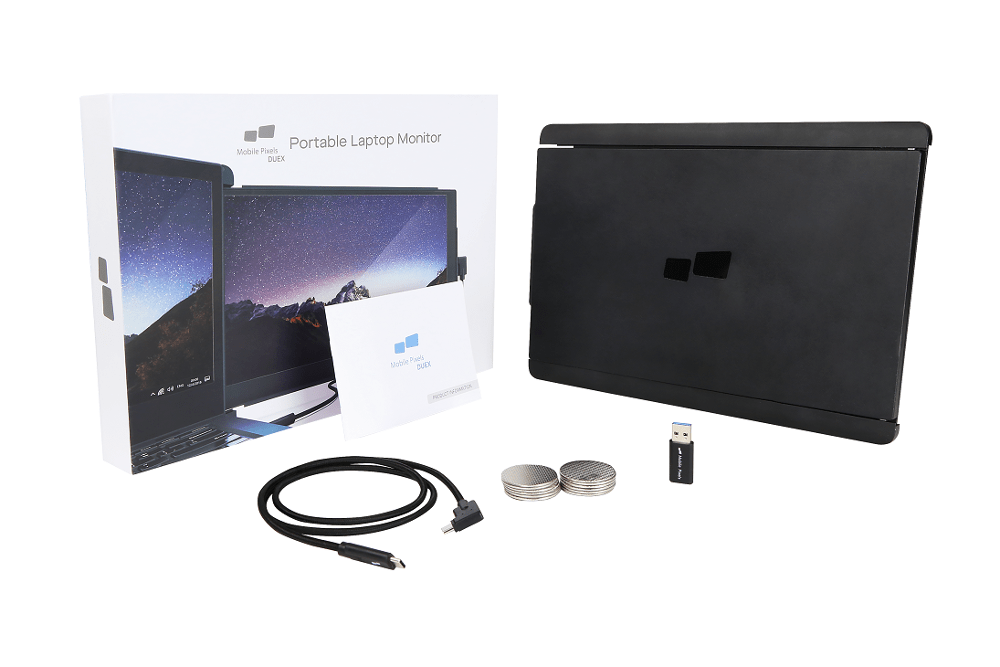
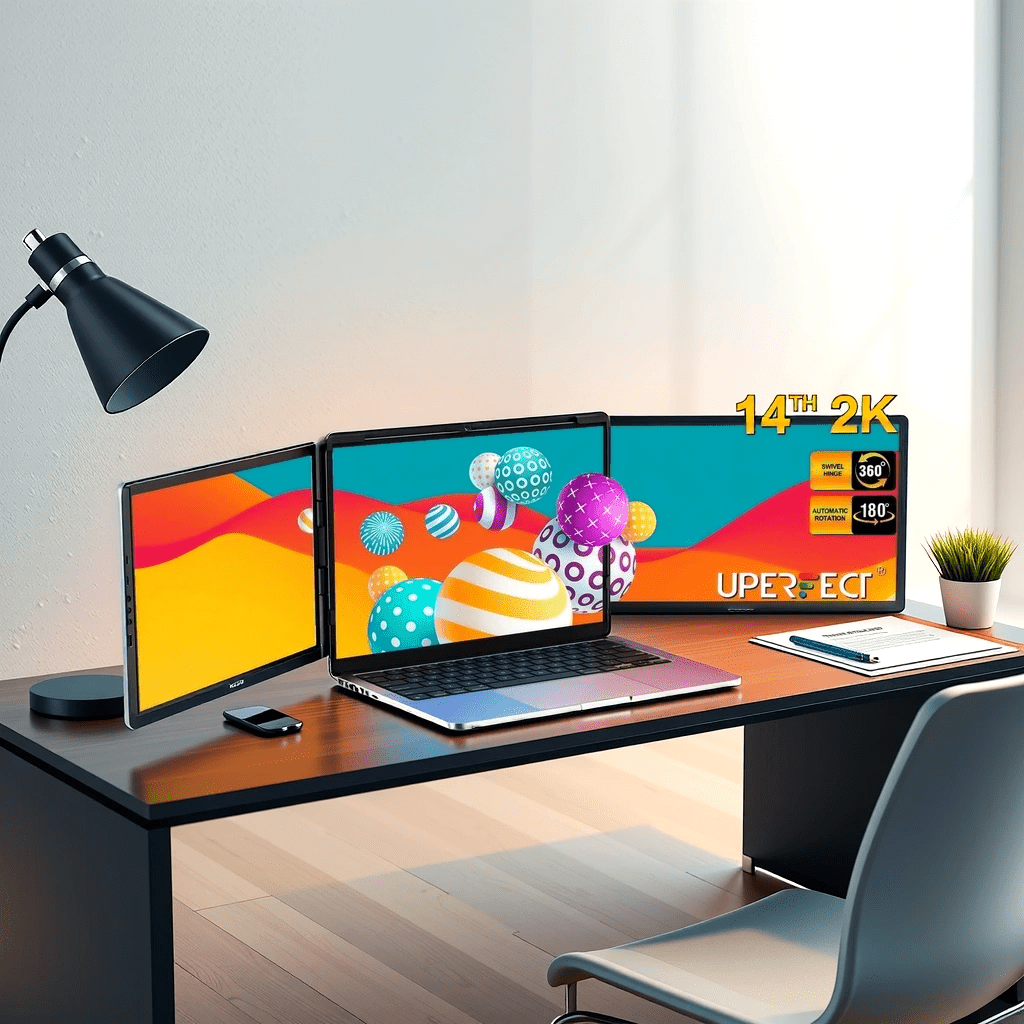
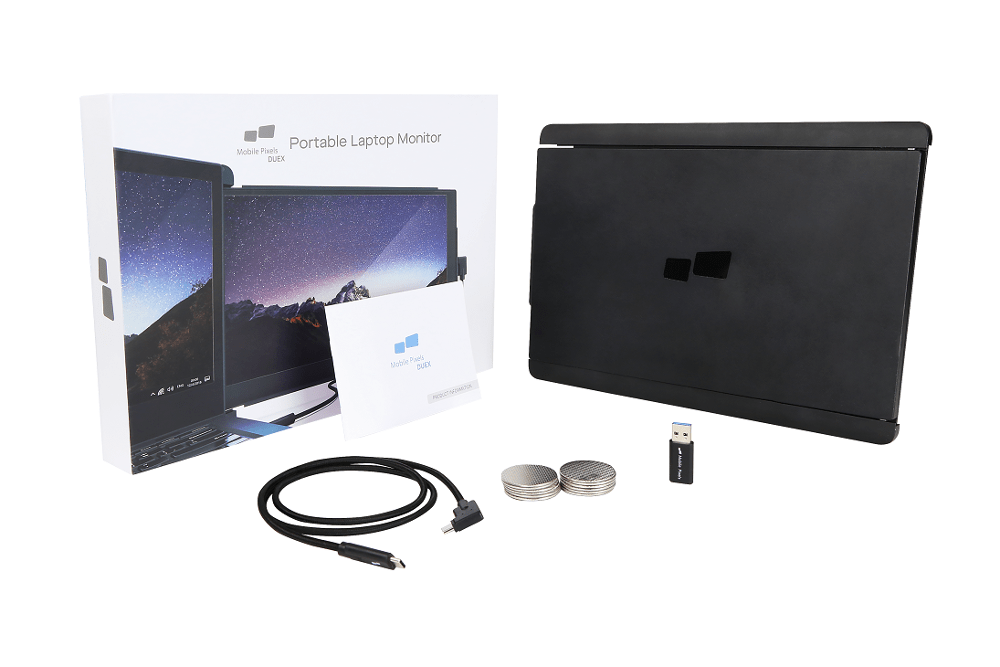
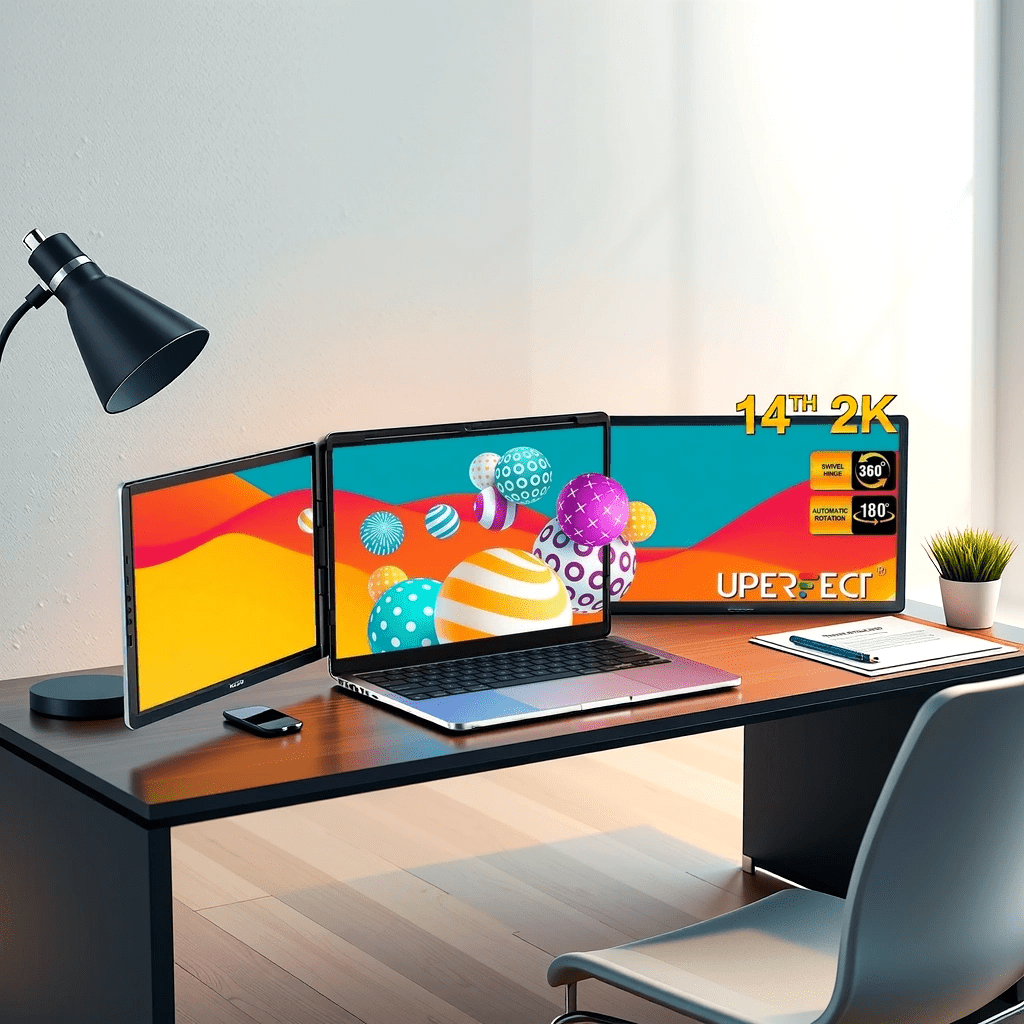
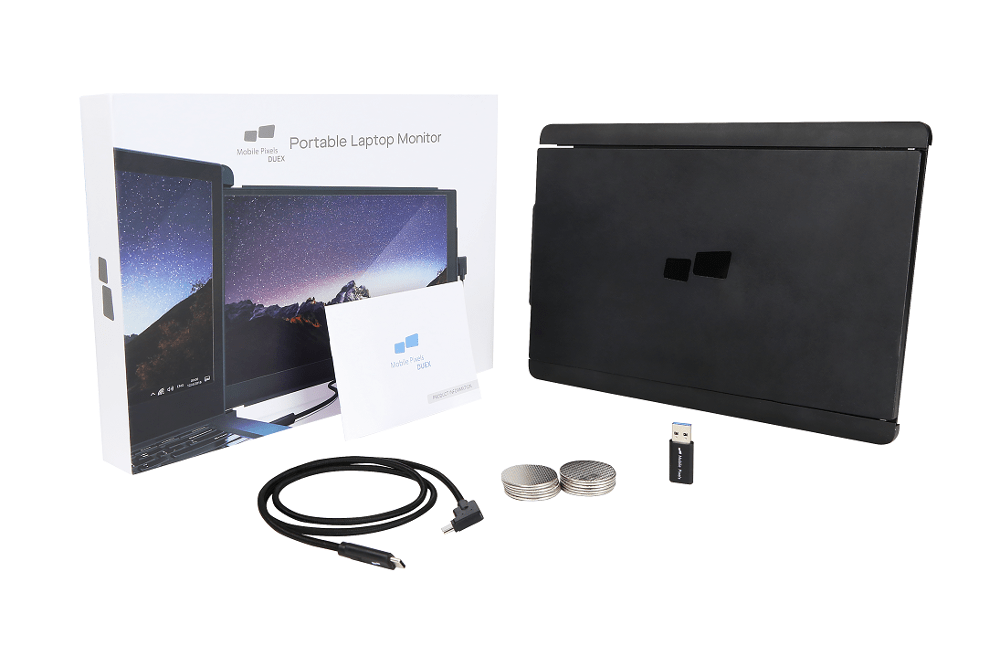
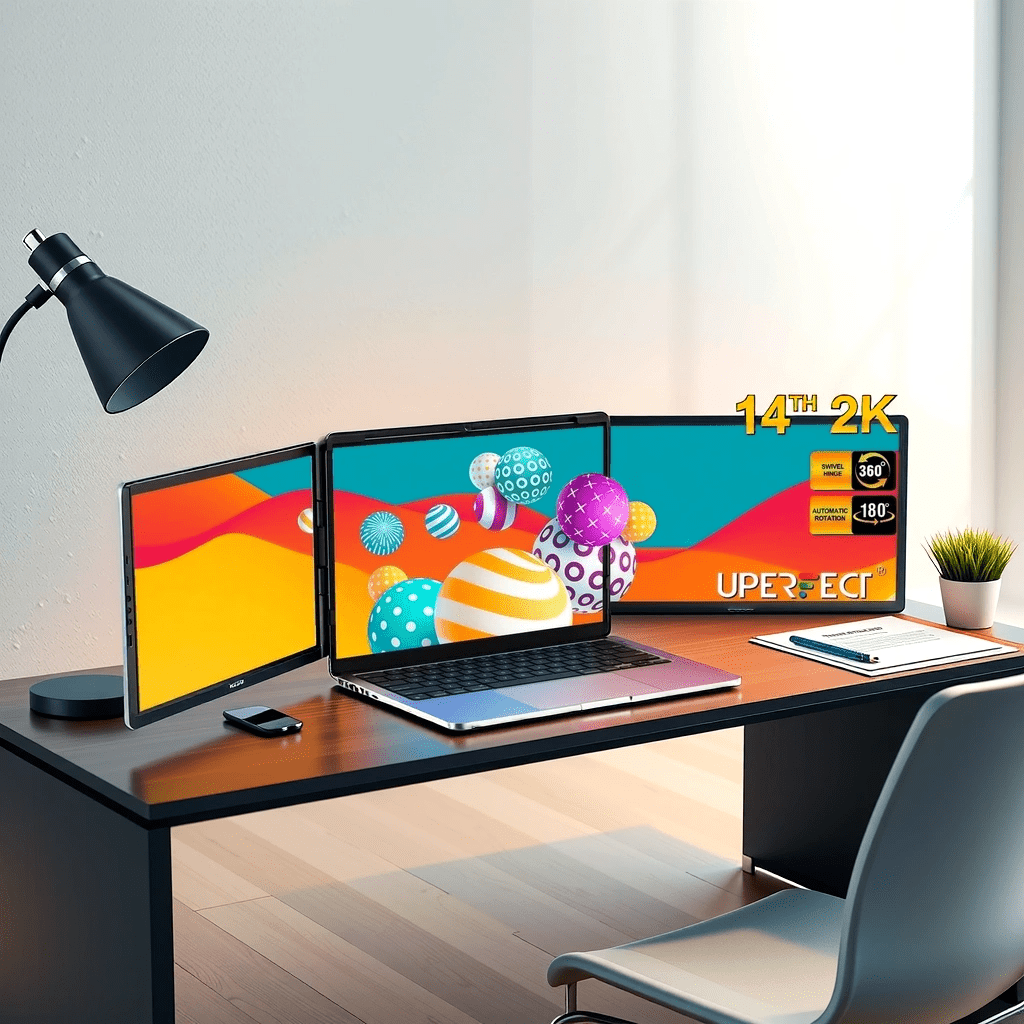
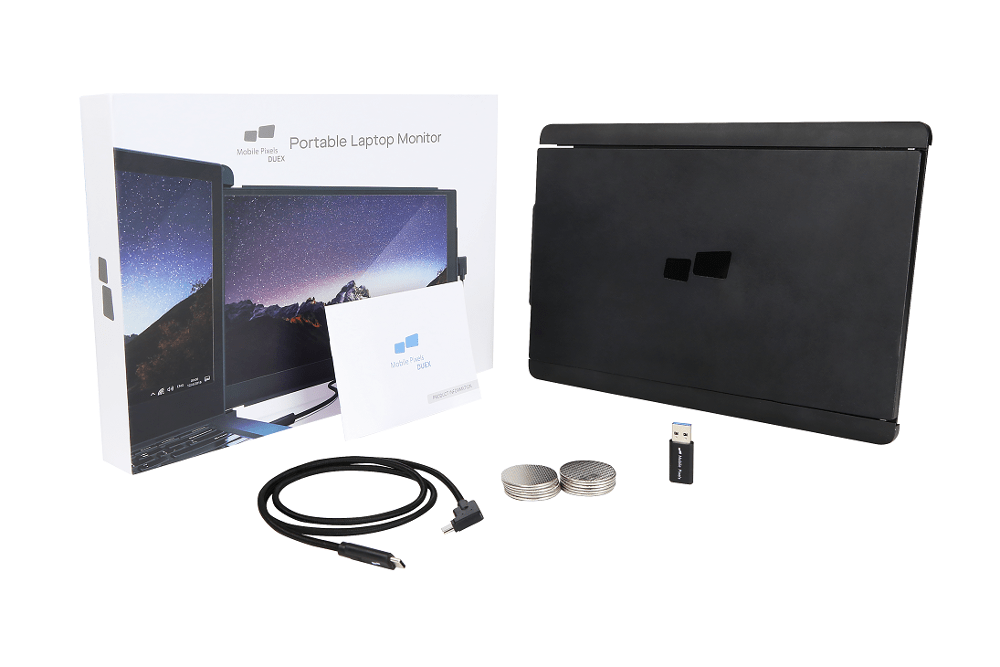
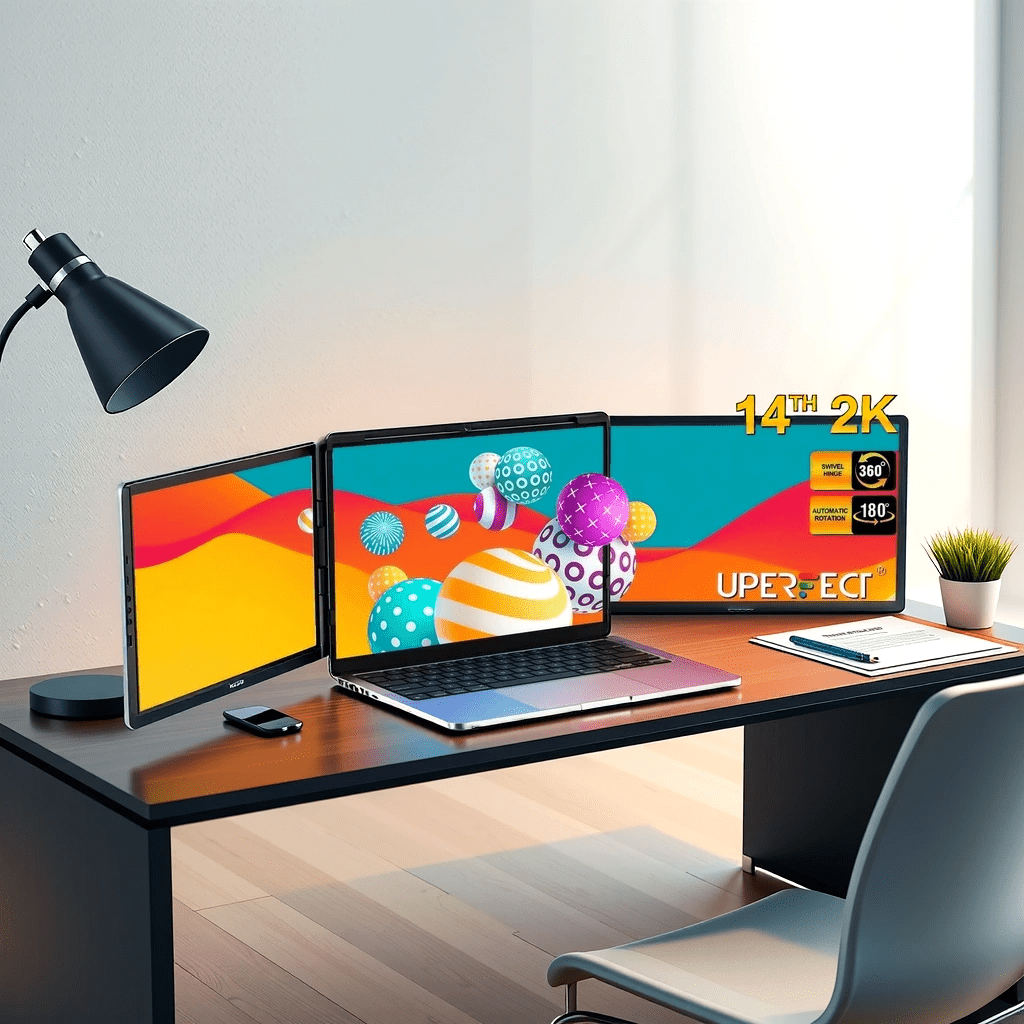
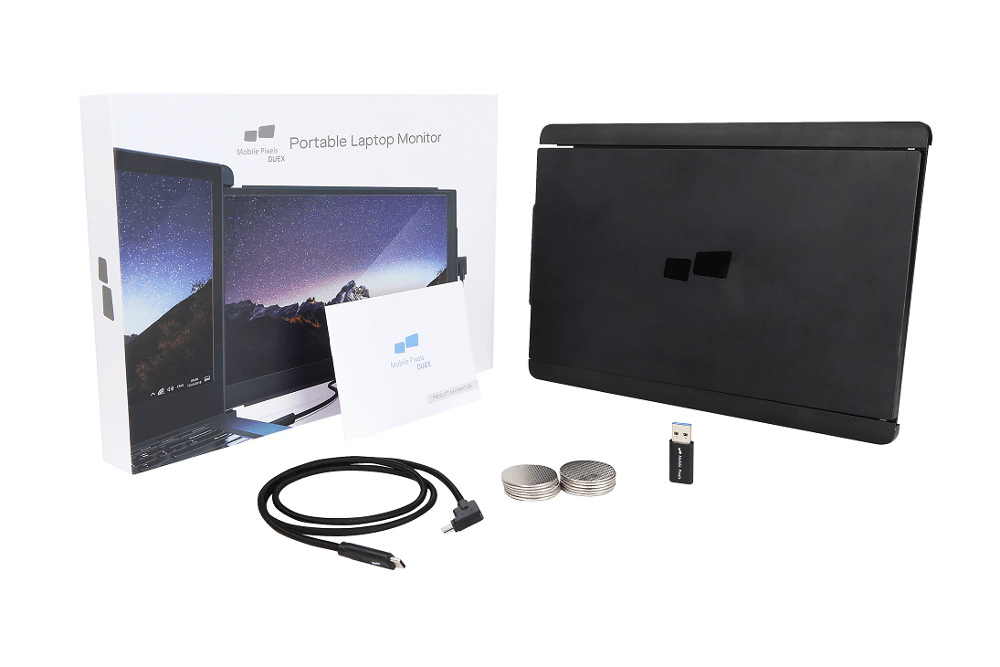
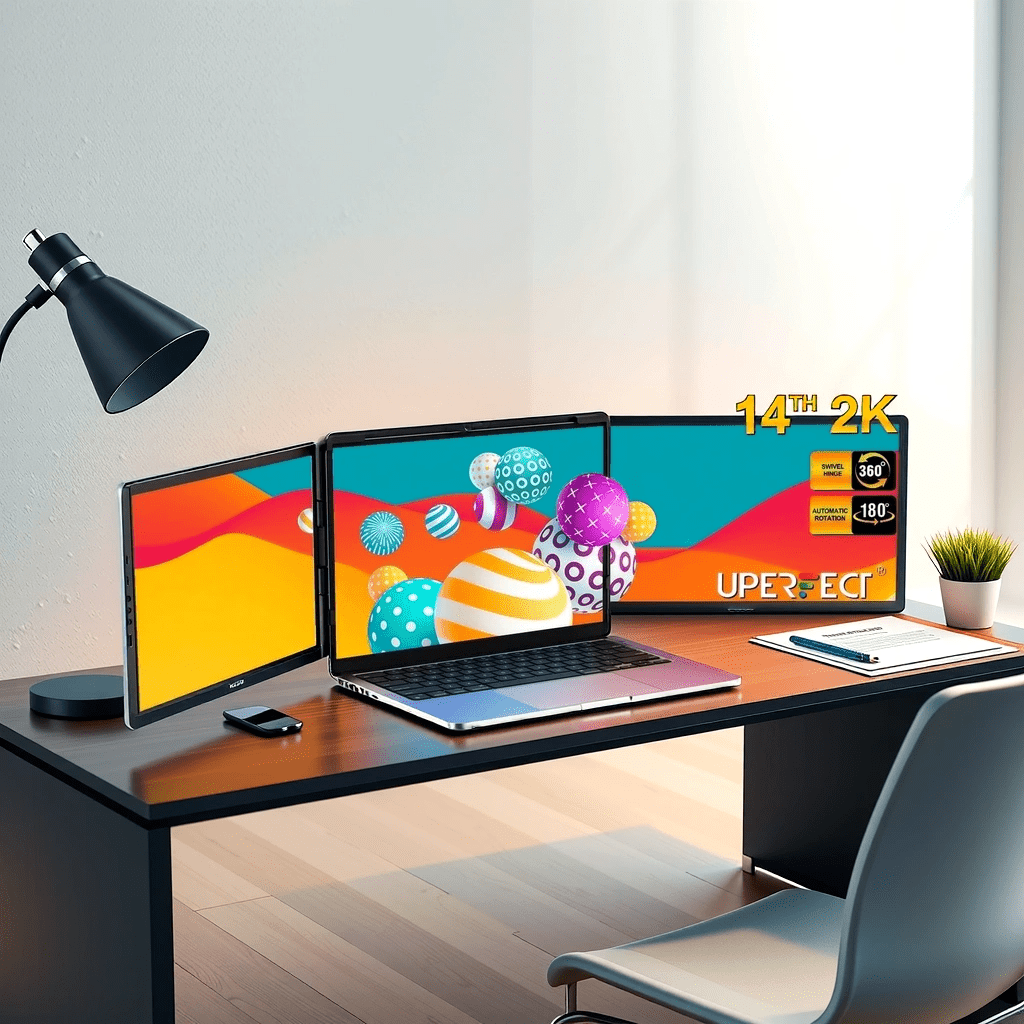
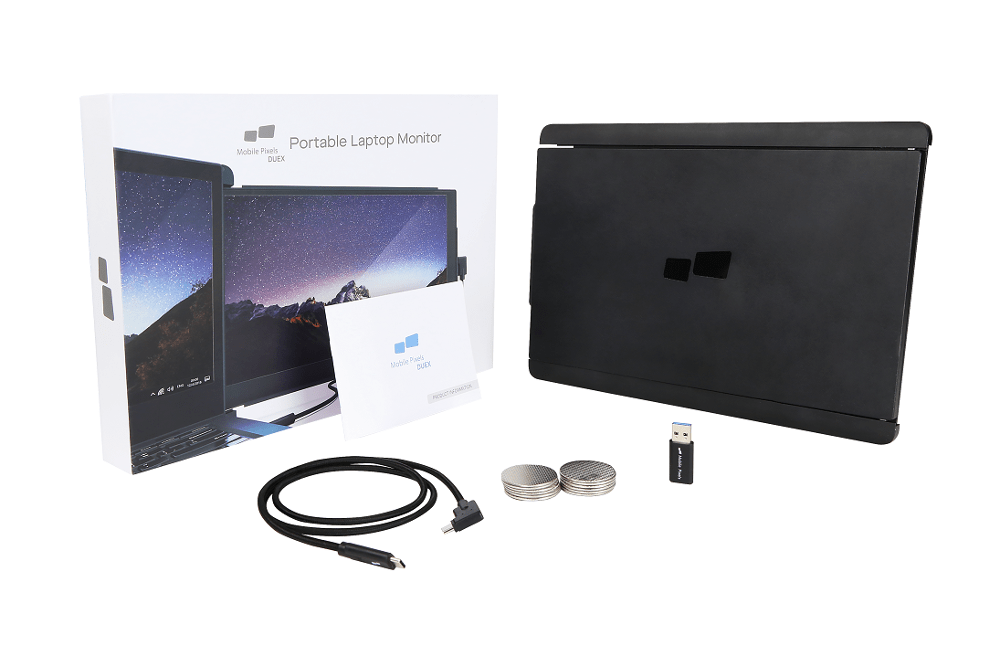
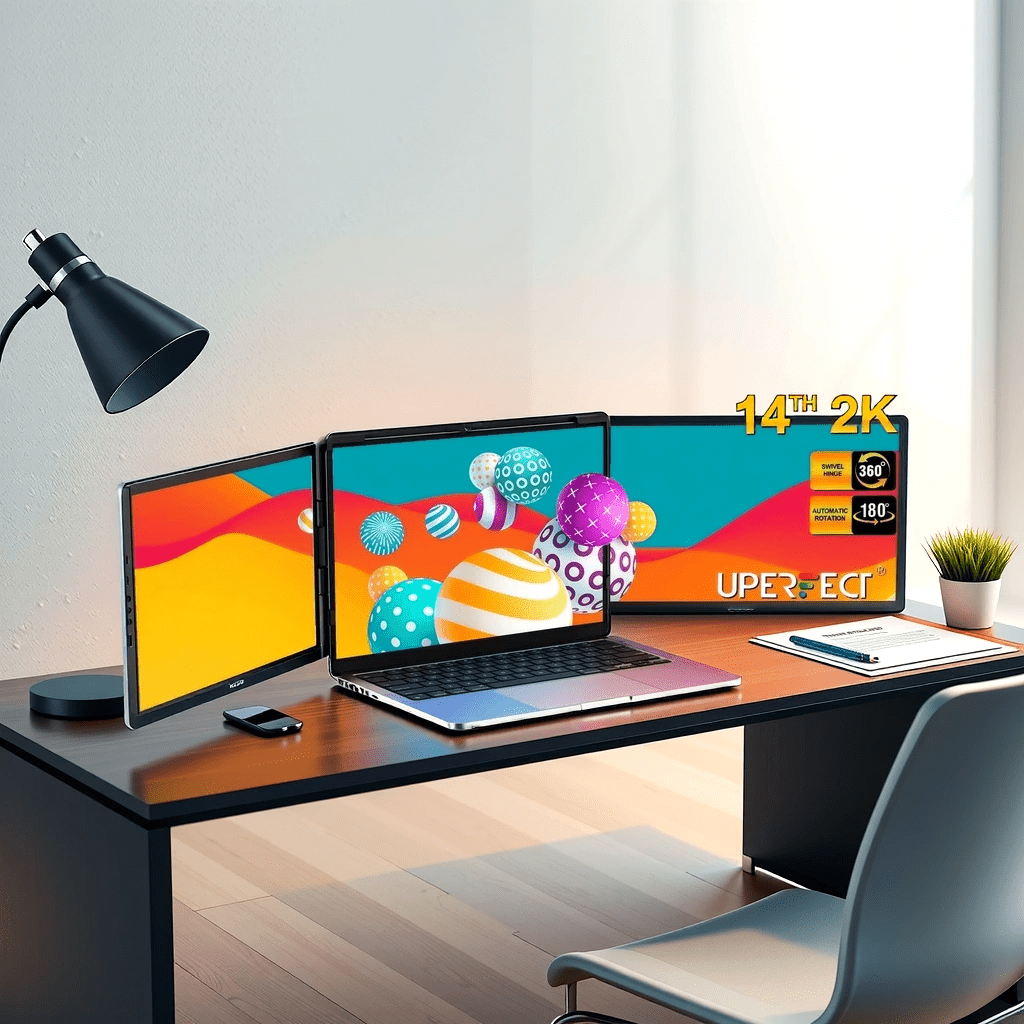
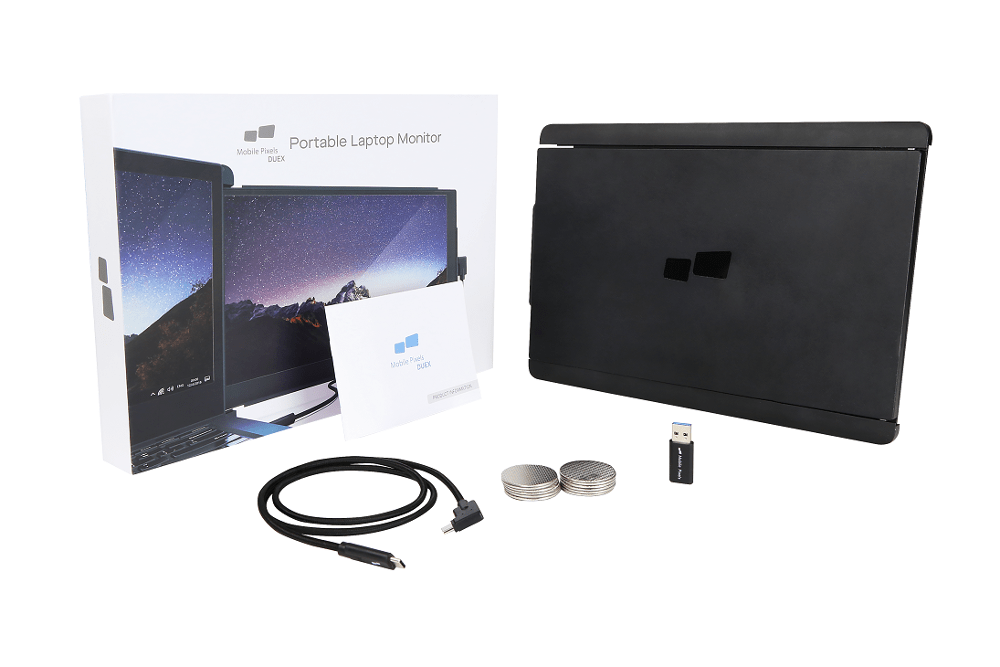
If budget is tight, start with one quality external monitor (24″ or 27″) positioned at eye level. A single monitor upgrade often reduces eye strain more than any chair adjustment.
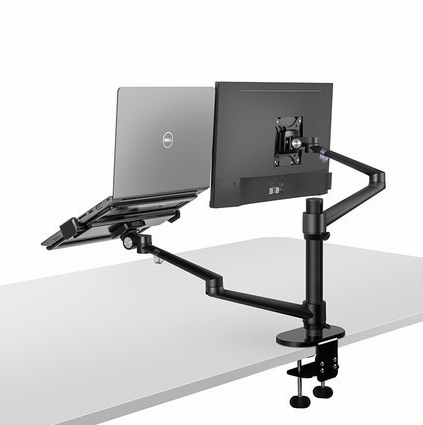
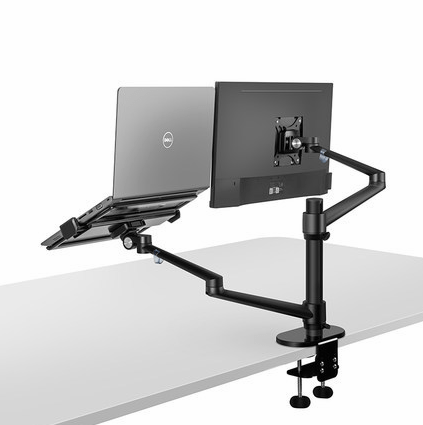
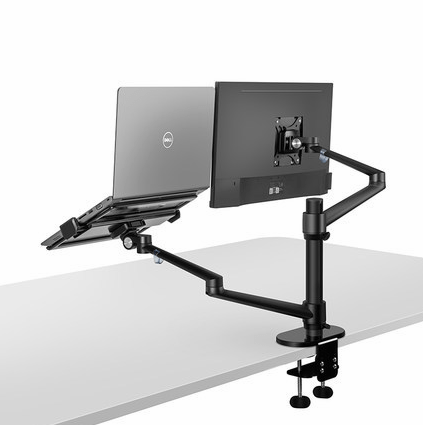
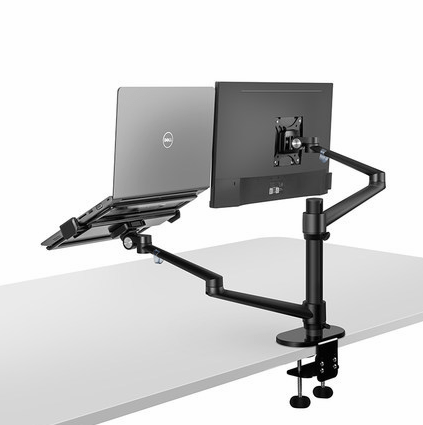
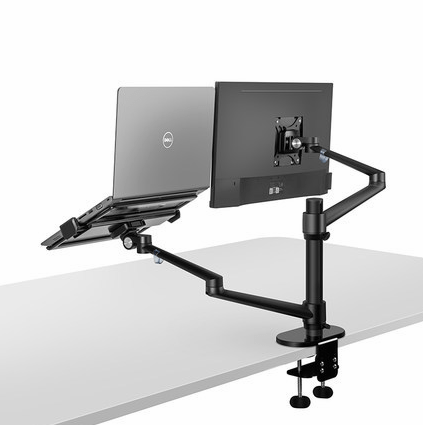
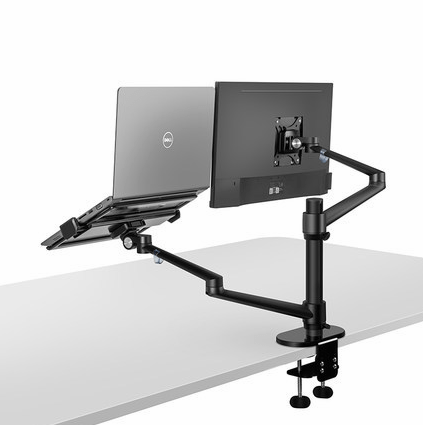
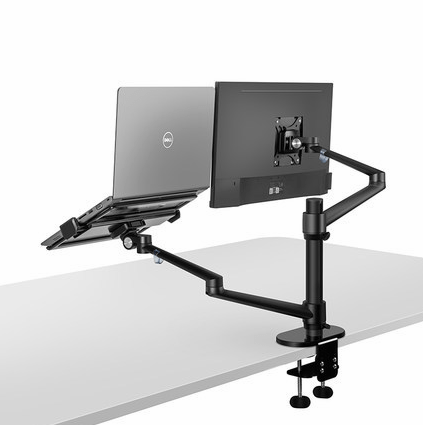
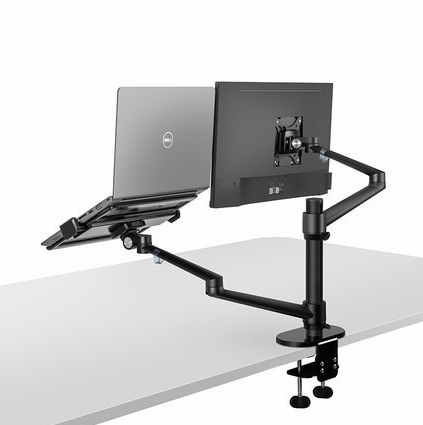
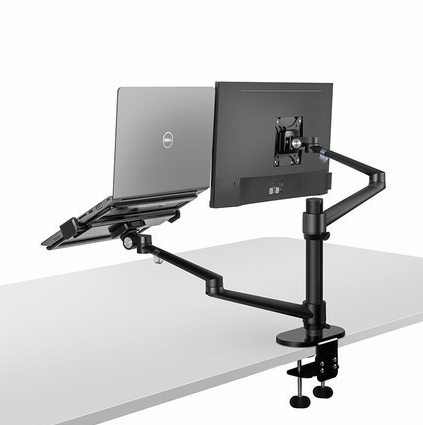
Essential accessory: Monitor arm
- Frees up desk space (raised off the desk surface)
- Allows perfect positioning at eye level
- Cost: $80-200 for a quality full-motion arm
- ROI: Eliminates neck strain immediately
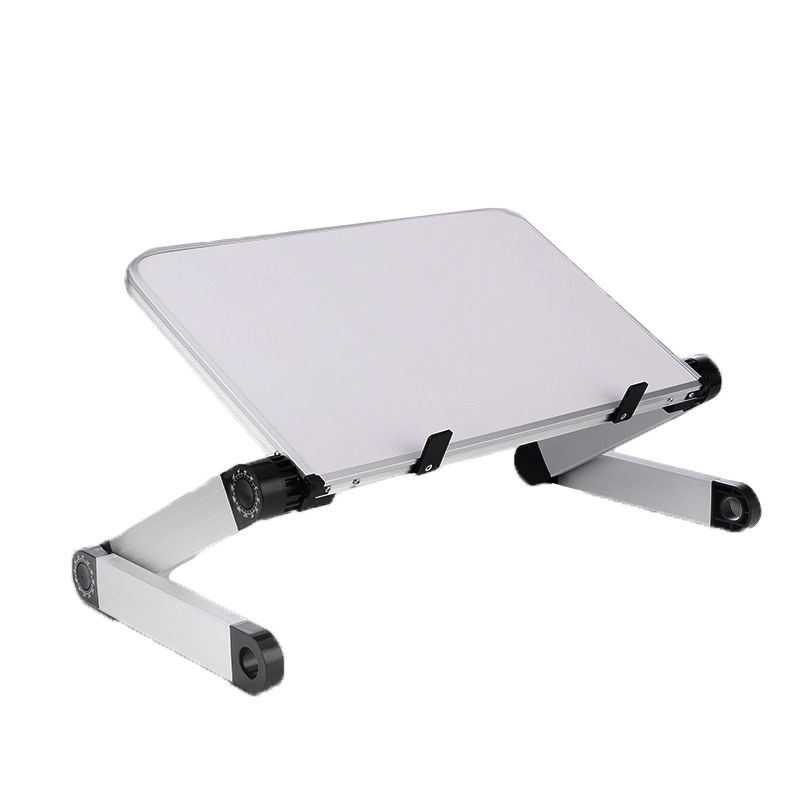
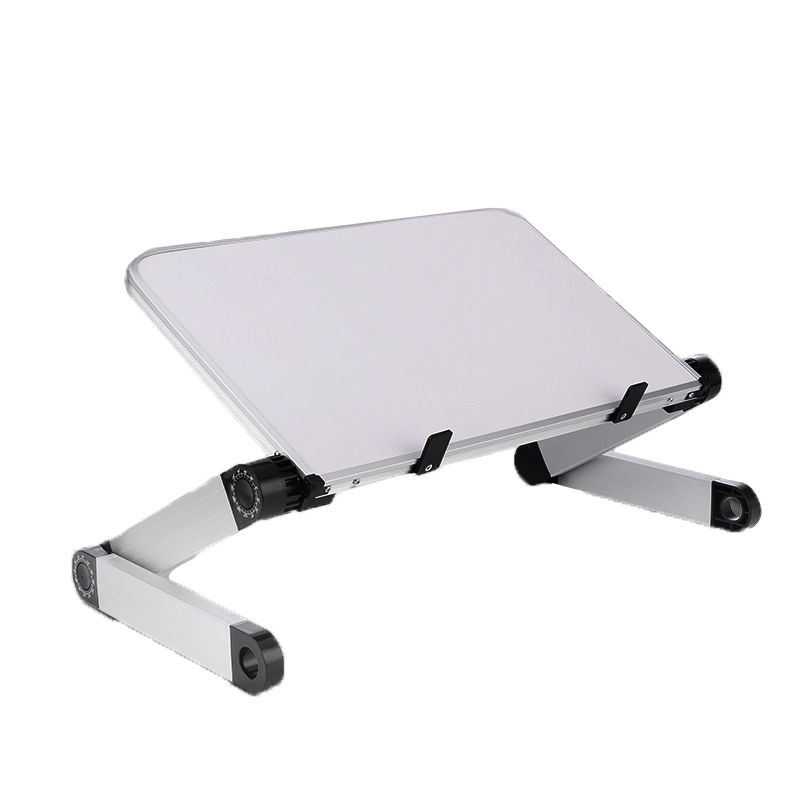
Budget option: A simple monitor stand with pen holders ($30-50) achieves 70% of the benefit without taking up desk real estate.
4. Ergonomic Keyboard & Mouse
Standard keyboards force wrists into unnatural angles. Over 8+ hours daily, this causes repetitive strain injury (RSI).
Ergonomic keyboard features:
- Split design (keys split down the middle to match natural hand angle)
- Negative tilt (slopes down toward the user, not up)
- Wrist rest (cushioned support to prevent palm strain)
- Example improvement: Split keyboards provide 54% more wrist support than standard keyboards
Mouse setup:
- Vertical/contoured mouse (keeps wrist in neutral position rather than twisted)
- Wireless (reduces cable drag on your wrist)
- Arm rest at elbow height (so your mouse arm stays relaxed)
Budget option: A basic vertical mouse ($20-40) solves most RSI issues without going full ergonomic keyboard.
5. Smart Lighting (Eye Strain Prevention)
Poor lighting causes headaches, eye strain, and fatigue. The American Optometric Association recommends:
- Position your desk perpendicular to windows (prevents glare and backlighting)
- Use task lighting (a focused desk lamp) in addition to ambient room lighting
- Avoid direct overhead fluorescent lights (they flicker and cause eye fatigue)
- Blue-light filtering (reduces digital eye strain from screens)
Practical setup:
- Natural light from the side (best)
- Adjustable desk lamp (3,000-4,000K color temperature for evenings)
- Blue-light glasses ($10-30) for late-night work
Part 3: Nice-to-Have Upgrades (The 20% That Optimizes the Remaining 20%)
Once you’ve nailed the essentials, these upgrades handle specific pain points.
1. Docking Station (Laptop Multitasking)
Modern laptops are powerful but limited by ports. A docking station turns one cable into a complete workstation.
- Dual HDMI support for multiple monitors
- USB-A and USB-C ports for peripherals
- Fast charging (so your laptop stays powered while docked)
- Price: $80-200
2. Wireless Charging Mouse Pad / XXL Desk Mat
Combine three functions in one: desk organization, cable management, and wireless charging for your phone and earbuds.
- Premium, non-pretentious design
- 15W fast charging (MagSafe and Qi compatible)
- Large surface area for keyboard, mouse, and phone
- Price: $40-80
3. Noise-Canceling Headphones or USB Microphone
If you’re on video calls regularly, audio quality matters more than video quality (people forgive bad camera; they hate bad audio).
Options:
- Noise-canceling headphones ($150-300) for calls and focus music
- USB microphone ($30-80) for crystal-clear voice on calls
4. Posture Tracking & Smart Desk Features
By 2026, integrated posture sensors and app-controlled desks are common:
- Desks that remind you to switch positions via app notification
- Voice-activated height adjustment (“Alexa, stand mode”)
- Posture correction alerts when your back slouches
Price: $600-$1,200 (premium feature)
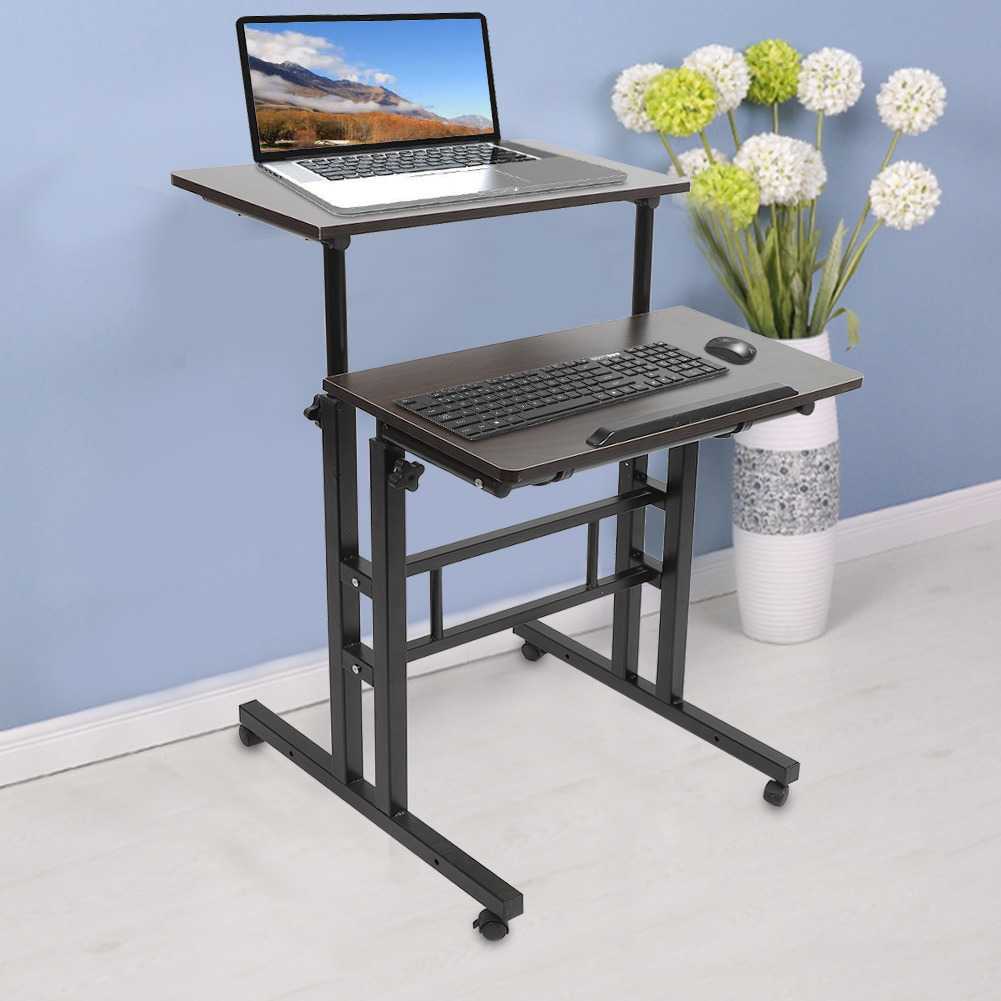
Part 4: Budget Breakdown – Build Your Remote Work Desk at Any Price Point
Bare-Bones Budget: $150-$250 (Get 70% of the way there)
| Item | Cost |
|——|——|
| Ergonomic chair (budget gaming chair) | $100 |
| Monitor riser or books + monitor arm | $30 |
| Vertical mouse | $25 |
| Desk lamp | $20 |
| Total | $175 |
Result: Proper positioning, reduced eye strain, better wrist support. No standing yet, but ergonomics are solid.
Mid-Range Setup: $400-$700 (Get 90% of the way there)
| Item | Cost |
|——|——|
| Quality ergonomic chair | $250 |
| Sit-stand desk converter or budget standing desk | $200-400 |
| External monitor (24-27″) | $150-250 |
| Monitor arm | $100 |
| Ergonomic keyboard & mouse | $80 |
| Desk lamp + blue-light glasses | $50 |
| Total | $480-650 |
Result: Full dynamic positioning, dual-monitor support, standing capability, and ergonomic input devices. This setup eliminates 90% of common desk-related pain.
Premium Setup: $1,200-$1,800 (The Ultimate Workstation)
| Item | Cost |
|——|——|
| Premium ergonomic chair | $400-600 |
| Electric standing desk with memory presets | $500-800 |
| Dual external monitors (27-32″) | $300-400 |
| Dual monitor arms (full motion) | $150-200 |
| Ergonomic keyboard & vertical mouse | $120-150 |
| Docking station (Thunderbolt 3 or USB-C) | $100-150 |
| Desk mat with wireless charging | $60-80 |
| Advanced desk lamp + posture tracking sensors | $100-200 |
| Total | $1,400-1,800 |
Result: Professional-grade workspace with maximum comfort, seamless multitasking, cable-free setup, and smart position reminders.
Part 5: Remote Work Desk Starter Kit Bundle – Save 15-20%
Rather than buying individual items, bundling saves money and ensures compatibility. The SupDesk Remote Work Starter Kit includes:
- Ergonomic chair
- Height-adjustable standing desk converter
- Monitor arm
- Ergonomic keyboard
- Wireless mouse
- Desk lamp
- Wireless charging pad
Bundle savings: $120-$180 off individual pricing (15-20% discount) when purchased together.
Why buy a bundle?
- Compatibility guaranteed — All items work together seamlessly
- Significant savings — Bundled pricing beats buying separate items by 15-20%
- Complete solution — No forgotten accessories or missing pieces
- Easier decision-making — Eliminates analysis paralysis
For companies building team setups, bundles scale efficiently: outfitting 5 remote workers with bundled setups vs. individual components saves $600-$900.
Part 6: Implementation: Building Your Setup Over Time
You don’t need to buy everything at once. Here’s a phased approach:
Month 1: Foundation ($100-150)
- Get positioning right: monitor riser, desk lamp, small lumbar pillow
- Add a vertical mouse
- Implement 20-8-2 rule movement
Month 2-3: Comfort ($150-300)
- Upgrade to a quality ergonomic chair
- Add external monitor if you don’t have one
Month 4-6: Optimization ($300-500)
- Add a standing desk or converter
- Upgrade keyboard to split ergonomic model
- Invest in monitor arms
Month 6+: Premium Features ($200-800)
- Smart desk features
- Docking station for seamless multitasking
- Dual-monitor premium setup
FAQs: Remote Work Desk Setup 2026
Q: Can I use a gaming chair for work?
A: Yes. Gaming chairs provide superior lumbar support and reclining features compared to many traditional office chairs, and they’re often $100-$200 cheaper for equivalent quality.
Q: How long does it take to see results from ergonomic changes?
A: Many users report reduced back/neck pain within 3-7 days of proper setup. Full posture habit formation takes 4-6 weeks.
Q: Is standing all day better than sitting all day?
A: No. Both are problems. The solution is alternating every 30 minutes using the 20-8-2 rule.
Q: Do I need a standing desk or is a converter enough?
A: A converter is an excellent low-cost test ($100-150). If you love it after 2 months, upgrade to a full electric standing desk. Many people find the converter is sufficient.
Q: What’s the single best investment for a remote worker?
A: An adjustable monitor arm ($100-150). It solves neck strain and reclaims desk space immediately.
Q: How much should I spend on an ergonomic chair?
A: $200-400 is the sweet spot. Under $150, quality suffers. Over $600, you’re paying for premium materials rather than better support.
Q: Can posture exercises fix back pain on their own?
A: Exercises help, but positioning matters more. Get your chair, desk, and monitor height right first, then add exercises for 20-30% additional improvement.
Q: What about standing desk accessories?
A: Anti-fatigue mats ($30-80) reduce leg fatigue if you’re standing for extended periods. Footrests ($20-50) improve circulation if you’re sitting. Both are nice-to-haves, not essentials.
Q: Is blue-light filtering really necessary?
A: Blue-light glasses ($10-30) reduce eye strain for evening work. Positioning your screen 20+ inches away and following the 20-20-20 rule (every 20 minutes, look 20 feet away for 20 seconds) is more important.
Decision Matrix: Choose Your Setup Path
| Your Situation | Recommendation | Budget |
|—|—|—|
| Just starting WFH, tight budget | Positioning fix + vertical mouse + budget chair | $150-250 |
| Currently experiencing back/neck pain | Ergonomic chair + standing desk converter + monitor arm | $400-600 |
| Hybrid worker with limited home space | Compact desk mat + chair upgrade + docking station | $300-500 |
| Full-time remote, open budget | Premium chair + electric standing desk + dual monitors | $1,200-1,800 |
| Team setup for 5+ employees | Remote Work Starter Kit bundles (discounted per person) | $350-450/person |
Conclusion: Your Desk Is Your Command Center
By 2026, your home office isn’t a temporary setup—it’s the command center of your career. Investing in proper ergonomics, dynamic positioning, and thoughtful accessories pays dividends in comfort, productivity, and long-term health.
The simple version: Get positioning right first (monitor at eye level, elbows at 90°, feet flat), move every 30 minutes, then add equipment as needed. A $200 setup with proper positioning beats a $2,000 setup with poor ergonomics every time.
Start with the Remote Work Starter Kit and optimize from there. Your back (and your productivity) will thank you.
Shop by Category at The SUP Desk:
More Remote Work Gear
Dig deeper into specific product categories:

- Best Standing Desk Under $250 in 2026 — our full review of the top budget sit-stand desk
- Best Desk Accessories for Productivity Under $50 (2026) — cable clips, monitor lights, and laptop stands
- Best Translation Earbuds Under $100 (2026) — real-time language translation for remote teams
Browse the full thesupdesk.com collection for more gadgets, tech accessories, and remote work gear — all with free shipping.